



To manage resources across multiple projects, you need one view of every person’s and every resource’s hours across all active projects, not a separate schedule for each one. That’s the only way to see that someone booked for a reasonable 6 hours on one project and 4 on another is actually 2 hours over for the day.
Resource management matters more with every project you add. Most teams share the same people, equipment and budget across several projects at once, and each project manager plans as if they have first call on them. When nobody sees the full picture, some people get overbooked while others sit idle, deadlines slip because one key person was needed in two places, and costs climb from overtime and rushed handoffs. Managing resources across projects keeps work moving everywhere, protects your team from burnout and makes your estimates more accurate over time.
Spreadsheets can handle this for a small team on a few projects, but a spreadsheet is a copy of the schedule, not the schedule itself. Every change has to be re-entered by hand, so conflicts only show up if someone remembers to update the file. Project management software connects resource plans to the project schedule, so availability, workload and costs update on their own as work changes.
This guide explains why resource conflicts happen, how to manage resources across projects in a spreadsheet and how to do it step by step in ProjectManager, using a general contractor running three jobs as a worked example.
ProjectManager is online project management software for planning, scheduling and tracking resources across all your projects in one place. Its workload page shows every team member’s assigned hours across every project on one color-coded chart, with over-assigned days in red, so you can rebalance work before it turns into a delay. Set availability and holidays, assign tasks with planned hours and track actual time with timesheets, all in the same tool. Get started with ProjectManager today for free.

ProjectManager’s workload page shows every resource’s hours across all your projects on one chart, with over-assigned days in red. See the steps
Why Resource Conflicts Happen Across Projects
Resource conflicts happen because each project schedule only shows its own work. A crew lead can look free on every job’s schedule and still be booked for 12 hours on a Tuesday, because no single schedule adds up their hours across jobs.
Here’s a typical example. A general contractor is running three jobs at once, and their framing lead, Dana, works 8-hour days:
| Job | Dana’s task on Tuesday | Hours |
|---|---|---|
| Riverside duplex | Frame second-floor walls | 6 |
| Oak Street remodel | Punch list walkthrough | 4 |
| Lakeview office | Pre-drywall inspection with the city | 2 |
| Total | 12 of 8 available |
Each project manager booked a reasonable amount of time, but Dana is 4 hours over. Something will slip, and the job that loses out is usually the one whose manager finds out last. The same thing happens with equipment, like one skid steer booked on two sites the same day, and with subcontractors shared across jobs.
How to Manage Resources Across Multiple Projects in a Spreadsheet
For a small team on two or three projects, a spreadsheet can work. Here’s the manual method:
- List every resource. Add one row per person, crew, piece of equipment and subcontractor.
- Set capacity. Add one column per day and enter each resource’s available hours, minus holidays and time off.
- Add every assignment. Under each day, enter the hours each resource is booked on each project, using one block of rows per project.
- Total the hours. Add a formula that sums each resource’s hours across all projects for each day.
- Flag conflicts. Use conditional formatting to turn any day red where booked hours exceed capacity.
- Rebalance. Move hours to someone with free time, shift the task’s dates or push lower-priority work.
A useful rule of thumb is to plan people at about 80% of their working hours, which is 32 hours of a 40-hour week. The rest gets used by travel between sites, meetings, rework and the problems nobody planned for.
The weakness of the spreadsheet is that it’s a copy of the schedule, not the schedule itself. Every time a task moves on one job, someone has to update the spreadsheet by hand, and conflicts only show up if they do.
How to Manage Resources Across Multiple Projects in ProjectManager
To manage resources across multiple projects in ProjectManager, set each person’s rates, working hours and holidays, then assign tasks with planned hours on each project’s Gantt chart. The workload page in the portfolio shows everyone’s hours across all projects on one color-coded chart, marks over-assigned days in red and lets you reassign hours from the same page.
In ProjectManager, the resource schedule and the project schedule are the same thing. When a task moves on one job, the hours move with it, and the workload page updates without anyone touching a spreadsheet. Dana’s 12-hour Tuesday would show up in red as soon as the third task was assigned, not after the inspection was missed.
Resource management, the workload page and time tracking are available on ProjectManager’s Business plan and above.
1. Invite your team and add equipment and subcontractors
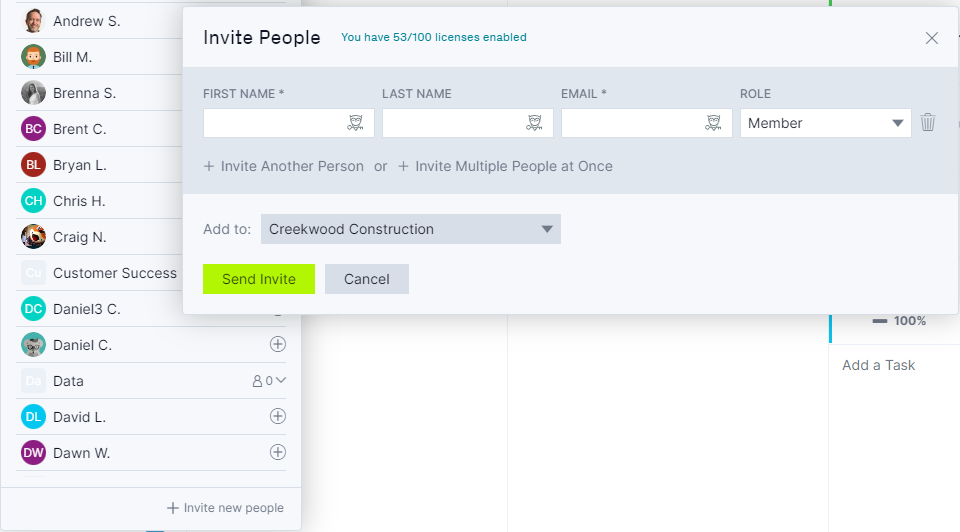
Click +New in the left-hand menu, then click Invite. You can also go to Users & Teams, open the Manage users tab and click invite people. Enter each person’s first name, last name, email and role, choose the projects they’ll work on, and click send invite. Invitations expire after one week.
Resources don’t have to be people. To track a skid steer, a crane or a drywall subcontractor, invite them with the role set to None. A None resource doesn’t need an email address, can’t log in and doesn’t use a license, but you can still assign it to tasks and record its hours. If you use + Invite Multiple People at Once, everyone added defaults to the None role, so invite people who need to log in one at a time.
2. Set hourly rates
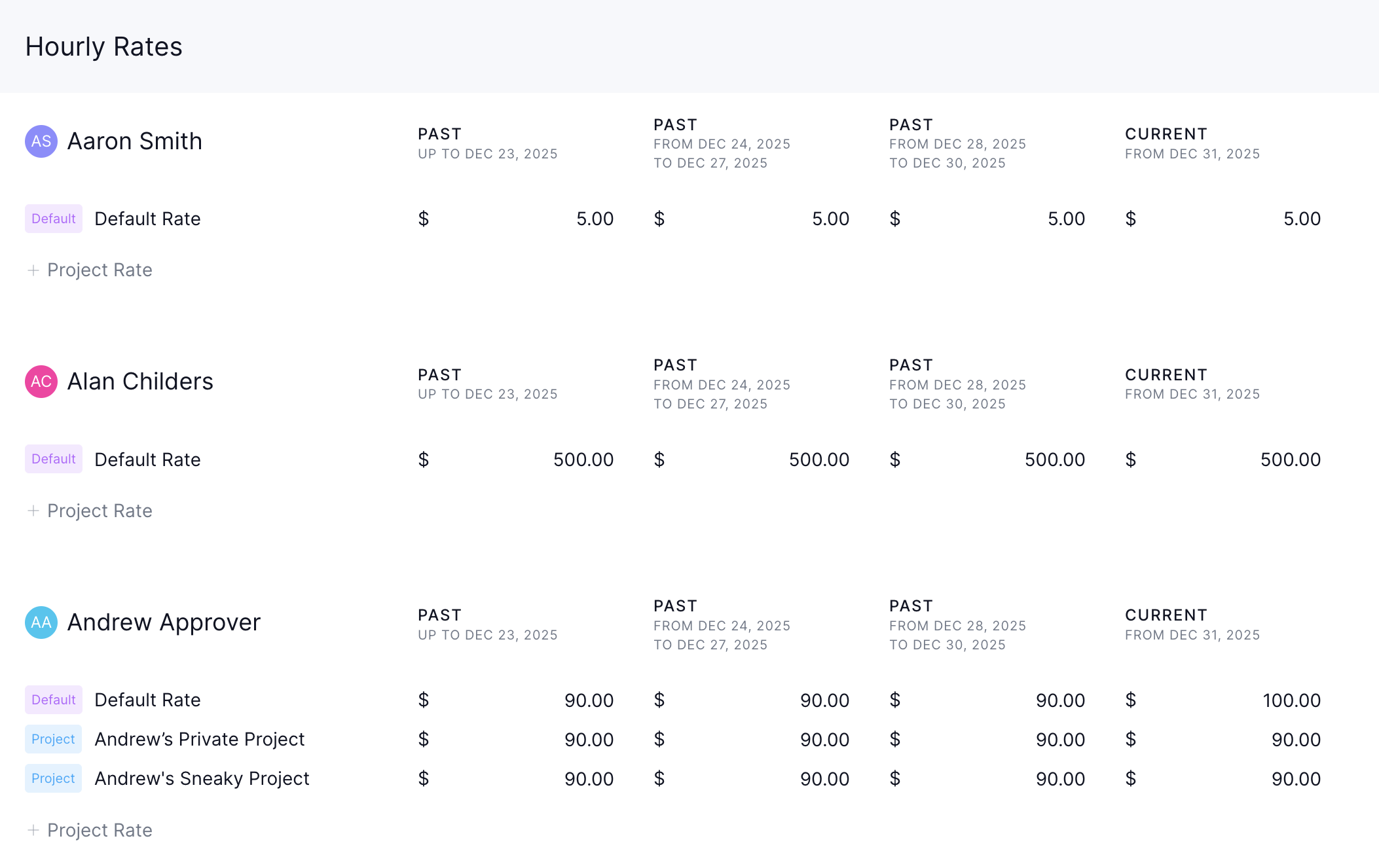
Click your name in the bottom left, then go to Users & Teams > Hourly Rates. Enter a base rate for each resource, such as $65 an hour for a crew lead or a daily equipment rate converted to hourly, so ProjectManager can calculate the cost of each assignment. You can schedule a rate change for a future date, and changing a rate doesn’t affect closed projects. A project rate overrides everyone’s base rate on that project, so give dedicated rates to anyone who needs their own.
3. Set working hours and holidays
Go to Users & Teams and open the Holidays tab. Availability across every project comes from these settings, so set them before you assign work.
- Default planned hours: Set the hours per day for new users. Check apply to all existing users to update everyone already in the account.
- Global holidays: Company-wide days off, such as the week between Christmas and New Year’s. Set these before you create project plans, because they can’t be added to existing projects.
- Country holidays: Filter by country and add public holidays. Each user gets them based on the country on their profile.
- People holidays: Click the People tab, then the + icon, to add PTO or other time off for one person. You’ll need to enter a reason.
4. Assign tasks with planned hours
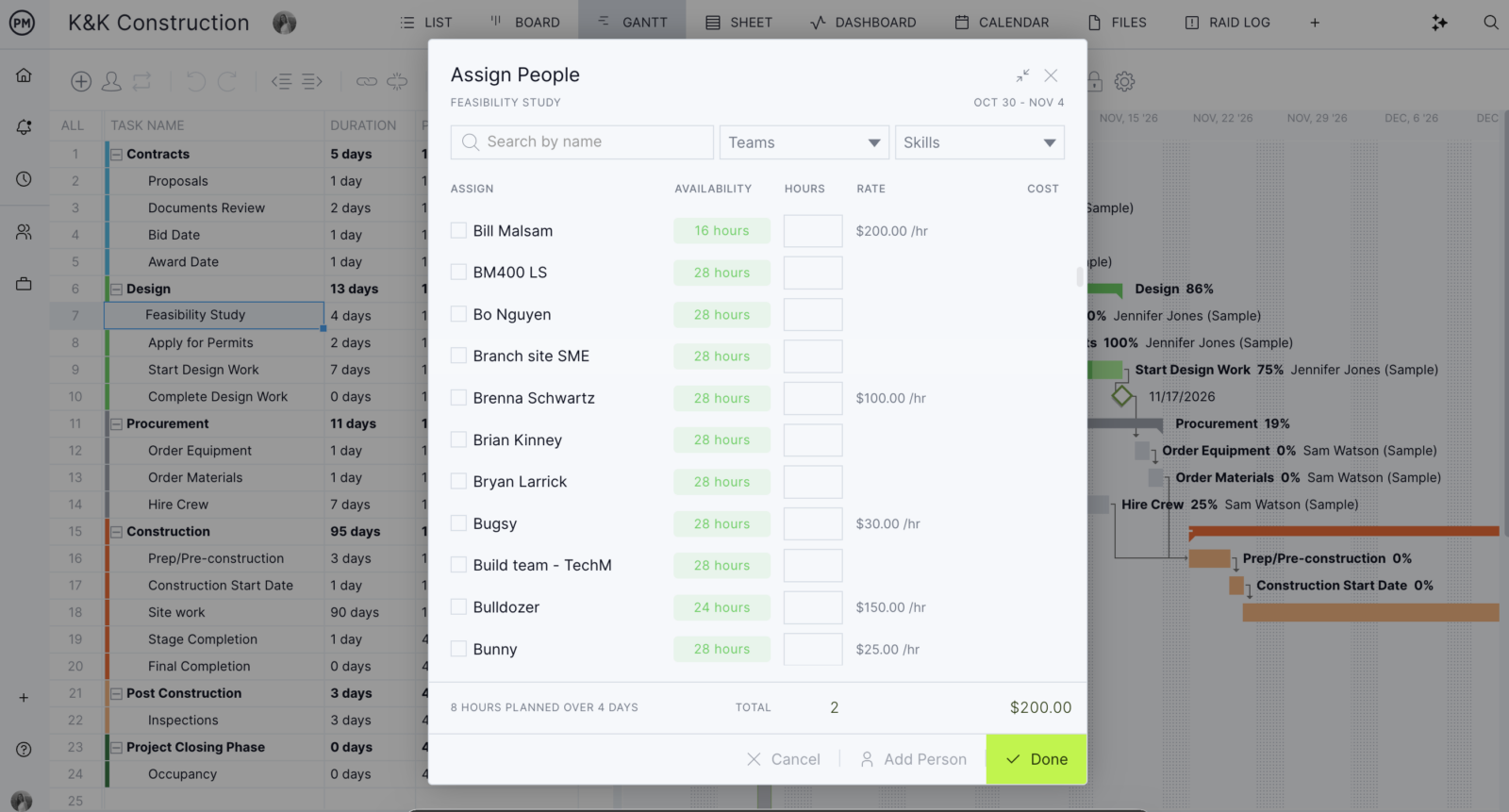
On each project’s Gantt chart, turn on the assigned column with manage columns. Click a task’s assigned cell, check the box next to each person and enter their hours, then click save. If default planned hours are set, they fill in automatically. You can filter the list by team or skill, which helps when you need a licensed electrician rather than a general laborer.
Planned hours are the total effort a task needs, and assigned hours are each person’s share of it. For example, a 40-hour framing task can be split between a lead at 24 hours and an apprentice at 16. The first person you assign gets all the planned hours until you split them. You can also assign hours from the list, board and calendar views.
5. Check availability before you commit
When you assign someone on the Gantt chart, the availability box shows how many hours they have free over the task’s duration. That number already subtracts their time off and the hours they’re assigned on other tasks, on every project. Click it to see what else they’re working on. If Dana only has 2 free hours on Tuesday, give the punch list to someone else before you save.
6. Open the workload page to see every project
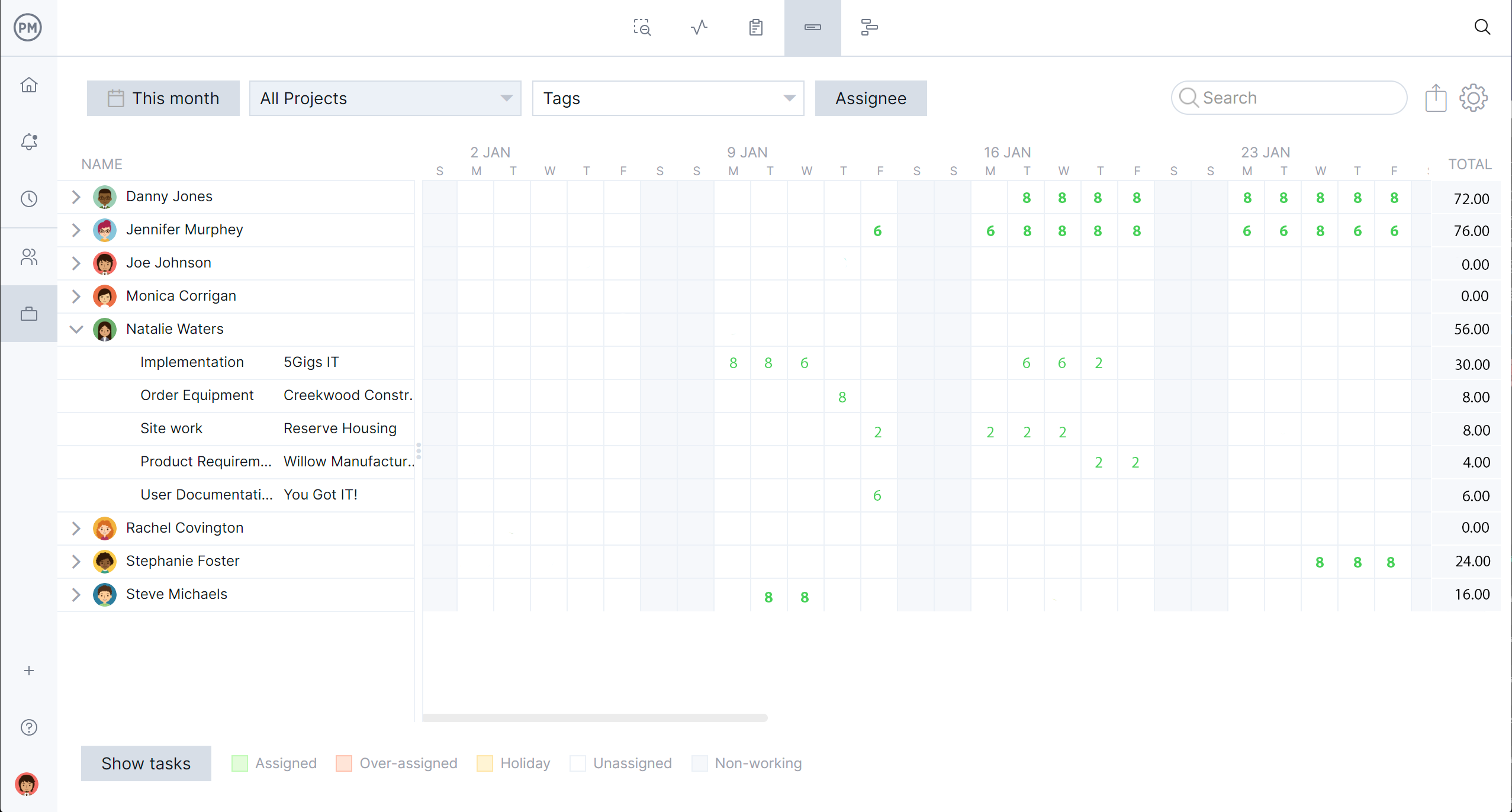
Click portfolio in the left-hand menu, then click the workload icon. The workload page shows each resource’s assigned hours by day across all the projects you have access to, using these colors:
- Green: Assigned
- Red: Over-assigned, based on that person’s working hours
- Yellow: Holiday
- Gray: Unassigned
- White: Non-working day
Use the filters at the top to narrow the view. Month sets the date range (one month minimum), Projects chooses which jobs to include, People searches by person, team or skill, and Tags shows only tasks with certain tags. In workload settings you can show only over-assigned people, which makes a weekly conflict check quick.
7. Rebalance over-assigned resources
When someone shows red, click the arrow next to their name to see their tasks, then click the day you want to change and move those hours to another team member. To edit hours per task, click show tasks. Hours can only be edited when show total hours is checked, and to clear a cell, enter 0.
Check the Unassigned section at the bottom of the list for tasks that still need an owner, and give them to people with green or empty days.
8. Reassign tasks on the team page
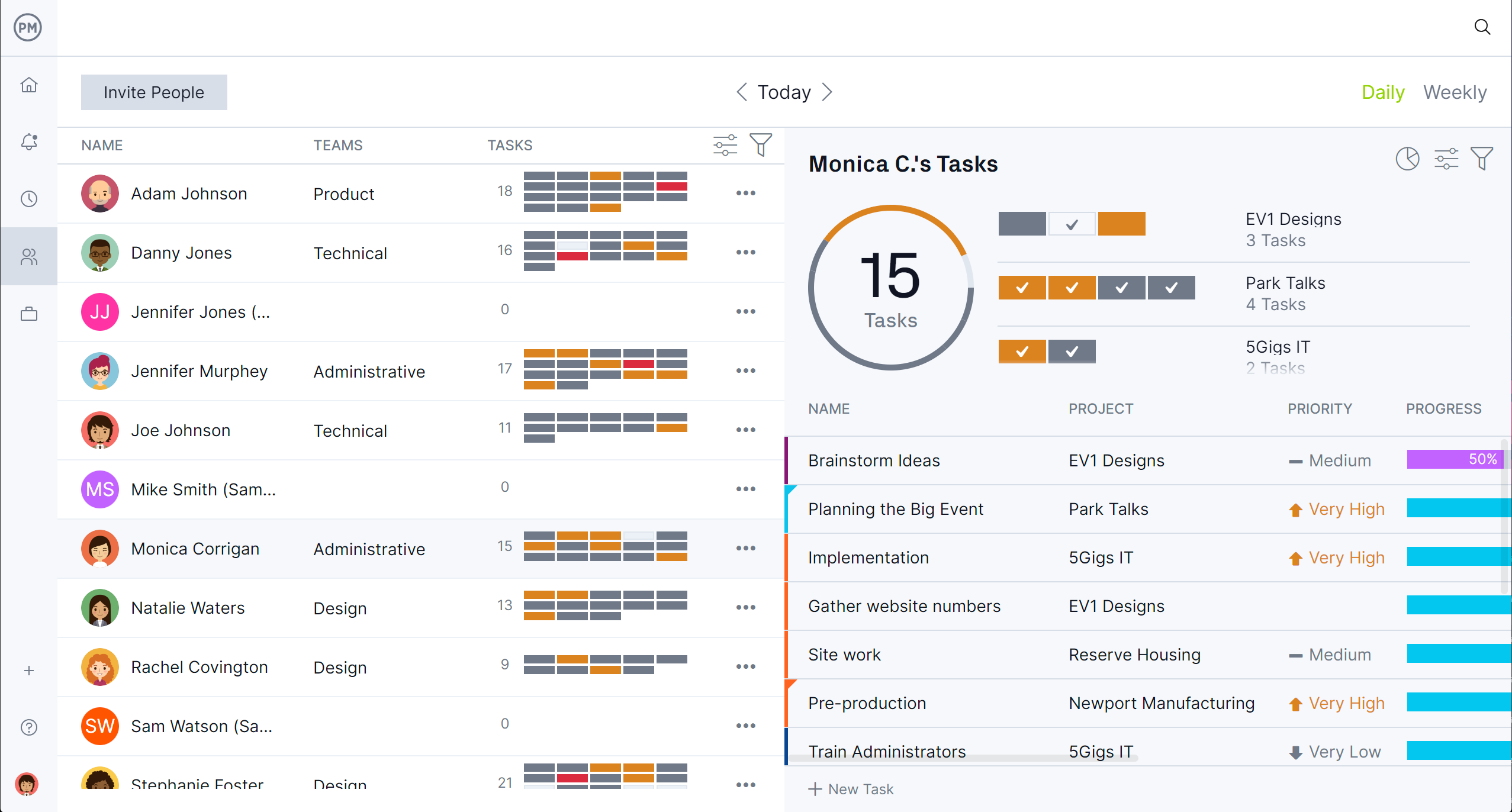
For quick task-level changes, use the team page. It lists tasks by team member with task counts, priority and completed checkmarks, and you can drag and drop a task from one person to another. Turn on the assigned and logged hours columns to see each person’s load. The team page doesn’t need planned hours, so it also works for teams that don’t estimate effort.
9. Track actual hours with timesheets
Team members log hours against their tasks from the Gantt chart, task list, board or mobile app, and those hours go into their timesheet automatically. Field crews can log time from the job site on their phones. To add hours by hand, they click Time in the left-hand menu, and they can copy the previous week for recurring work. Set a timesheet approver so a manager reviews hours before they’re final.
10. Compare planned and actual hours across projects
The portfolio dashboard shows health, tasks, cost, progress, workload and time for all your projects together, so you can see which jobs are using more hours than planned. For detail, run a timesheet report, choose the columns and date range, and group it by date or person. Export it as a PDF, Excel or CSV file. If framing keeps running 20% over its planned hours, raise the estimate on the next job.

Using spreadsheets for now? The manual method above works for a small team on a few projects. Once you’re updating it every time a schedule changes, it’s time to move the resource plan into the schedule itself.
Multi-Project Resource Management FAQ
How do I see if someone is over-allocated across projects?
In ProjectManager, open the workload page from the portfolio menu. Any day where a person’s assigned hours are more than their working hours shows in red, across every project you have access to. In workload settings, you can filter to show only over-assigned people.
How many hours should I plan per person?
A common rule of thumb is about 80% of working hours, or 32 hours of a 40-hour week. Field crews who travel between job sites often need more buffer than people who work from one location.
What’s the difference between planned hours and assigned hours?
Planned hours are the total effort a task needs, and assigned hours are each person’s share of it. In ProjectManager, assigned hours can’t be more than planned hours. If you assign more, the task’s planned hours go up to match.
Can I schedule equipment and subcontractors as resources?
Yes. In ProjectManager, invite the equipment or subcontractor as a user with the role set to None. You can assign it to tasks and record hours against it, and it doesn’t need a login or use a license. A double-booked machine then shows up on the workload page like a double-booked person.
Does ProjectManager account for time off?
Yes. Holidays and personal time off reduce availability on the workload page and in the availability box when you assign tasks. Global holidays block assignments on those days. Personal and country holidays reduce availability but don’t block assignments.
Can I manage resources across projects in Excel?
Yes, for a small team on a few projects. Use one row per resource, one column per day and a formula that totals hours across projects. The spreadsheet has to be updated by hand every time a schedule changes, which is why most teams move to project management software as the number of projects grows.
Learn how to effectively schedule your team members time across multiple projects, as well as how to create effective time estimates, in this PM training video with Jennifer Bridges, PMP.
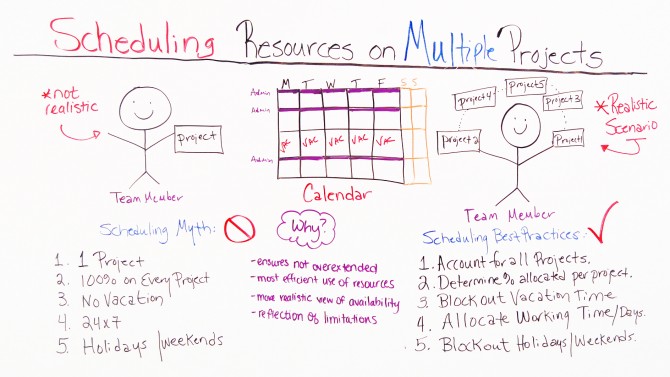
Here’s a shot of the whiteboard for your reference!
In Review: Scheduling Resources on Multiple Projects
Jennifer discussed a challenge most project managers face today: how to plan across projects, when resources are tasked across the organization?
Jennifer outlined several myths project managers have about scheduling that can cause you headaches when setting up a new project or looking to re-baseline a project due to impacts. Some classic scheduling assumptions:
- One project per resource. Your team might have projects in play with other project managers or key leaders in the org that may or may not be reflected in the online scheduling tool. Ask them if and where they are otherwise committed, even long-range projects that might come up to impact yours.
- 100% availability. No one person, even in their 8-hour day, is 100% available for project scheduling. Assume the 80-20 rule, where 20% should remain open to the person for administrative tasks or slack.
- No vacations, ever, period. Communication is key. Make sure you determine whether your resources have actually input their vacations into the online planner or communicated them to you. They may be directly managed by someone else who didn’t communicate that to you.
- 24 x 7. Make sure the dates you’re inputting align with actual calendar dates. Hopefully your online planning tool takes this into account, even for remote or international teams.
- Holiday/Weekends. Over burdening your team will only result in burn-out. If a project is time-sensitive and you don’t have the available resources, find another angle than assigning them work beyond their reasonable limits. Advocate for more funding, more resources or more time, and be an advocate for your team.
Pro Tip: Involve and communicate with your team so they can provide you with realistic estimates for the schedule.
For more scheduling tips, check out Devin Deen’s video on how to get realistic schedules every time.