

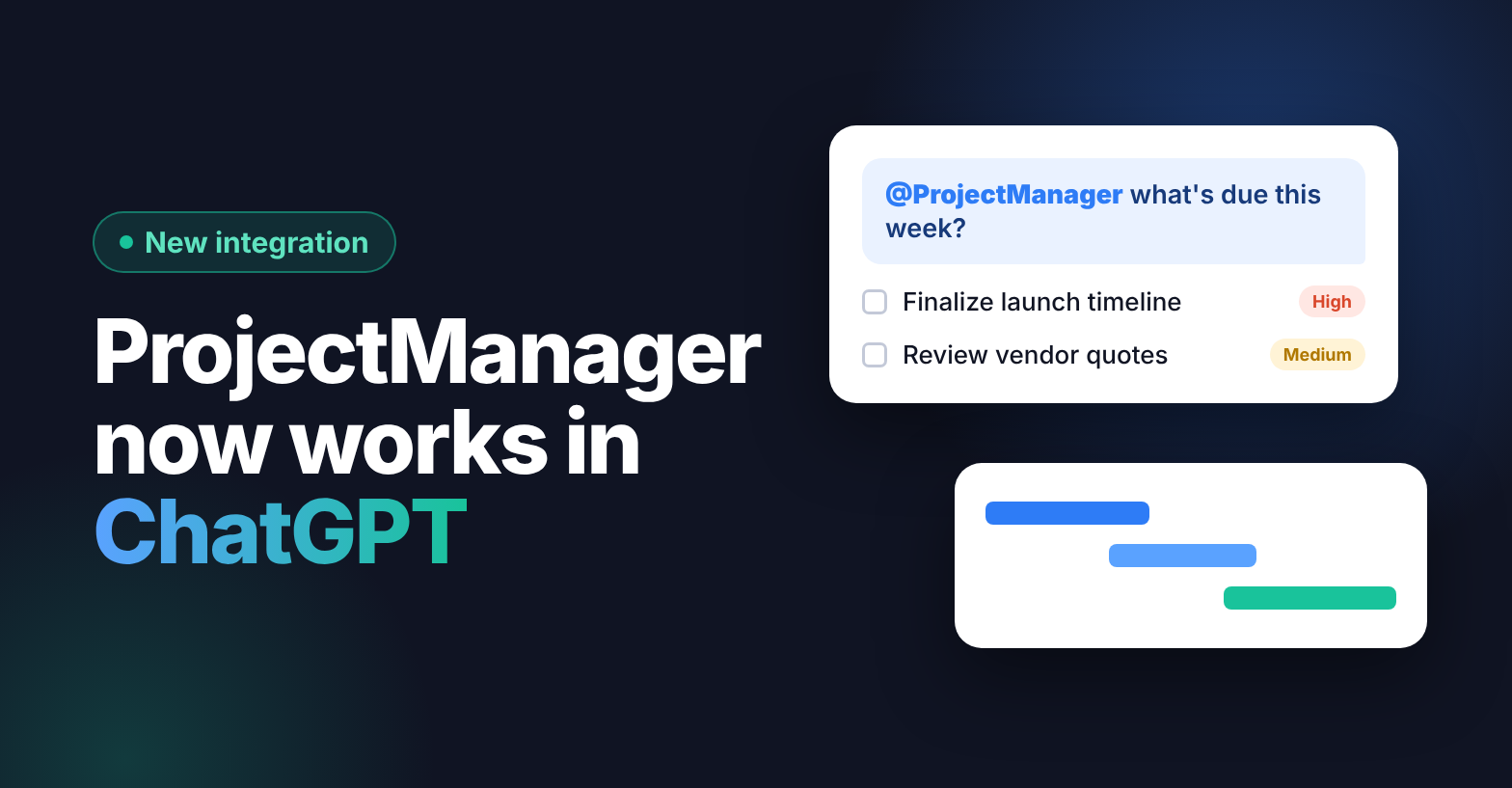
You already think through your work in ChatGPT. You brainstorm launch plans there, draft status updates, and ask it what to tackle first. But your real plan lives somewhere else, so you copy and paste and hope ChatGPT has the latest version.
Not anymore. The ProjectManager ChatGPT integration is live. It connects ChatGPT to your live projects, so you can ask what’s due, see what’s overdue and turn a conversation into a real project plan, with tasks, owners, dates and dependencies, without leaving the chat.
It’s included free on every ProjectManager edition. Here’s what it does, how to set it up in a few clicks and five ways teams are already putting it to work.
Real Project Management, Now in ChatGPT
ChatGPT is where you think through work. ProjectManager is where work gets done, with schedules, dependencies, people and portfolios behind every task. The integration joins the two, and ChatGPT works from your live project data instead of a pasted copy.
Once connected, ChatGPT can:
- Find your work. Search projects you can access, tasks by project or date, tasks assigned to you, project and task details, and the people in your workspace.
- Create plans. Build projects, tasks and subtasks with assignees, planned dates, durations, costs, task links and lag.
- Update progress. Change task status, priority and progress, or reorganize the hierarchy, such as turning a task into a subtask.
- Read your files. Review files attached to projects or tasks and use them as context for answers.
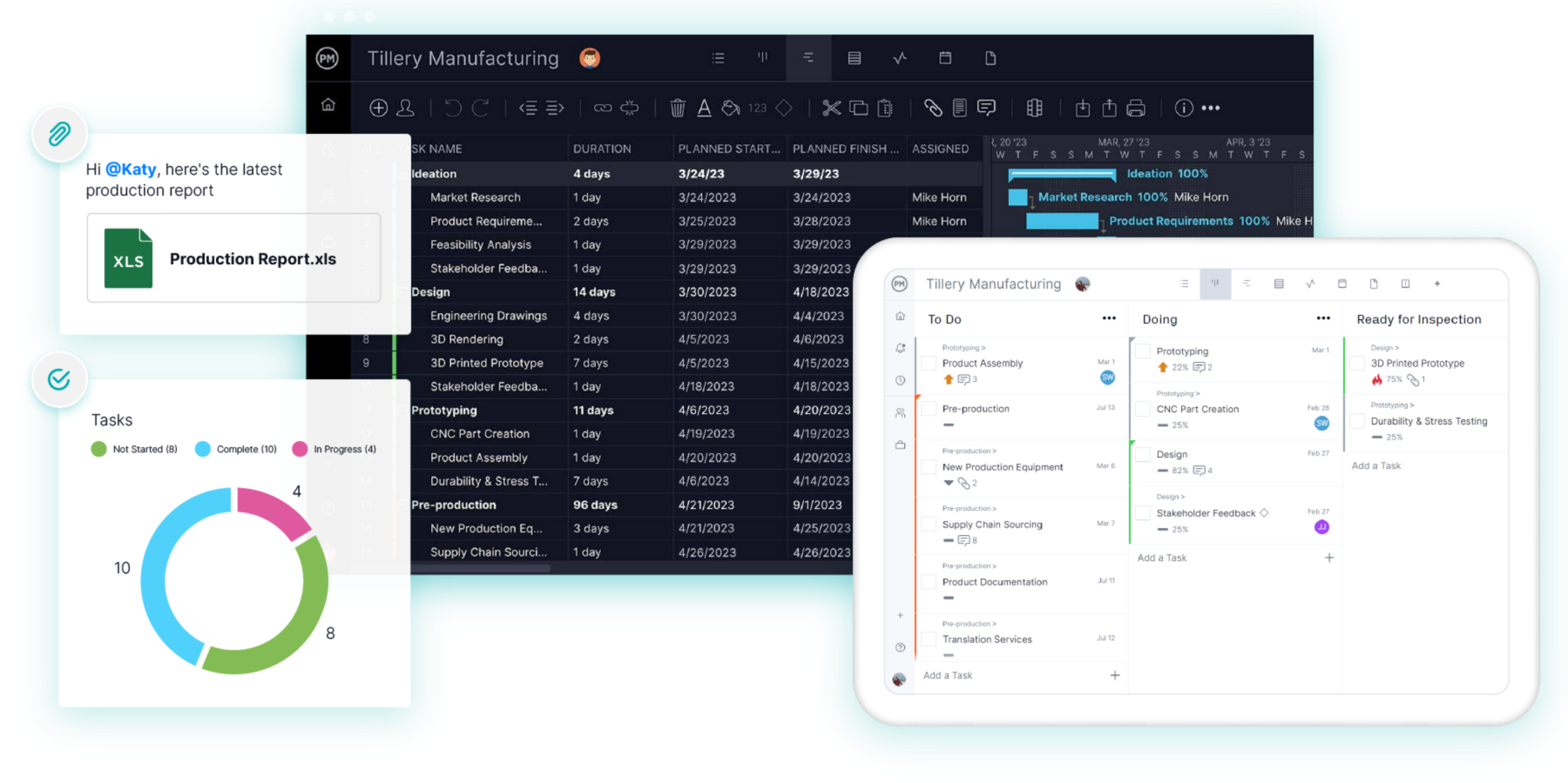
Everything ChatGPT changes shows up in ProjectManager right away, across your Gantt charts, boards, lists and dashboards, so the whole team sees the same plan.
How to Connect ChatGPT to ProjectManager
Setup takes about a minute:
- In ChatGPT (web or desktop), open Plugins from the sidebar or go to Settings > Plugins, then search for ProjectManager. You can also go straight to the ProjectManager listing.
- Click Install Plugin or Connect.
- Sign in with your usual ProjectManager login and authorize the connection.
- You’re returned to ChatGPT with ProjectManager connected.
- Start your first prompt with @ProjectManager. After that, ChatGPT can usually tell when you want it, so “What do I have on today?” just works.
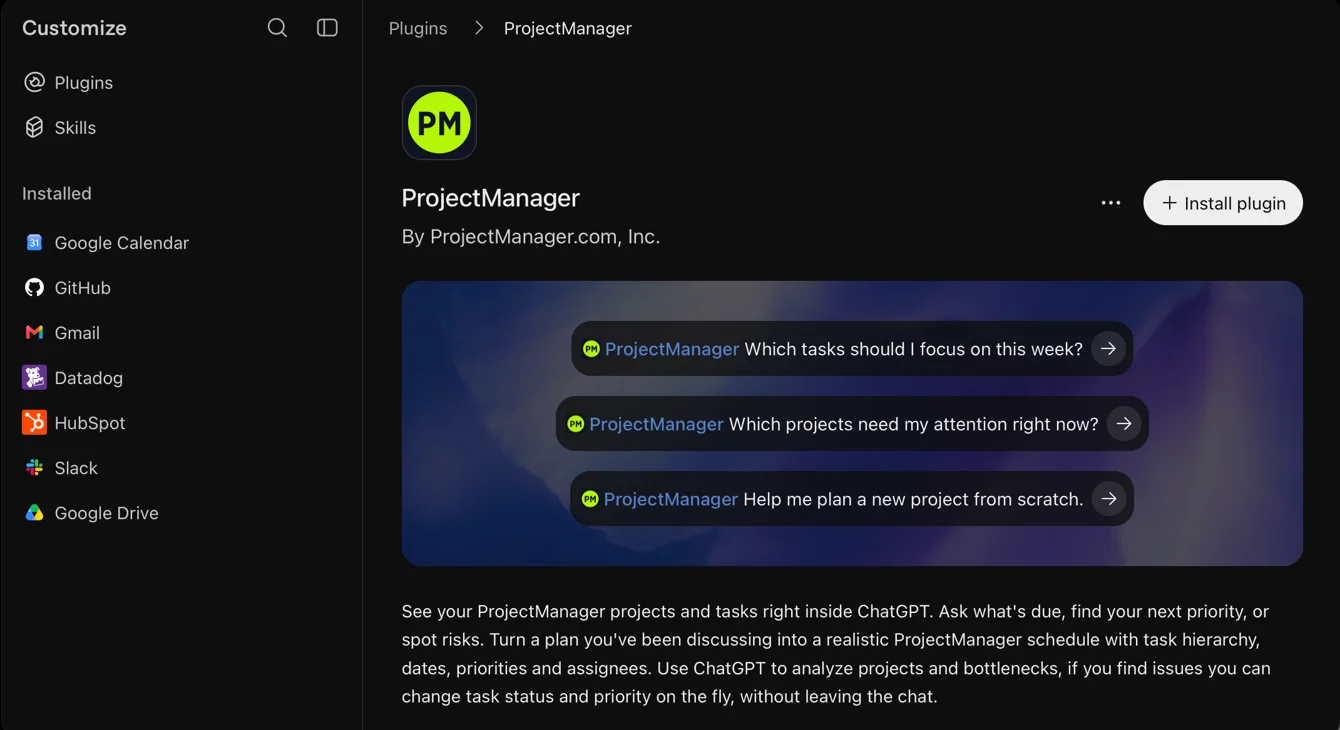
If ProjectManager doesn’t appear, check that your ChatGPT plan and workspace support apps. On ChatGPT Business, Enterprise or Edu, your ChatGPT admin may control which apps you can use. Full steps are in the help center guide.
5 Ways to Use ChatGPT with ProjectManager
These are real workflows the integration supports today. Each starts with a plain-language prompt and ends with live data or a real change in ProjectManager.
1. Plan your week in one question
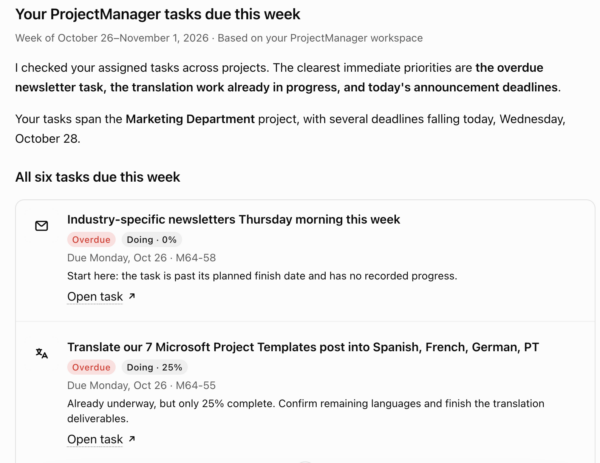
Monday morning, you open ChatGPT before you open anything else. Instead of clicking through five projects to see what’s due, just ask.
@ProjectManager Show me all the tasks assigned to me across my client projects that are due this week. Which three should I focus on first?
ChatGPT pulls your assigned tasks from every project you can access, sorts them by due date and priority and suggests where to start. Because it’s reading live data, a task a teammate moved on Friday shows up with its new date.
2. Turn a brainstorm into a real project plan
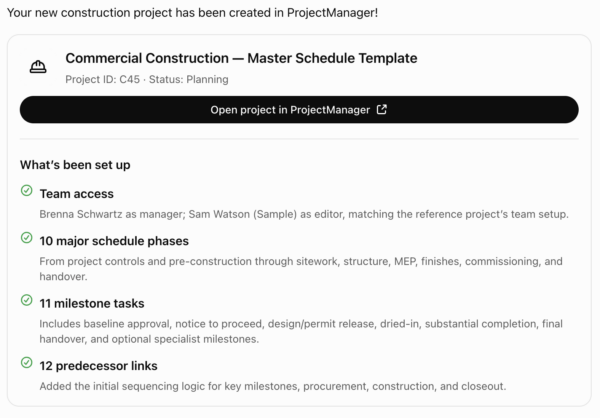
You’ve spent 20 minutes in ChatGPT working out a product launch: phases, deliverables, who owns what. Normally you’d now rebuild it by hand. Instead:
@ProjectManager Create the project we just planned. Organize the work into tasks and subtasks, assign owners, add planned dates and link the dependencies.
ChatGPT builds the project in ProjectManager with tasks, subtasks, assignees, durations, costs and task links. Open it and you have a working Gantt chart with dependencies already in place, ready to baseline and share.
3. Catch overdue work before it snowballs
A quick daily check keeps small slips from turning into missed milestones.
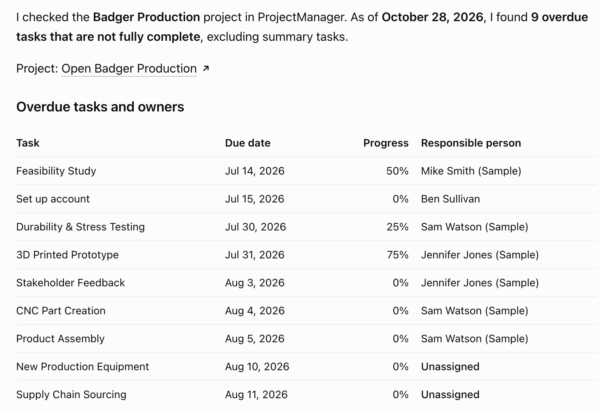
@ProjectManager Which tasks on the Line 3 Upgrade project are overdue, and who owns them?
ChatGPT lists the late tasks with owners and due dates. Follow up in the same chat to fix them, for example “Raise the priority on the inspection task to high,” and the change lands in ProjectManager.
4. Turn a status report or meeting notes into follow-up tasks
After a site walk or client call, you’ve got notes full of action items. Paste them in, or point ChatGPT at a file already attached in ProjectManager.
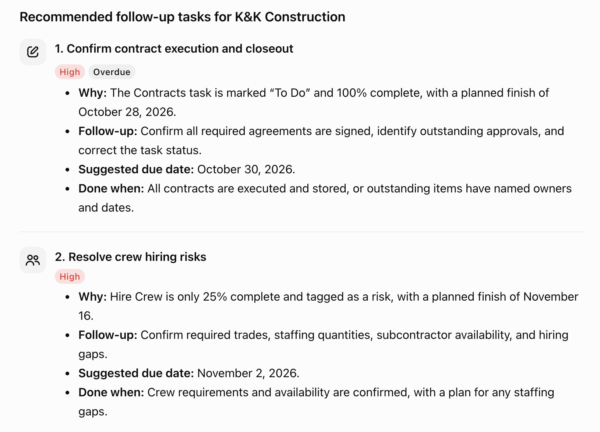
@ProjectManager Based on this progress report, create follow-up tasks on the Riverside Construction project and update the progress on anything that’s finished.
ChatGPT reads the report, creates each follow-up as a task on the right project and updates progress on completed work. Nothing falls through the cracks between the meeting and the plan.
5. Review project files and check team workload
Project files and people are part of the context too. Ask ChatGPT to read attachments and look across your team.
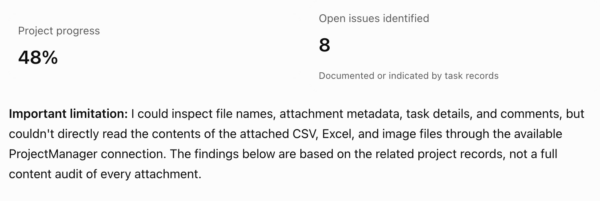
@ProjectManager Review the files attached to the Site Inspection task and list any open issues. Then tell me who’s assigned to the project and what each person is working on.
ChatGPT reviews the attached files, pulls out open issues, then summarizes each assignee’s current tasks. It’s a fast way to prep for a status meeting or decide who has room for new work.
ProjectManager ChatGPT Integration Prompt Cheat Sheet
Copy these into ChatGPT to get started. Start the first one with @ProjectManager.
| What you want | Try asking |
| Today’s priorities | What’s on my plate today? |
| Late work | Which tasks are overdue? |
| Project status | Give me a status summary of the Website Redesign project. |
| Team view | Who is assigned to the Line 3 Upgrade project, and what is each person working on? |
| Build a plan | Create the project we just planned. Organize the work into tasks and subtasks. |
| Update progress | Mark the permit review task 100% complete and set the next task to In Progress. |
| Restructure | Make the vendor quotes task a subtask of Procurement. |
| Read files | Review the files attached to the Site Inspection task and list any open issues. |
Built-in Security and Control
The integration signs in as you, so ChatGPT only sees the projects and tasks you already have permission to see. Nothing more.
- Your permissions carry over. Each person connects their own ProjectManager account, and access follows their existing role.
- Managers stay in control. Admins can turn access on or off by role with the “Access work from ChatGPT and Claude” security setting. It’s on by default for every role except guests.
- You approve changes. By default, ChatGPT asks before it creates, updates or deletes anything. We recommend “Always Allow” for read-only actions and “Require Approval” for writes and deletes.
- Available everywhere. The integration is free on every ProjectManager edition. Guests can’t use it.
Using Claude instead? ProjectManager connects to Claude too. See the AI integrations overview.
FAQ
Does the ChatGPT integration cost extra? No. It’s included free on every ProjectManager edition.
Which ChatGPT plans support it? You need a ChatGPT plan and workspace that support apps. On Business, Enterprise or Edu workspaces, your ChatGPT admin controls which apps are available.
Can ChatGPT see all of my company’s projects? No. It only accesses the projects and tasks your ProjectManager account can already see.
Can ChatGPT change my project without asking? By default, ChatGPT asks for approval before creating, updating or deleting anything. You can adjust this in ChatGPT’s app permissions.
What can ChatGPT do in ProjectManager? Find projects, tasks, people and files; create projects, tasks and subtasks with owners, dates, costs and dependencies; and update status, priority, progress and task hierarchy.
Do I have to type @ProjectManager every time? Only at first. After you’ve used it, ChatGPT can usually tell when your question is about your projects.
Can guests use it? No. Guests can’t use the integration. All other roles have access by default.
Get started with ProjectManager and ChatGPT
Stop copying and pasting your plan into ChatGPT. Add the ChatGPT integration in a few clicks and ask your first question today.
New to ProjectManager? It’s award-winning project management software with Gantt charts, kanban boards, real-time dashboards, resource management and portfolio tools, and now it works right inside ChatGPT.