


Last updated: November 6, 2026
TeamGantt is the better choice for teams that want a simple, easy-to-learn Gantt chart tool with flat account pricing, especially larger teams running a handful of projects, and for construction teams that want lookaheads and subcontractor confirmations in its Builder Edition. ProjectManager is the better choice for teams running many projects, because it’s priced per user rather than per project, and for teams that need resources to carry over from Microsoft Project files or want timesheets, dashboards and a sheet view alongside the Gantt chart.
The two tools share a lot. Both build schedules on Gantt charts with all four dependency types, the critical path and baselines, and both show workload across projects on their Business plans. TeamGantt keeps the focus on an easy Gantt chart and charges a flat monthly fee per account, with a cap on projects. ProjectManager charges per user and adds more around the schedule, including timesheets, workflows with approvals, dashboards and portfolio views.
This comparison covers scheduling, resource management, time tracking and reporting, Microsoft Project compatibility, collaboration and pricing, with an honest look at when each tool is the right fit.
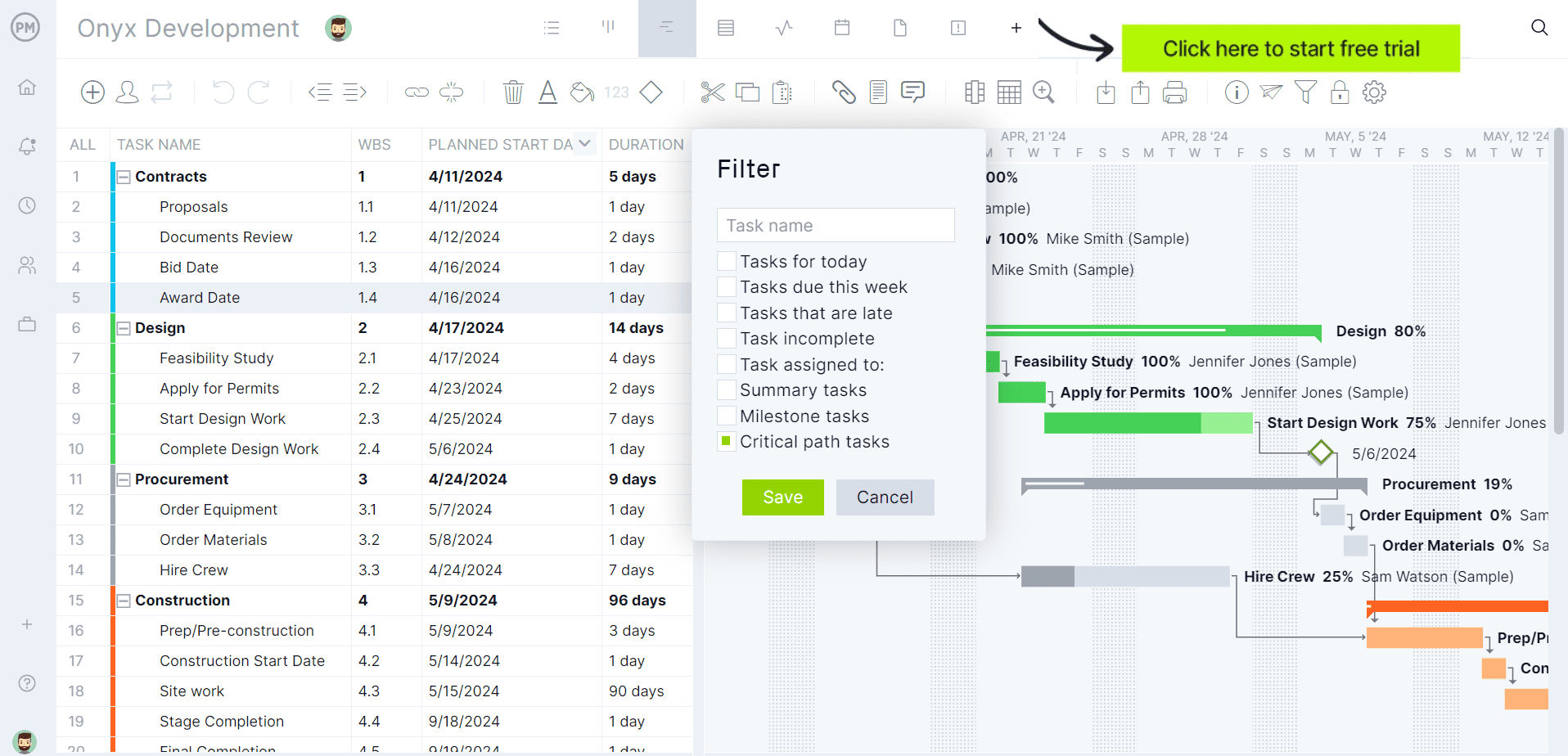
Try ProjectManager on your own schedule: import an MPP or CSV file and turn on the critical path filter. Get started with ProjectManager today for free.
ProjectManager vs. TeamGantt at a Glance
| ProjectManager | TeamGantt | |
|---|---|---|
| Best for | Teams running many projects that want timesheets, dashboards and MPP round-tripping with the schedule | Teams that want a simple Gantt chart tool at a flat price, and construction teams on Builder Edition |
| Price and pricing model | Per user: $15/user/month (Team, up to 10 users and 20 projects), $28/user/month (Business, up to 100 projects), billed annually | Flat per account, capped by projects: Base $59/month (5 projects), Business from $120/month (5 projects, up to 20 at $24 each), Builder Edition from $199/month (10 projects); 20% off yearly |
| Platforms | Any modern browser on macOS, Windows and Linux; iOS and Android apps | Browser on Mac or PC; iOS and Android apps |
| Gantt features | All four dependency types with lag, automatic rescheduling | Drag-and-drop Gantt with dependencies; advanced dependencies on Business and above; AI project creation |
| Critical path | Yes, critical path filter on the Gantt chart | Yes, all paid plans |
| Baselines | Yes, with variance reports | Yes, Business and Builder Edition |
| Resource workload | Workload page with hours across all projects (Business and above) | Workload management (Business and above) |
| Time tracking | Timesheets | Time tracking and hourly estimating (Business and above) |
| MPP import | Yes, including assignees; plus Microsoft Project XML, Excel and CSV | Yes: task names, dependencies, dates and percent complete, but not resources or assignments; plus CSV and Primavera P6 |
| MPP export | Yes, plus Microsoft Project XML, Excel and CSV | Yes, Microsoft Project format, plus CSV and PDF |
| Views | Sheet, Gantt, board, list, calendar, dashboards and portfolio views | Gantt, calendar and list on all plans; kanban and portfolio on Business and above |
| Free trial | 30 days | 14 days, credit card required; free Personal plan (1 user, 1 project) |
Prices are list prices as of November 2026 and change often.
What Is ProjectManager?
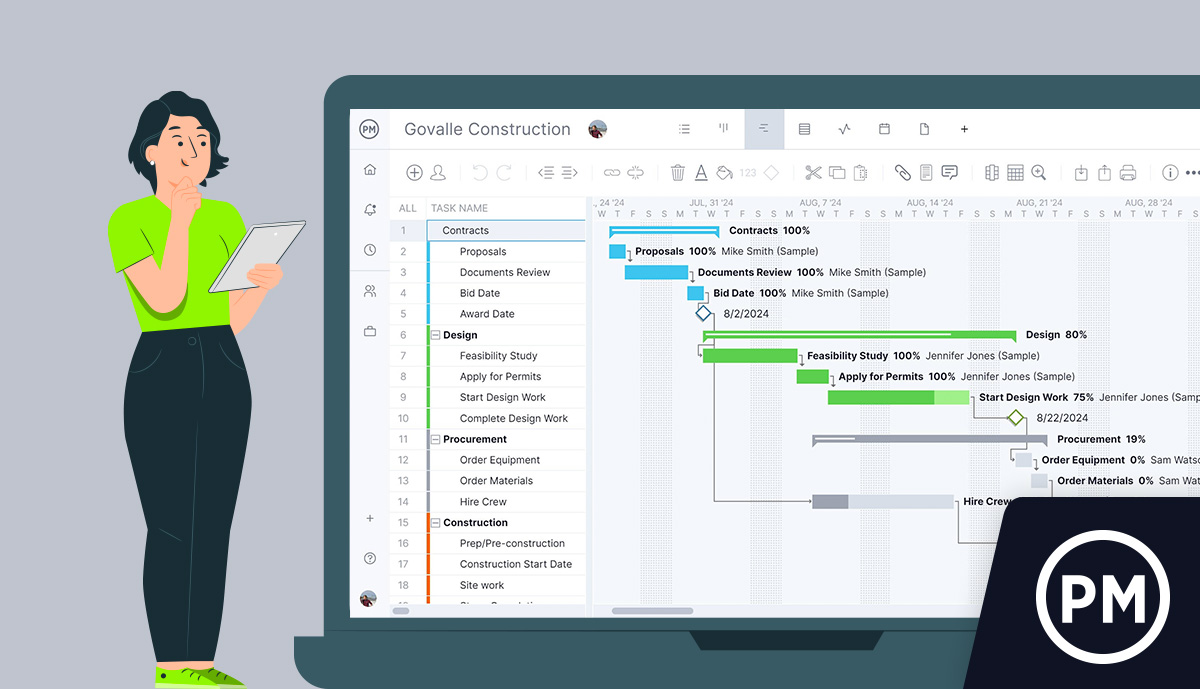
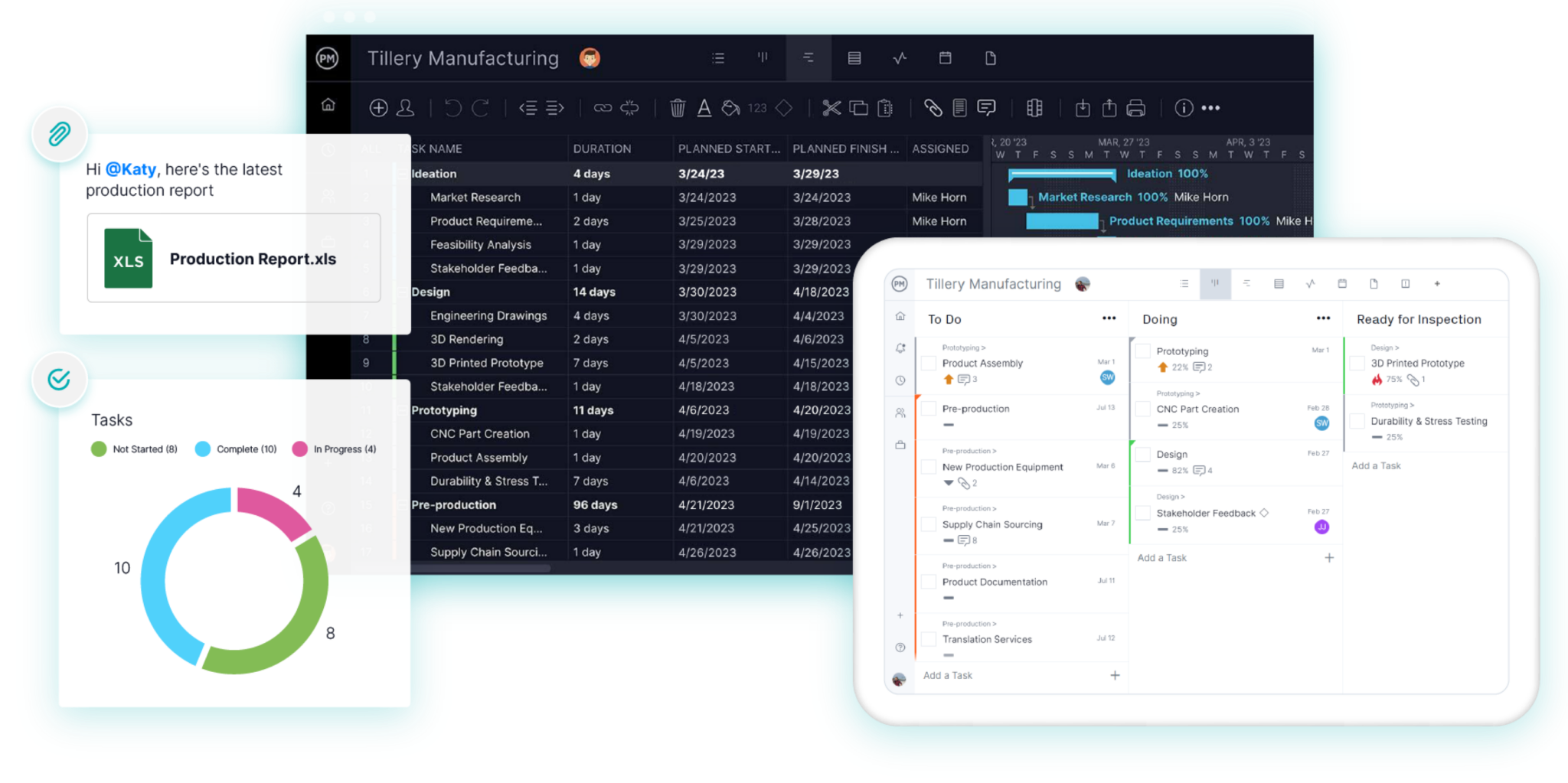
ProjectManager is online project management software for planning, scheduling and tracking projects as a team. Schedules are built on Gantt charts with all four dependency types, lag, a critical path filter and baselines, and the same tasks can be viewed as a sheet, board, list or calendar. The workload page shows each person’s assigned hours across all projects, timesheets record actual hours, and dashboards and portfolio views roll up progress across projects. Integrations include Microsoft Teams, Power BI, QuickBooks Online, Acumatica and ChatGPT.
What Is TeamGantt?
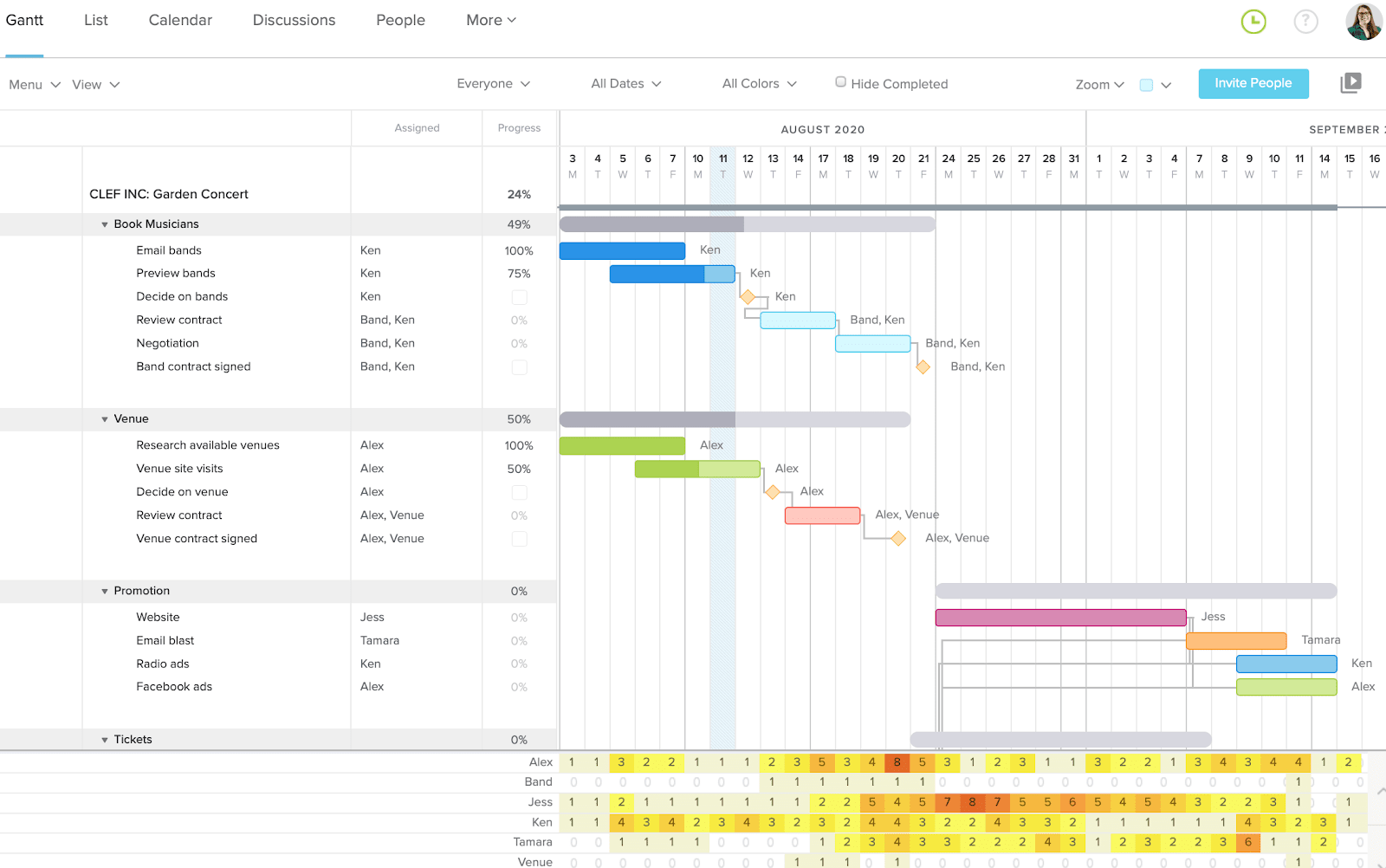
TeamGantt is online Gantt chart software built around a visual, easy-to-use schedule. Every paid plan includes the critical path, calendar and list views, public share links, file management, unlimited exports and AI project creation. The Business plan adds workload management, advanced dependencies, portfolio management, kanban, time tracking and hourly estimating, and Builder Edition adds construction tools such as lookahead schedules, material lead times, subcontractor schedule confirmation, a client portal and Procore sync. TeamGantt runs in the browser and has iOS and Android apps.
ProjectManager vs. TeamGantt: Feature Comparison
Scheduling and Gantt Charts
Both tools handle Gantt scheduling well. TeamGantt’s drag-and-drop Gantt chart is quick to learn, every paid plan includes the critical path, and the Business plan adds advanced dependencies, baselines for planned versus actual timelines and lockable milestones. Builder Edition goes further for construction, with lookahead schedules and subcontractor confirmation of schedule changes.
ProjectManager links tasks with all four dependency types and lag, reschedules linked tasks automatically, filters for the critical path and sets baselines with variance reports. The same tasks can be edited in a sheet view for bulk changes, or worked on in a board, list or calendar view, and workflows with automation and task approvals keep tasks moving. Read more about critical path software.
Verdict: A tie for core scheduling. TeamGantt for the simplest learning curve, and Builder Edition for construction lookaheads; ProjectManager for more ways to work with the same schedule.
Resource and Workload Management
Both tools show workload on their Business plans. TeamGantt’s Business plan includes workload management, team resourcing and hourly estimating, so you can see who’s assigned to what across projects.
ProjectManager’s workload page shows each person’s assigned hours by day across all projects, with over-assigned days in red, and you can reassign work from the same page. Equipment and subcontractors can be added as resources with no license cost.
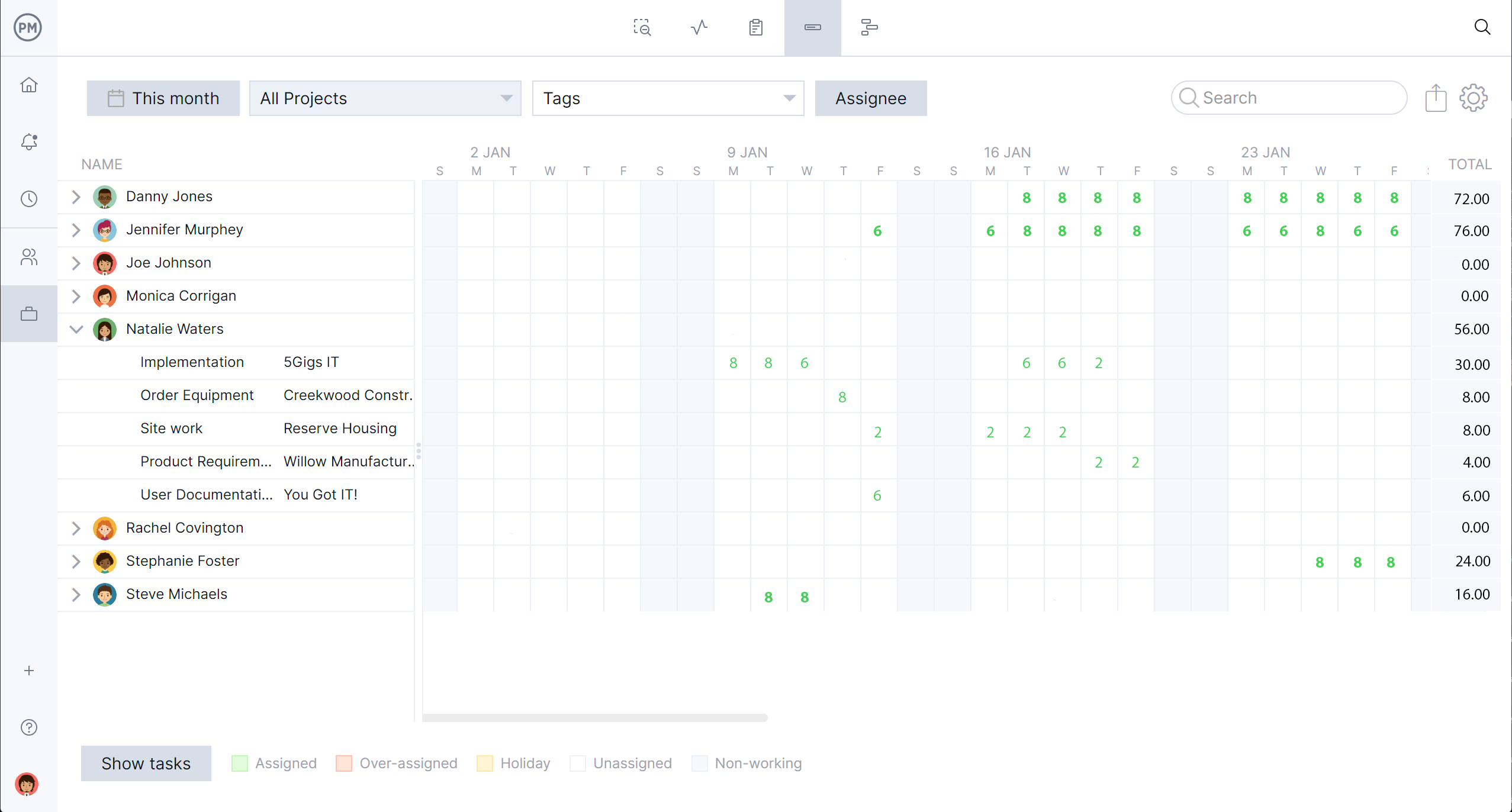
Verdict: Close. Both need their Business plan. ProjectManager if you want to rebalance hours across many projects from one page.
Time Tracking and Reporting
Both track time. TeamGantt’s time tracking and hourly estimating are on the Business plan and above, collaborators can log time on their tasks, and Builder Edition adds a project health report and financial forecasting.
ProjectManager includes timesheets for recording actual hours, along with dashboards and portfolio views that show health, progress, cost and time across projects.
Verdict: ProjectManager for timesheets, dashboards and portfolio reporting together. TeamGantt if time logs on tasks are enough.
Microsoft Project Compatibility
Both import and export Microsoft Project files, but they bring over different data. TeamGantt imports MPP files with task names, dependencies, start and end dates and percent complete, but not resources or task resource assignments. It exports projects to Microsoft Project format, CSV and PDF, and it can also import CSV files and Primavera P6 schedules.
ProjectManager imports MPP, Microsoft Project XML, Excel and CSV files, and exports to MPP, Microsoft Project XML, Excel and CSV. Imports with “all data” bring in assignees and the most recent baseline as well as tasks and dependencies, and MPP import and export are lossless for schedule data: tasks, durations, dates, dependencies and WBS structure stay intact on a round trip. For more, see Microsoft Project vs. ProjectManager.
Verdict: ProjectManager when assignees and baselines need to come over from Microsoft Project. TeamGantt if you also need to import Primavera P6 schedules.
Collaboration
Both are built for teams working online. TeamGantt shares live schedules through public share links on every plan, and invited collaborators can update progress, comment, share files and track time, but they can’t change dates or edit tasks. Business and Builder Edition include unlimited managers and collaborators, so adding people doesn’t change the price.
ProjectManager supports real-time collaboration with comments, file attachments and notifications, and integrates with Microsoft Teams, Power BI, QuickBooks Online, Acumatica and ChatGPT.
Verdict: TeamGantt for sharing with many people at no extra cost. ProjectManager for integrations with the tools your team already uses.
Pricing
TeamGantt charges a flat monthly fee per account, capped by the number of projects. Base costs $59 a month for 1 manager, 10 collaborators and 5 projects. Business starts at $120 a month with unlimited users and 5 projects, plus $24 a month for each additional project, up to 20. Builder Edition starts at $199 a month with 10 projects. Paying yearly saves 20%, and the free Personal plan covers 1 user, 1 project and 40 tasks. Every paid plan has a 14-day free trial that requires a credit card.
ProjectManager costs $15 per user per month on the Team plan and $28 per user per month on the Business plan, billed annually, with Enterprise by quote and a 30-day free trial. The Team plan allows up to 10 users and 20 projects, and the Business plan up to 100 projects. Because ProjectManager charges per user and TeamGantt per project, the cheaper choice depends on your team. Ten people running five projects pay $1,140 a year on TeamGantt Business and $3,360 a year on ProjectManager Business. Three people running 20 projects pay $4,560 a year on TeamGantt Business ($1,140 plus 15 extra projects at $228 each) and $1,008 a year on ProjectManager Business.
Verdict: TeamGantt for larger teams running a few projects. ProjectManager for smaller teams running many projects.
Pros and Cons
ProjectManager
Pros
- Per-user pricing with up to 100 projects on the Business plan, so adding projects doesn’t change the price
- MPP import brings in assignees and the most recent baseline, and MPP import and export are lossless for schedule data
- Timesheets, dashboards, portfolio views and a workload page with hours across all projects
- Sheet, Gantt, board, list and calendar views of the same tasks
Cons
- Costs more than TeamGantt for large teams running only a few projects
- The workload page needs the Business plan or above, and the Team plan is limited to 10 users and 20 projects
- No desktop app, no offline mode and no Primavera P6 import
TeamGantt
Pros
- Simple, easy-to-learn Gantt chart with the critical path on every paid plan
- Flat account pricing with unlimited users on Business and Builder Edition
- Builder Edition adds lookaheads, subcontractor confirmations, a client portal and Procore sync
- Free Personal plan, and imports from Microsoft Project, CSV and Primavera P6
Cons
- Every plan caps projects, and Business adds $24 a month per project above 5, up to 20
- Baselines, workload, advanced dependencies, kanban and time tracking need the Business plan
- MPP imports don’t bring in resources or assignments, and the free trial requires a credit card
Which One Should You Choose?
Choose TeamGantt if your team wants a simple Gantt chart at a flat price and runs a limited number of projects, and choose ProjectManager if you run many projects or need more around the schedule.
- Larger teams running a few projects: TeamGantt, since adding users doesn’t change the price on Business.
- Construction teams that want lookaheads and sub confirmations: TeamGantt Builder Edition.
- Small teams running many projects: ProjectManager, since per-user pricing doesn’t grow with each project.
- Teams that exchange schedules with Microsoft Project users: ProjectManager, because assignees and baselines come over on import and MPP files go back out.
- Teams that track hours and report across projects: ProjectManager, with timesheets, dashboards and portfolio views.
For a wider comparison, see the best Gantt chart software, the best Microsoft Project alternatives and the best Buildertrend alternatives for scheduling.
How to Move a TeamGantt Project Into ProjectManager
To move a TeamGantt project into ProjectManager, export the project from TeamGantt, set up a project in ProjectManager with matching working days, then import the file and check the logic. TeamGantt exports projects to Microsoft Project format, CSV and PDF.
- Export from TeamGantt. Export the project to Microsoft Project format. If that file doesn’t import cleanly, export to CSV instead. A PDF export gives you a picture of the original Gantt chart to check against.
- Set working days first. In ProjectManager, click the + button, choose Project and set working days to match your TeamGantt project. Working days are hard to change after the project is created, and global holidays can’t be added to existing projects.
- Import the file. Choose Import File when creating the project, or click the import icon on the Gantt ribbon of an existing project. Click select file and upload the file. For an existing project, choose Keep and append with the imported data or Replace with the imported data. Replace removes everything already in the project.
- Choose the data or map the columns. For a Microsoft Project file, choose All data. For a CSV file, map each column, such as task name, assignee, start, finish and duration, to the matching Gantt column, then click import.
- Check the logic. Compare durations and dependencies with your TeamGantt project, re-link anything that didn’t come through and add lag where needed.
- Filter for the critical path and set a baseline. Turn on the critical path filter to check the tasks that drive the finish date, then set a baseline in Gantt settings.
Attachments and comments don’t come over in an import, so download any files you need from TeamGantt separately.
Want to see your schedule in ProjectManager? Start a free 30-day trial and import your exported TeamGantt project. Get started with ProjectManager today for free.
ProjectManager vs. TeamGantt FAQ
Is TeamGantt good for resource management?
Yes, on the Business plan and above, which include workload management, team resourcing and hourly estimating. The Base plan doesn’t include workload management. ProjectManager’s workload page, on its Business plan, shows each person’s hours across all projects and lets you reassign work from the same page.
Can TeamGantt import Microsoft Project files?
Yes. TeamGantt imports MPP files with task names, dependencies, start and end dates and percent complete, but not resources or task resource assignments. ProjectManager’s MPP import also brings in assignees and the most recent baseline.
Which is cheaper, TeamGantt or ProjectManager?
It depends on team size and project count. TeamGantt charges a flat fee per account, from $59 a month, capped by projects, so it’s usually cheaper for larger teams running a few projects. ProjectManager charges per user, from $15 per user per month billed annually, so it’s usually cheaper for small teams running many projects.
Does TeamGantt have baselines?
Yes, on the Business and Builder Edition plans, where baselines compare planned and actual timelines. The Base plan doesn’t include them. ProjectManager includes baselines with variance reports.
Does TeamGantt have critical path?
Yes. TeamGantt includes the critical path on every paid plan, including Base. ProjectManager also has a critical path filter on the Gantt chart.
Does TeamGantt have a project limit?
Yes. Base allows 5 projects, Business includes 5 and allows up to 20 at $24 a month for each extra project, and Builder Edition starts with 10 projects. Enterprise offers unlimited projects. ProjectManager prices per user rather than per project; its Team plan allows up to 20 projects and 10 users, and its Business plan up to 100 projects.