


Every project lives two lives: one in your project management software, where the team plans tasks and logs hours, and one in your accounting software, where those hours and costs turn into invoices, payroll and profit reports. When those two systems don’t talk, someone ends up retyping timesheets and receipts into QuickBooks at the end of the month. That’s slow, it’s easy to get wrong and it means you only see a project’s real profitability after the fact.
ProjectManager’s QuickBooks Online integration closes that gap. Approved timesheets and actual task costs flow from ProjectManager into QuickBooks Online automatically, tied to the right customer or project. Below, we’ll cover what the integration does and then walk through seven practical ways teams in different industries can put it to work.
Track Time and Costs and Send Them to QuickBooks With ProjectManager
ProjectManager is award-winning project and portfolio management software that connects the work your team does to the numbers your finance team needs. Plan projects on Gantt charts, kanban boards or task lists, then track hours with built-in timesheets and record actual costs right on each task. Real-time dashboards and reports show progress, workload and budget at a glance, so you can catch overruns before they hurt your margins.
With the QuickBooks Online integration, approved hours and task costs sync to QuickBooks automatically, with no double entry and no month-end scramble. Get started with ProjectManager for free and connect your projects to your books today.

What ProjectManager’s QuickBooks Integration Does
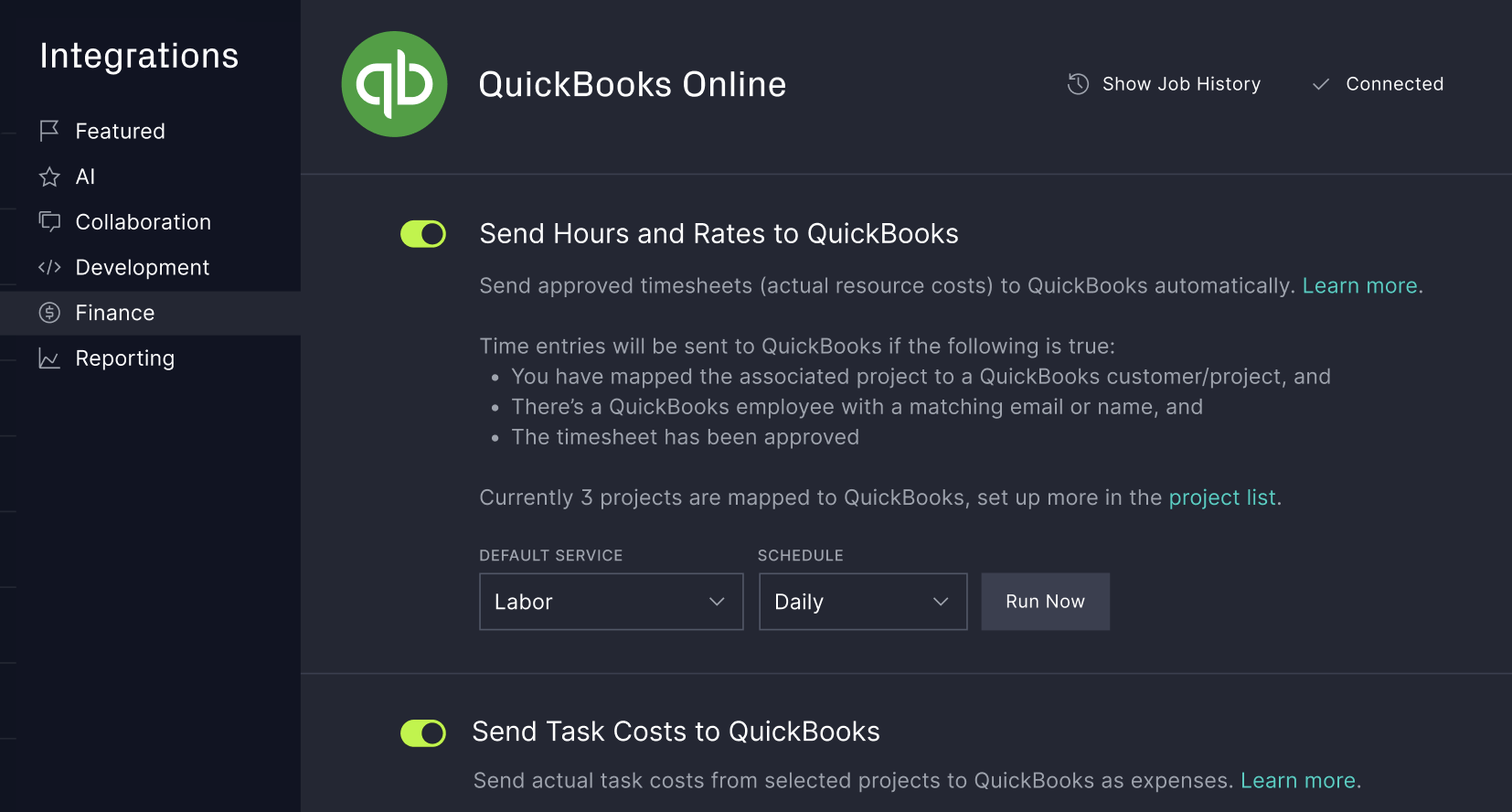
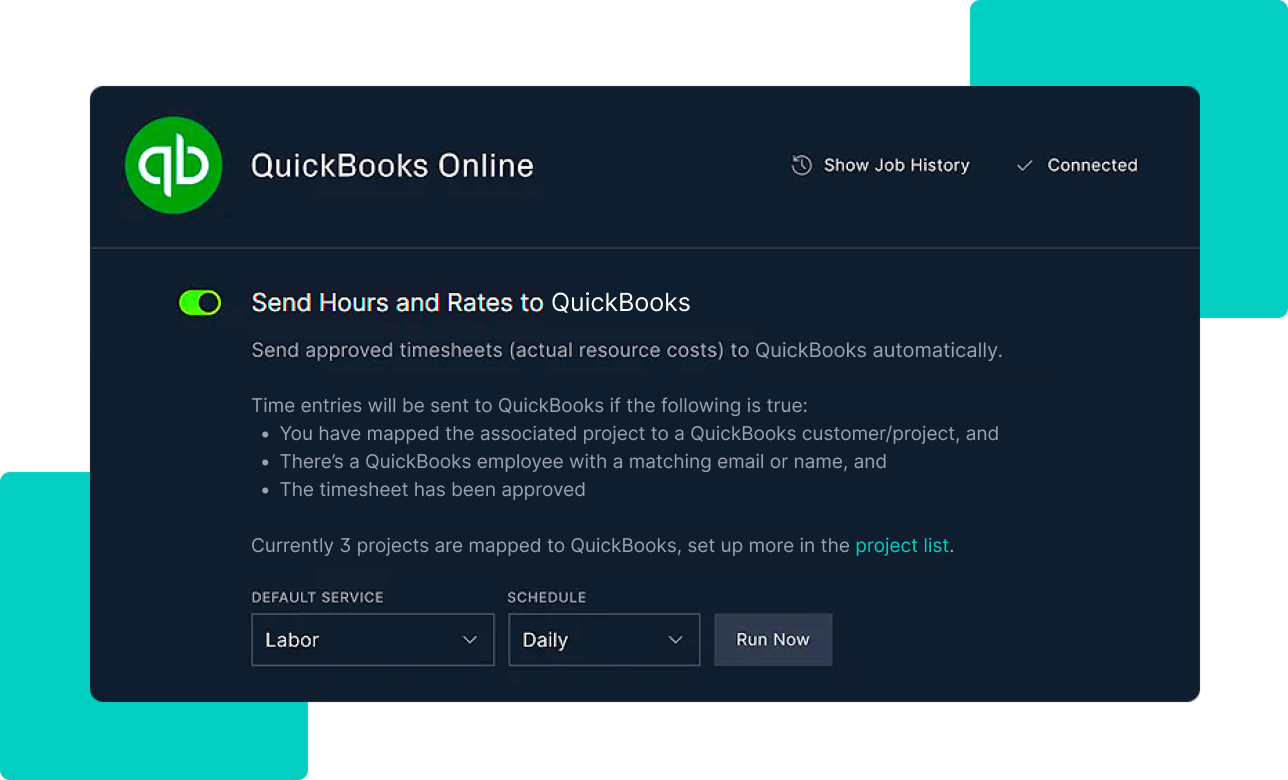
Once you link a ProjectManager project to a QuickBooks Online customer, sub-customer or project, the integration sends two kinds of data across:
- Hours and rates. Approved timesheets become QuickBooks time cards, complete with task name, employee, hours, rate, notes, service and customer. Hours can come from timesheets, task cards or the mobile app. Only new approved time is sent on each run, so nothing gets double-counted.
- Task costs. Actual costs on tasks, such as equipment, materials or overhead, become QuickBooks expenses posted to the expense and clearing accounts you choose. If a task’s actual cost changes later, the update goes over on the next run.
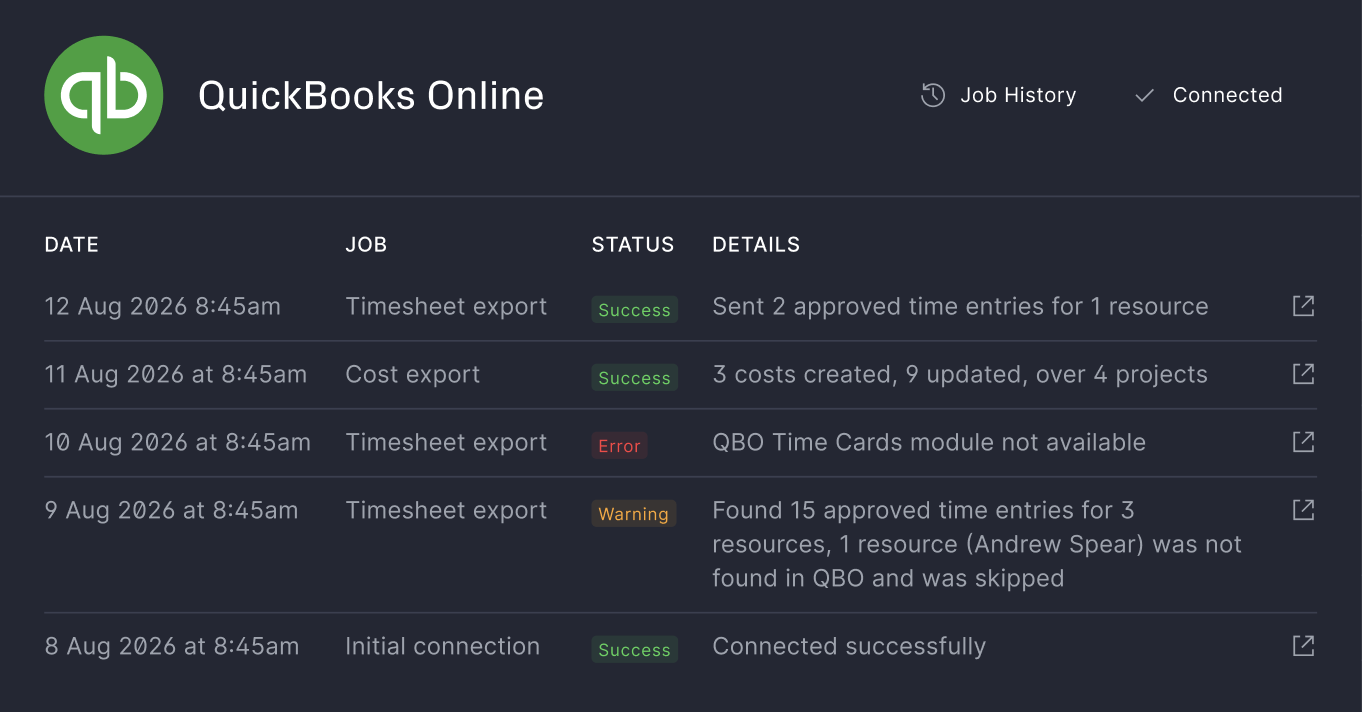
Syncs run on demand or on a schedule: daily, weekly or monthly. Employees are matched automatically by name or email, and a Job History log shows what synced, what was skipped and why. It works whether or not you use the QuickBooks Projects module, and it’s available on ProjectManager’s Business and Enterprise plans.
7 Ways to Use ProjectManager’s QuickBooks Integration
The integration does two simple things, but they show up differently depending on how your business makes money. Here are seven ways teams can use it.
1. Bill Clients for Approved Hours (Consulting and Professional Services)
For consultancies, law firms, accountants and other firms that bill by the hour, every unbilled hour is lost revenue. With the integration, consultants log time against tasks in ProjectManager, a manager approves the timesheet and those hours land in QuickBooks Online as time cards under the right client, with rates attached. Your billing team can pull them straight into invoices instead of chasing spreadsheets.
Because only approved time is sent, the approval step doubles as a quality check. Clients get invoiced for hours someone has already reviewed.
2. Track Job Costs on Construction Projects
Construction margins are thin, and a few untracked rentals or material runs can wipe one out. Link each job in ProjectManager to a QuickBooks customer or sub-customer, then record actual costs on tasks as they happen: lumber on the framing task, an excavator rental on site prep, permit fees on preconstruction. The integration posts each one to QuickBooks as an expense tagged to that job.
Combined with crew hours from timesheets, your accountant gets labor and material costs by job without anyone re-keying receipts. Project managers keep working in the Gantt chart, and job costing in QuickBooks stays current.
3. Keep Agency Retainers in Check (Marketing and Creative Agencies)
Agencies often sell monthly retainers, then quietly overservice them. When designers, writers and strategists log time to client projects in ProjectManager, approved hours flow to QuickBooks under each client. Set the sync to weekly and finance can see how much of a retainer has been used before the month is over, not after.
The same data helps when it’s time to renegotiate. If a client consistently uses 30% more hours than their retainer covers, you have the records to back up a new scope.
4. Simplify Payroll Prep for Hourly and Field Teams
Field service companies, event producers and installation crews often have hourly workers spread across many jobs. Workers can log time from the ProjectManager mobile app, supervisors approve it, and the hours arrive in QuickBooks as time cards matched to each employee by name or email.
That gives your payroll process one clean, approved record of who worked how long and on which job. No more collecting paper timesheets or reconciling text messages at the end of the pay period.
5. Watch Profitability on Fixed-Bid Projects (IT and Software Implementation)
On a fixed-price contract, revenue is set the day you sign. Profit depends entirely on what the work costs. IT services firms, software implementers and engineering consultancies can link each fixed-bid project to its QuickBooks customer and sync labor and costs on a daily or weekly schedule.
Finance can then compare running costs against the contract value in QuickBooks while the project is still underway. If a migration is burning budget faster than planned, the project manager hears about it with time left to adjust scope, staffing or the change-order conversation.
6. Report Costs by Grant or Program (Nonprofits and Research Teams)
Nonprofits and research groups often need to show funders exactly how grant money was spent. Set up each grant or program as a QuickBooks customer or sub-customer, link the matching ProjectManager project and record staff time and direct costs against tasks.
Approved hours and actual costs flow to the right grant automatically, so building a funder report starts with accurate numbers instead of a reconstruction exercise. It also makes audits less painful, since the task-level detail lives in ProjectManager and the totals live in QuickBooks.
7. Close the Books Faster Across a Project Portfolio (PMOs and Operations)
For PMOs and operations leaders running dozens of projects, month-end close is where disconnected tools hurt most. Schedule a monthly sync and approved time and costs across every linked project post to QuickBooks on the first of the month, ready for review.
The Job History log shows each run’s status in plain terms: green for success, amber when something was skipped, such as an unlinked project or an unmatched employee, and red for errors with a downloadable log. That turns reconciliation into a short checklist instead of a scavenger hunt.
How to Set Up the QuickBooks Integration
Setup takes a few minutes. You’ll need to be a QuickBooks Online administrator and a Global Admin in ProjectManager.
- In ProjectManager, open the Integrations tab and click Connect on the QuickBooks Online tile.
- Log in with your QuickBooks Online admin credentials, select your company and allow access.
- Turn on the features you want: hours and rates, task costs or both. Choose your default accounts and sync schedule.
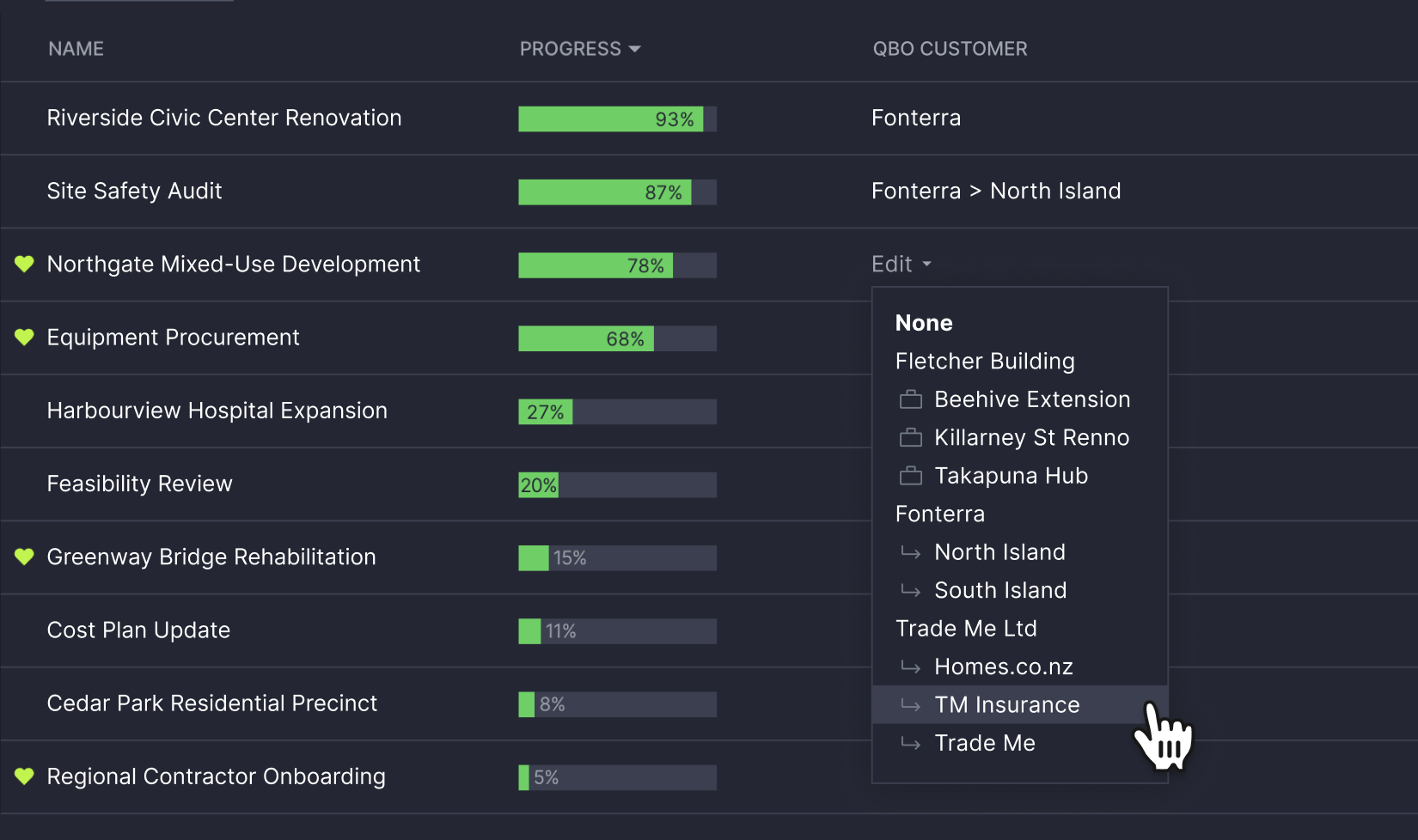
- In the Portfolio view, use the QuickBooks Customer column to link each project to a QuickBooks customer, sub-customer or project.
- Run your first sync and check the Job History log.
A few tips for a clean first run: make sure team member names or emails match their QuickBooks employee records exactly, and give every task an assignee. For the full walkthrough, see the QuickBooks integration guide.
QuickBooks Integration FAQ
Does ProjectManager integrate with QuickBooks?
Yes. ProjectManager integrates with QuickBooks Online. It sends approved timesheets to QuickBooks as time cards and actual task costs as expenses, linked to the QuickBooks customer, sub-customer or project you choose.
Does the integration work with QuickBooks Desktop?
No. The integration currently supports QuickBooks Online only.
What data syncs from ProjectManager to QuickBooks?
Two types of data sync: approved hours and rates, and actual task costs such as equipment, materials and overhead. Time cards include the task name, employee, hours, rate, notes, service and customer. Expenses include the task name, amount, expense account, clearing account and customer.
Is the QuickBooks sync two-way?
No. Data flows from ProjectManager to QuickBooks Online. ProjectManager only pulls your QuickBooks account, customer and project lists so you can map projects and accounts. Make project and time changes in ProjectManager to avoid duplicates.
How often does ProjectManager sync with QuickBooks?
You can sync on demand or on a schedule: daily at 11:30 PM, weekly on Sundays at 11:30 PM or monthly at 1:00 AM on the first of the month, in your workspace’s time zone.
Do I need the QuickBooks Projects module?
No. You can link ProjectManager projects to QuickBooks customers or sub-customers instead of QuickBooks projects.
Which ProjectManager plans include the QuickBooks integration?
The QuickBooks integration is available on ProjectManager’s Business and Enterprise plans. Team plan users need to upgrade to use it.
Do unapproved timesheets sync to QuickBooks?
No. Only approved time is sent, and only new approved time since the last sync. If you unapprove and change time that has already synced, edit the time card in QuickBooks manually.
Connect Your Projects and Your Books With ProjectManager
ProjectManager is award-winning project and portfolio management software that helps teams plan, track and report on their work. Gantt charts, kanban boards, timesheets and real-time dashboards give managers a clear view of progress, workload and costs. Now, with the QuickBooks Online integration, the hours and costs your team tracks don’t stop at the project. They flow straight into your accounting, so billing, payroll and profitability reports are built on the same numbers your project managers trust.
The QuickBooks integration is included on Business and Enterprise plans. Get started with ProjectManager for free or add the QuickBooks integration to your workspace today.