


Last updated: November 4, 2026
There’s no Microsoft Project for Mac: the Project desktop app runs only on Windows, so Mac users need an alternative that opens MPP files and handles Microsoft Project-style scheduling. The top Microsoft Project alternatives for Mac are ProjectManager, Project Plan 365, OmniPlan, Merlin Project, ProjectLibre, Smartsheet, TeamGantt and Microsoft Planner. ProjectManager fits most Mac users and mixed Mac and PC teams because it imports and exports MPP files losslessly in a browser, Project Plan 365 suits people who need to save MPP files in a native Mac app, OmniPlan and Merlin Project suit individual schedulers who want a polished desktop app that works offline, ProjectLibre suits individuals who want a free scheduler, Smartsheet and TeamGantt suit teams that want simpler online tools, and Planner suits teams staying in Microsoft 365.
ProjectManager is online project management software that opens Microsoft Project files in any Mac browser. Import an MPP file, filter for the critical path and send an MPP back to colleagues on Windows. Try ProjectManager free for 30 days.
Why Mac Users Need a Microsoft Project Alternative
Mac users need an alternative because Microsoft no longer offers any version of Microsoft Project that runs on a Mac. Here’s where things stand:
- Project desktop is Windows only. Project Standard 2024 ($679.99) and Project Professional 2024 ($1,129.99) are one-time purchases for one Windows PC, and the Project desktop client included with Planner and Project Plan 3 ($30/user/month) is also a Windows app. There’s no Mac version and no Project mobile app.
- The browser versions are gone. Microsoft retired Project for the web on August 1, 2025, and Project Online on September 30, 2026. Its browser-based option is now Microsoft Planner, which can’t open MPP files directly. See what happened to Project Online.
- Workarounds have limits. A virtual machine such as Parallels Desktop can run Windows and Microsoft Project on a Mac, but you pay for the virtualization software, a Windows license and Microsoft Project, and it uses a lot of memory and storage. Boot Camp only works on Intel-based Macs. Read more in Microsoft Project for Mac, which covers each workaround step by step.
That leaves Mac users with two kinds of alternatives: native Mac apps that read MPP files, and browser-based tools that run on any computer. Native apps suit one scheduler who wants a desktop app and offline work. Browser-based tools suit teams where some people use Macs, some use PCs and everyone needs the same schedule. This guide covers tools for replacing Microsoft Project specifically. For general task and project tools on a Mac, see the best project management software for Mac, and for job sites, see the best construction software for Mac.
What to Look for in a Microsoft Project Alternative for Mac
A good Microsoft Project alternative for Mac runs well on your Mac, opens the MPP files people send you and lets you send a file back that Microsoft Project users can open. Check for these features:
- Mac access type. Find out whether the tool is a native macOS app, a browser-based app, an iPad and iPhone app or a combination. Native apps work offline but usually run only on Apple devices. Browser apps work on any computer but need an internet connection.
- MPP import. Check whether the tool opens MPP files directly or needs a Microsoft Project XML export first, which Microsoft Project versions it reads and what comes through, such as dependencies, lag, resources and constraints.
- MPP export. If a client or colleague still uses Microsoft Project, you’ll need to send the schedule back. Some tools save MPP files, others only save Microsoft Project XML, which Microsoft Project can open but which is an extra step for the other person.
- Dependencies and critical path. Look for finish-to-start, start-to-start, finish-to-finish and start-to-finish dependencies with lag, and a critical path calculated from durations and dependencies.
- Baselines. Save the approved plan and compare it with actual progress.
- Resource management. See who is assigned to what, level overallocations and, for teams, see workload across projects.
- Collaboration with Windows users. In a team with mixed Macs and PCs, everyone should be able to see and update the same schedule without passing files back and forth.
- Offline use. If you plan on flights or at sites without a connection, a native app may matter more than collaboration.
- Pricing. Compare one-time licenses, per-user subscriptions and flat account pricing, and count everyone who needs to edit the schedule.
Microsoft Project Alternatives for Mac Compared
| Tool | Best for | Mac access | MPP import | MPP export | Critical path | Collaboration | Starting price |
|---|---|---|---|---|---|---|---|
| ProjectManager | Most Mac users and mixed Mac and PC teams replacing Microsoft Project | Browser app; iPhone and Android apps | Yes, MPP and XML (lossless) | Yes, MPP and XML (lossless) | Yes, critical path filter | Shared online schedule for Mac, PC and mobile users | $15/user/month (Team), billed annually |
| Project Plan 365 | People who need to open and save MPP files in a native Mac app | Native macOS app; also web, Windows, iOS and Android apps | Yes, opens MPP directly | Yes, saves MPP (paid plans) | Yes | File sharing through cloud storage; real-time collaboration on Business | $9.99/user/month (Standard), billed annually |
| OmniPlan | Individual schedulers who want a native app and a one-time purchase | Native macOS, iPad and iPhone apps | Yes, MPP and XML (Pro) | Yes, MPP and XML (Pro) | Yes | Publish and sync through Omni Sync Server or WebDAV (Pro) | $199.99 one-time (Standard) |
| Merlin Project | Apple-only teams that want a native planner with resource leveling | Native macOS, iPad and iPhone apps | Yes, opens MPP, XML and MPX | No; Microsoft Project XML only | Yes | Shared files through iCloud Drive or Dropbox | $22.99/month or $229.99/year (Mac) |
| ProjectLibre | Individuals who want a free desktop scheduler | Native desktop app for macOS, Windows and Linux; ProjectLibre Cloud in a browser | Yes, opens MPP | No; Microsoft Project XML only | Yes | None in the desktop app; ProjectLibre Cloud adds it | Free (desktop); Cloud from $9.99/user/month |
| Smartsheet | Teams that like working in spreadsheets | Browser app; iOS and Android apps | Yes, MPP, MPX and XML | No; Microsoft Project XML from Gantt sheets | Yes (Pro and above) | Shared sheets online | $9/user/month (Pro), billed annually |
| TeamGantt | Small teams that want a simple online Gantt with flat pricing | Browser app; iOS and Android apps (list view) | Yes, MPP (no resources) | Yes, MPP | Yes | Shared online projects, unlimited collaborators on Business | $59/month for 1 manager (Base) |
| Microsoft Planner | Teams staying in Microsoft 365 that can leave MPP files behind | Browser app and Teams for Mac; iPhone and iPad app; Project desktop client is Windows only | No; MPP moves through the Planner Power App | No | Yes (Plan 3) | Shared plans in Microsoft 365 and Teams | $10/user/month (Plan 1), paid yearly |
Prices are list prices as of November 2026 and change often. Check each vendor’s site before buying.
8 Best Microsoft Project Alternatives for Mac
1. ProjectManager
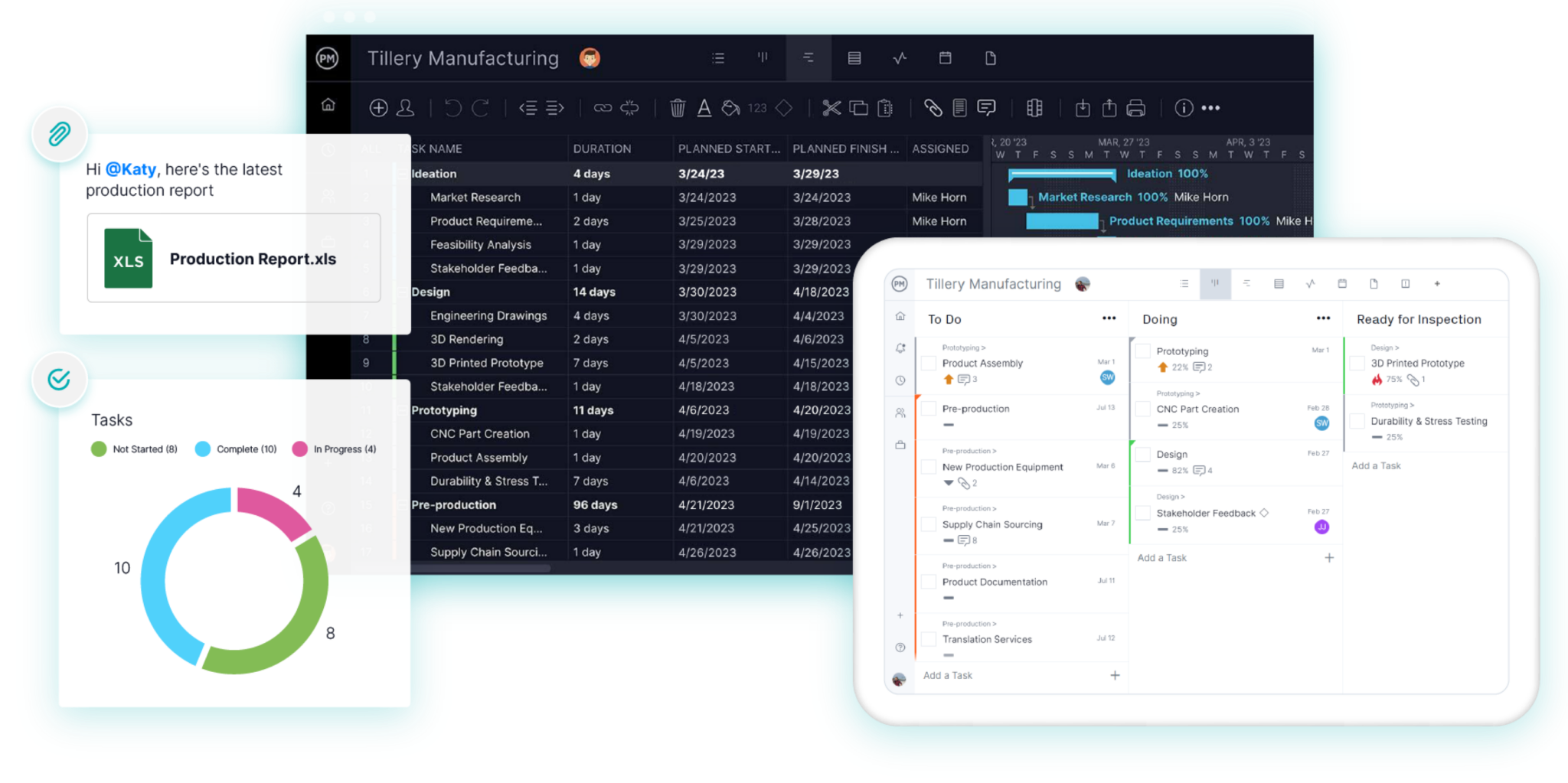
ProjectManager fits most Mac users replacing Microsoft Project, because it imports and exports MPP files losslessly, from any version of Microsoft Project, and runs in any modern browser, so a Mac user and a Windows user can work in the same schedule. Its Gantt chart supports all four dependency types with lag, a critical path filter shows which tasks drive the finish date, and baselines and variance reports show how far the plan has drifted.
Here’s a typical case. A project manager on a MacBook receives an MPP file from a client, imports it into ProjectManager, updates the dates and sends an MPP back the same day, without Windows or a virtual machine. The rest of the team updates tasks in a browser on a Mac or PC, or in the iPhone and Android apps, and the workload page shows each person’s hours across all projects. For a feature-by-feature comparison, see Microsoft Project vs. ProjectManager.
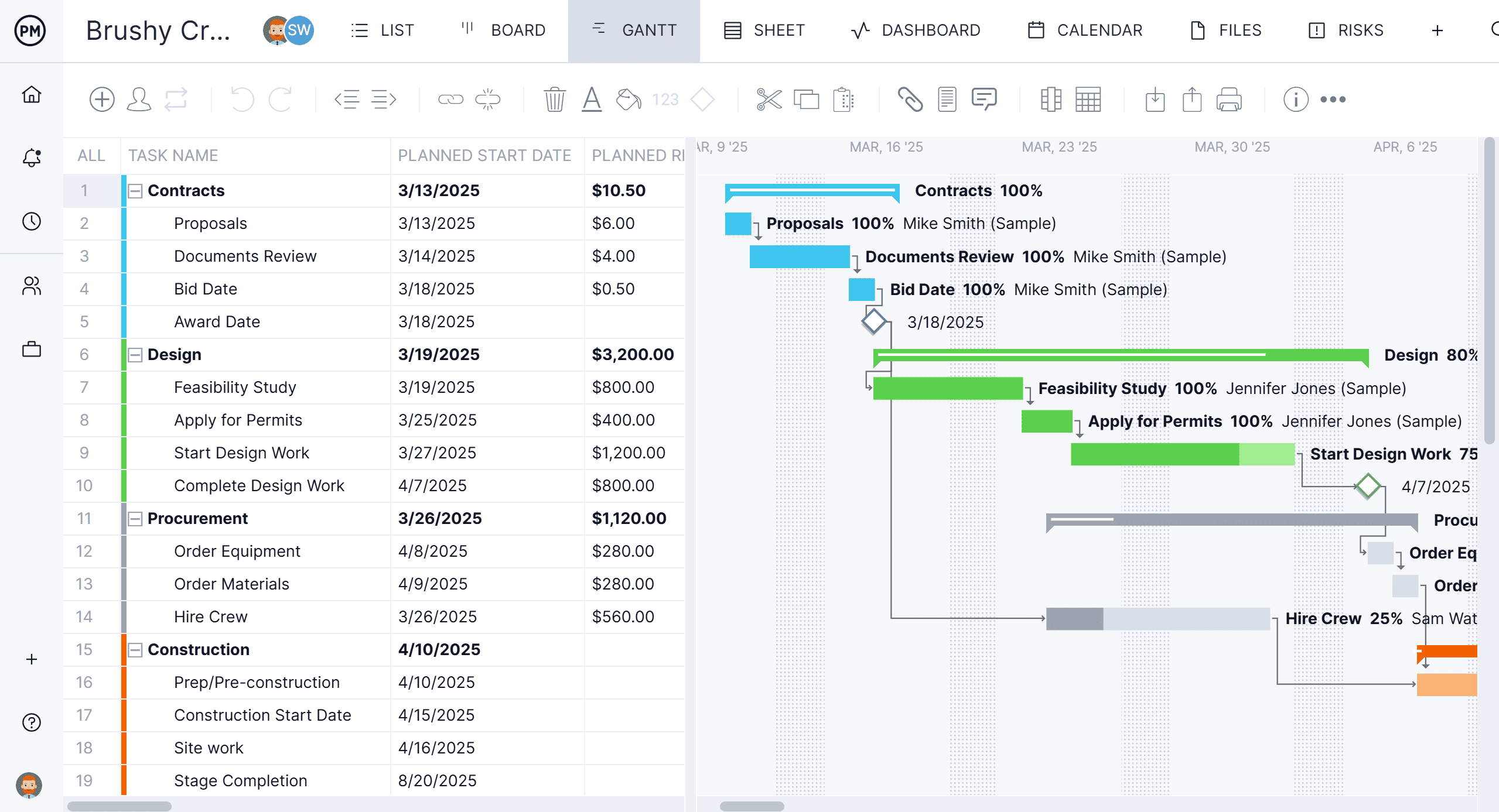
Mac access: Browser-based app that runs in any modern browser on macOS, Windows and Linux, plus iPhone and Android apps. On an iPad, ProjectManager runs in the browser. There’s no native Mac desktop app.
Best for: Mac users and mixed Mac and PC teams who need to open, edit and share MPP schedules with critical path and baselines, and give the whole team access.
Key features
- Lossless import and export of MPP files from every version of Microsoft Project, plus Microsoft Project XML, Excel and CSV import and export
- Gantt charts with finish-to-start, start-to-start, finish-to-finish and start-to-finish dependencies, plus lag
- Critical path filter, baselines and variance reports
- Workload page showing hours across all projects (Business plan and above)
- Timesheets, dashboards and portfolio views
Pros
- Lossless MPP import and export, so Mac users can exchange schedules with Microsoft Project users without losing data
- The same schedule works on Macs, PCs and phones, with nothing to install on the Mac
- Published per-user pricing and a 30-day free trial
Cons
- No native Mac desktop app, and it needs an internet connection
- The mobile app is for iPhone and Android; iPad users work in the browser
- The workload page needs the Business plan, and the Team plan is limited to 10 users and 20 projects
Pricing: Team $15/user/month, Business $28/user/month (billed annually), Enterprise by quote. 30-day free trial.
2. Project Plan 365
Project Plan 365 is a Microsoft Project-compatible app that opens, edits and saves MPP files directly, with no import step. Its native Mac app runs on Apple silicon and looks much like Microsoft Project, with a Gantt chart that supports all four dependency types with lead or lag, critical path and baselines. It also has Windows, web, iPhone, iPad and Android versions.
That makes it the closest match for someone who works in MPP files every day, such as a consultant on a Mac who receives schedules from clients on Windows and must send back the same file format. It’s built around files rather than a shared online schedule: you share the MPP file through iCloud, OneDrive, SharePoint, Dropbox, Google Drive or Box, and real-time collaboration needs the Business plan. Saving MPP files needs a paid plan, since the free viewer only opens them.

Mac access: Native macOS app (Mac App Store, macOS 12 or later), plus a web app and Windows, iOS and Android apps.
Best for: Individuals and small teams who need to open and save MPP files in a native Mac app that works like Microsoft Project.
Key features
- Opens and saves MPP files (Microsoft Project 2003 to 2024 files); imports and exports Microsoft Project XML
- All four dependency types with lead or lag, critical path and baselines
- Works with files in iCloud, OneDrive, SharePoint Online, Dropbox, Google Drive and Box
- Free read-only users (up to 5 on Standard, 10 on Business) and a free viewer
Pros
- Saves MPP files, so Microsoft Project users get the format they expect
- Native Mac app that works offline after you sign in once
- Available on Mac, Windows, web and mobile
Cons
- File-based, so teams pass MPP files around unless they buy the Business plan for real-time collaboration
- Sold only as annual subscriptions
- Fewer team features, such as workload across projects, timesheets and dashboards, than online project management software
Pricing: Standard from $9.99/user/month and Business from $16.19/user/month, billed annually only. Enterprise by quote. Free trial available. Mac App Store subscriptions are priced separately.
3. OmniPlan
OmniPlan from The Omni Group is a native project planning app for Mac, iPad and iPhone. It calculates and highlights the critical path, supports all four dependency types with lead and lag, keeps as many baselines as you want and levels resources automatically. The Pro edition adds Monte Carlo simulation for schedule risk and a multi-project dashboard.
OmniPlan suits an individual scheduler who wants a polished desktop app, works offline and prefers to buy software once. A planner could build the schedule on a Mac, then update it on an iPad at a site meeting. Microsoft Project support needs the Pro edition, which imports MPP and XML files from Microsoft Project 2003 to 2019 and exports MPP or XML. The Omni Group documents some losses in both directions, such as custom columns, resource efficiency and some constraints.
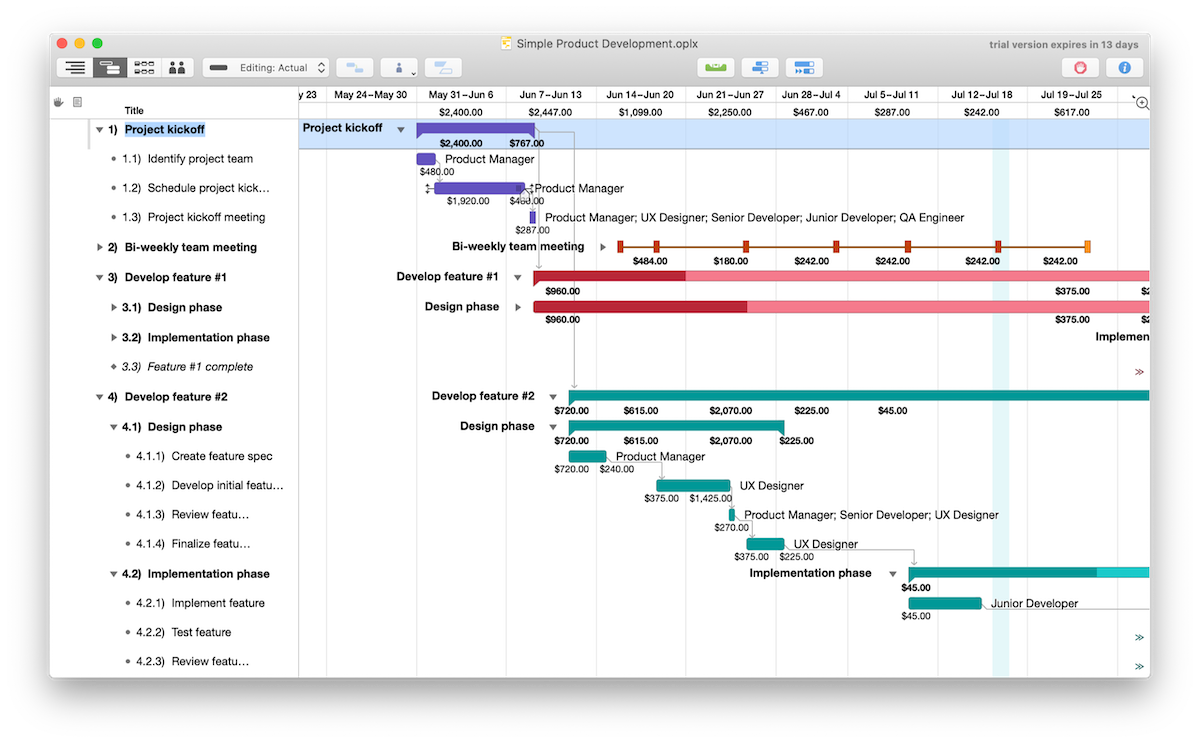
Mac access: Native macOS app (macOS 12 or later) with iPad and iPhone apps. There’s no Windows or browser version.
Best for: Individual Mac and iPad schedulers who want a native app, offline work and a one-time purchase.
Key features
- All four dependency types with lead and lag, critical path and unlimited baselines
- Automatic resource leveling
- MPP and XML import and export, Monte Carlo simulation and multi-user collaboration (Pro)
- One purchase covers Mac, iPad and iPhone
Pros
- Native Apple apps that work without a browser
- One-time purchase option instead of a subscription
- Exports MPP files for Microsoft Project users (Pro)
Cons
- MPP import and export, collaboration and Monte Carlo need the Pro edition
- No Windows or browser version, so PC users can’t open the schedule in OmniPlan
- Collaboration works by publishing and refreshing changes, not live editing in a shared schedule
Pricing: Standard $199.99 and Pro $399.99, one-time, or a $199.99/year subscription that includes Pro features. 14-day free trial.
4. Merlin Project
Merlin Project from ProjectWizards is a native project management app for Mac, iPad and iPhone. It opens MPP, Microsoft Project XML and MPX files directly, supports all four dependency types with lead and lag, shows the critical path and levels resources, with resource pools shared across projects. Merlin Project 9 uses a dynamic baseline, so you can compare the plan with any past date without saving a baseline in advance.
Merlin Project suits Apple-only teams. Files sync through iCloud Drive or Dropbox and simultaneous edits are merged, and people without a subscription can open projects read-only. It exports Microsoft Project XML, not MPP, so a colleague on Windows has to open the XML file in Microsoft Project. ProjectWizards also notes that password-protected MPP files won’t open and that newer MPP files may need to be saved as XML first.
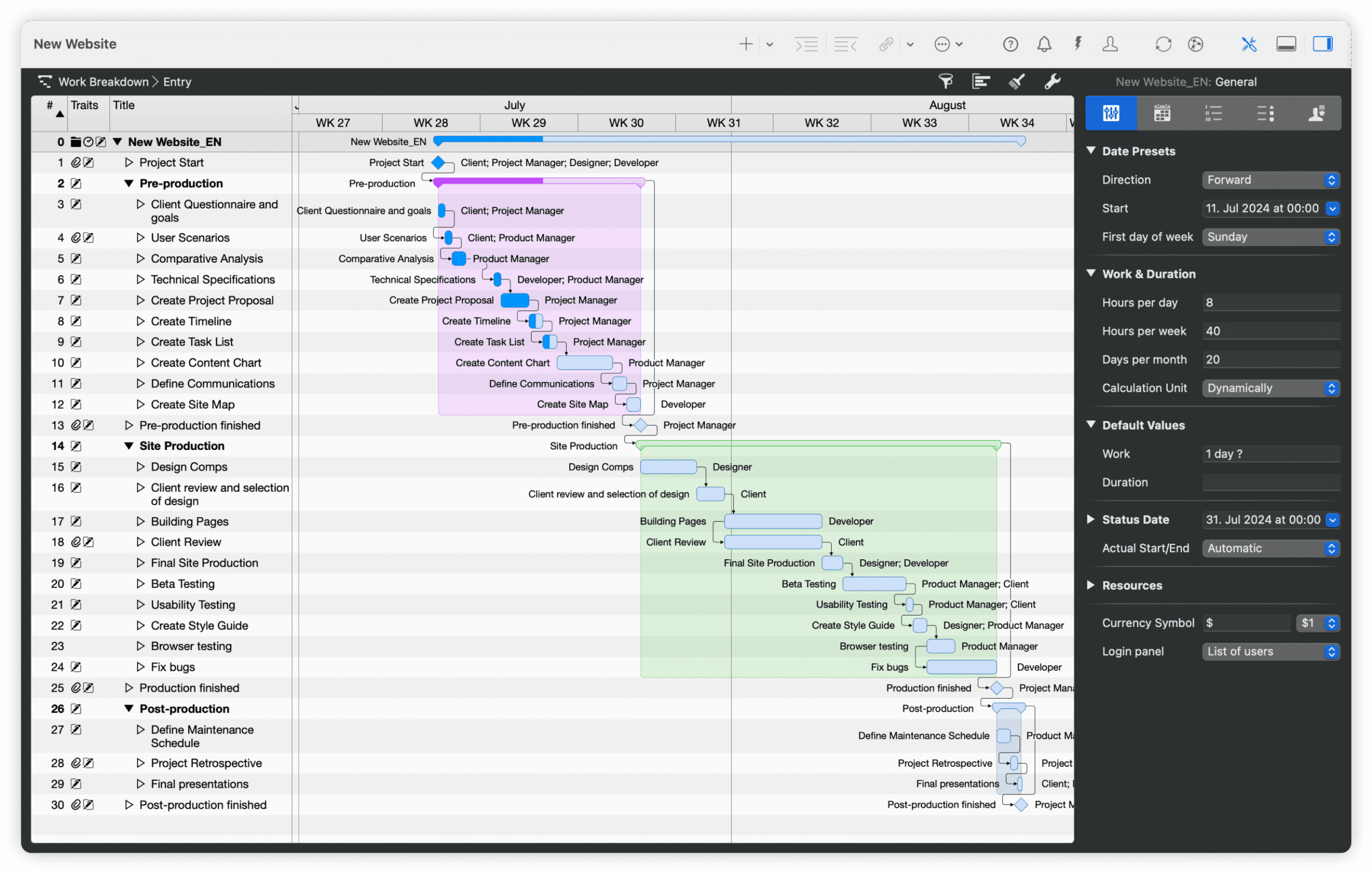
Mac access: Native macOS app (macOS 13 or later) with iPad and iPhone apps. There’s no Windows or browser version.
Best for: Teams that all use Apple devices and want a native planner with resource leveling, offline work and sync through iCloud or Dropbox.
Key features
- Opens MPP, XML and MPX files; exports Microsoft Project XML
- All four dependency types with lead and lag, and critical path
- Resource leveling and shared resource pools
- Dynamic baseline, plus Gantt, kanban and mind map views
Pros
- Native Apple apps that work offline and sync when you reconnect
- Simultaneous edits merge through iCloud Drive or Dropbox
- Free read-only access for people without a subscription
Cons
- Exports Microsoft Project XML, not MPP
- No Windows or browser version
- Subscription only, and the Mac and iPad apps are separate subscriptions
Pricing: Merlin Project for Mac $22.99/month or $229.99/year. Merlin Project for iPad (also covers iPhone) $9.99/month or $99.99/year. Merlin Project Express (Mac, fewer features) $6.99/month or $69.99/year. 30-day free trial for Mac and iPad.
5. ProjectLibre
ProjectLibre is a free, open-source desktop scheduler that looks and works much like Microsoft Project. Its desktop app runs on macOS, Windows and Linux, opens MPP files directly and supports all four dependency types with lag, critical path and baselines.
ProjectLibre suits an individual on a Mac who wants Microsoft Project-style scheduling without a license fee. The desktop app is built for one person and one project at a time, with no collaboration, and it saves Microsoft Project XML rather than MPP. ProjectLibre Cloud adds browser access, collaboration and cross-project resources for a per-user fee. For more free options, see the free and open-source Microsoft Project alternatives.

Mac access: Native desktop app for macOS (also Windows and Linux). ProjectLibre Cloud runs in a browser.
Best for: Individual schedulers who want a free, Microsoft Project-style desktop app that opens MPP files on a Mac.
Key features
- Opens MPP files and saves Microsoft Project XML
- All four dependency types with lag, critical path and baselines
- Desktop apps for macOS, Windows and Linux
- ProjectLibre Cloud for browser access and collaboration
Pros
- Free desktop app with a familiar Microsoft Project layout
- Works offline on a Mac
- Opens existing MPP files
Cons
- The desktop app is single-user, with no collaboration
- Can’t save back to MPP, only XML
- No mobile apps
Pricing: Desktop free. ProjectLibre Cloud Core $9.99/user/month and Enterprise $29.99/user/month, billed annually. 7-day free trial for Cloud.
6. Smartsheet
Smartsheet is a spreadsheet-style work management platform that runs in a browser on a Mac. It imports MPP, MPX and Microsoft Project XML files directly, its Gantt charts support all four dependency types with lag, and critical path highlighting is available on the Pro plan and above. Sheets with a Gantt chart can be exported as Microsoft Project XML.
Smartsheet suits teams that like working in grids and forms. Its scheduling is lighter than Microsoft Project’s: Smartsheet notes that Microsoft Project constraints aren’t supported on import, baselines need the Business plan, and full resource planning comes from Resource Management by Smartsheet, a paid add-on. Smartsheet’s Mac and Windows desktop app is being retired on or after January 6, 2027, so Mac users should plan on the browser version.

Mac access: Browser-based app, plus iPhone, iPad and Android apps.
Best for: Teams that like working in spreadsheets and want to bring MPP schedules into a flexible grid with forms and dashboards.
Key features
- Grid, Gantt, card and calendar views
- All four dependency types with lag; critical path on Pro and above
- Direct import of MPP, MPX and XML files; Microsoft Project XML export for Gantt sheets
- Baselines (Business and above), forms, automations and dashboards
Pros
- Familiar to anyone who works in spreadsheets
- Imports MPP files without Microsoft Project installed
- 30-day free trial
Cons
- Exports Microsoft Project XML, not MPP, and Microsoft Project constraints don’t carry over on import
- Full resource planning and time tracking need the paid Resource Management add-on
- The Gantt view is available for reports only on mobile
Pricing:
- Pro: $9/user/month, billed annually ($12 billed monthly), up to 10 users
- Business: $19/user/month, billed annually ($24 billed monthly), minimum of 3 users
- Enterprise: contact sales for a custom quote
- Advanced Work Management: contact sales for a custom quote
7. TeamGantt
TeamGantt is an online Gantt chart tool that runs in a browser on a Mac. It imports MPP files to create a new project, bringing over tasks, dependencies, dates and percent complete, and it can export a project back to MPP. Its Gantt supports all four dependency types with lag and lead, and it shows the critical path.
TeamGantt suits small teams with many occasional collaborators, since it’s priced per account rather than per seat. MPP imports don’t bring over resources or assignments, every plan has a project limit, baselines need the Business plan, and the iPhone and Android apps show a list view rather than the Gantt chart.
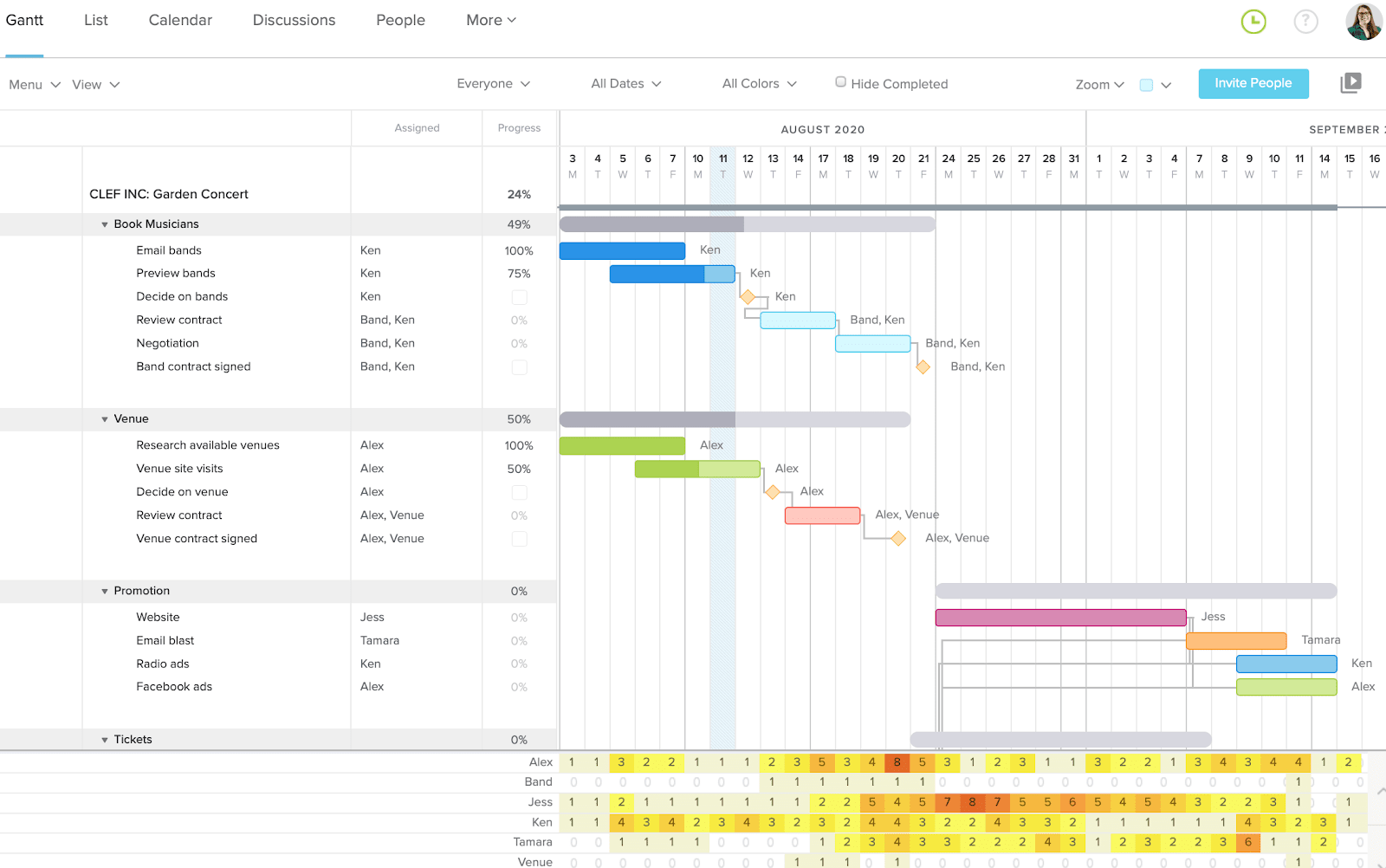
Mac access: Browser-based app, plus iOS and Android apps (list view).
Best for: Small teams that want a simple online Gantt with MPP import and export and flat account pricing instead of per-seat licenses.
Key features
- MPP import and export
- All four dependency types with lag and lead, and critical path
- Unlimited baselines and a cross-project workloads report (Business and above)
- iOS and Android apps
Pros
- Easy to learn for people who don’t schedule full time
- Flat pricing with unlimited collaborators on Business
- Exports back to MPP
Cons
- MPP imports don’t include resources or assignments
- Every plan has a project limit (Business includes 5 projects, up to 20 with add-ons)
- No Gantt view in the mobile apps
Pricing: Personal free (1 user, 1 project). Base $59/month (1 manager, 10 collaborators, 5 projects), Business $120/month (unlimited managers and collaborators, 5 projects included) and Builder Edition $199/month, billed monthly; annual billing saves 20%. Enterprise by quote. 14-day free trial.
8. Microsoft Planner
Microsoft Planner is Microsoft’s own path for Mac users, since it runs in a browser and in the Teams app for Mac. Planner’s premium plans add a timeline (Gantt) view and dependencies on Planner Plan 1, and critical path, all four dependency types with lead and lag, and a baseline on Planner and Project Plan 3.
Planner works differently from Microsoft Project, though. It can’t open MPP files directly; Microsoft documents that path through the Planner Power App. Planner and Project Plan 3 includes the Project desktop client, but that client runs only on Windows, so a Mac user pays for an app they can’t run without a virtual machine. Microsoft doesn’t document the timeline or critical path in Planner’s iPhone and iPad app. For more on Microsoft’s lineup, see Microsoft’s project management tools compared.
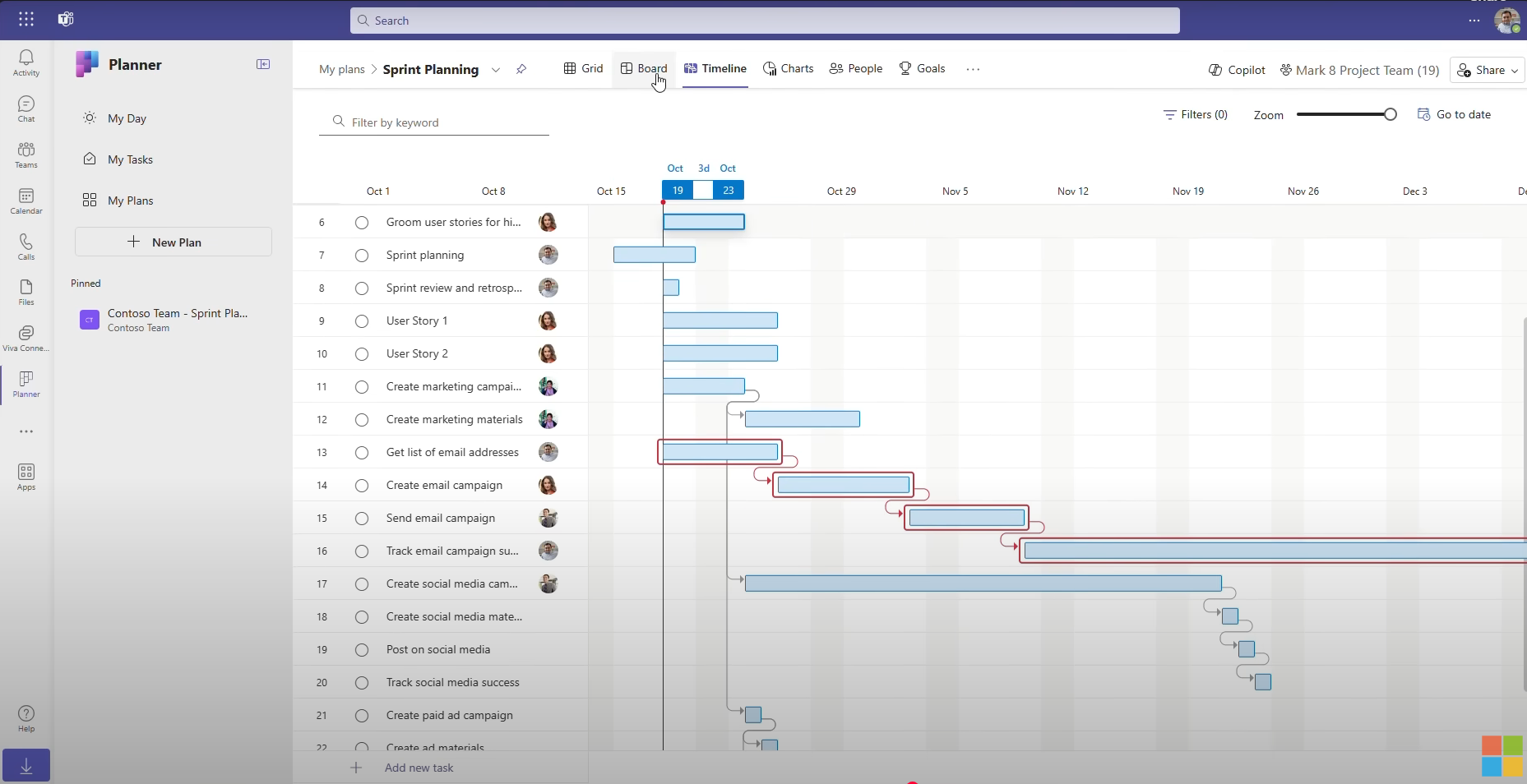
Mac access: Browser-based app and the Teams app for Mac, plus an iPhone and iPad app. The Project desktop client included with Plan 3 is Windows only.
Best for: Teams already on Microsoft 365 that want to stay with Microsoft and can move from MPP files to Planner plans.
Key features
- Timeline (Gantt) view with dependencies (Plan 1 and above)
- Critical path, all four dependency types with lead and lag, and a baseline (Plan 3)
- Works with Teams, Outlook and other Microsoft 365 apps
Pros
- Basic Planner is included with Microsoft 365 business plans
- One vendor and one sign-in for teams already on Microsoft 365
- Works in a browser on a Mac
Cons
- Can’t open or save MPP files
- Critical path needs Plan 3, and Planner holds one baseline
- The Project desktop client in Plan 3 doesn’t run on a Mac
Pricing: Basic Planner included with Microsoft 365 business plans (from $7/user/month, paid yearly). Planner Plan 1 $10/user/month and Planner and Project Plan 3 $30/user/month, paid yearly.
When a Native Mac App Is the Better Choice
A native Mac app is the better choice when one person owns the schedule, works offline often and doesn’t need to share live updates with Windows users. In that case, OmniPlan, Merlin Project or Project Plan 365 will feel more like Microsoft Project on a Mac than any browser tool. OmniPlan suits buyers who prefer a one-time purchase, Merlin Project suits teams that all use Apple devices, and Project Plan 365 suits anyone who must save MPP files exactly as Microsoft Project does.
A browser-based tool is the better choice when the schedule is shared. In a team where the scheduler uses a Mac, the engineers use Windows PCs and the site lead uses a phone, ProjectManager, Smartsheet or TeamGantt keep one schedule that everyone updates, instead of one person merging files.
How to Open a Microsoft Project File on a Mac With ProjectManager
To open a Microsoft Project file on a Mac with ProjectManager, create a project with matching working days, import the MPP or XML file in your browser and check the logic. ProjectManager imports MPP files from every version of Microsoft Project, plus XML files, and the import is lossless, so you don’t need Microsoft Project or Windows installed to open the file.
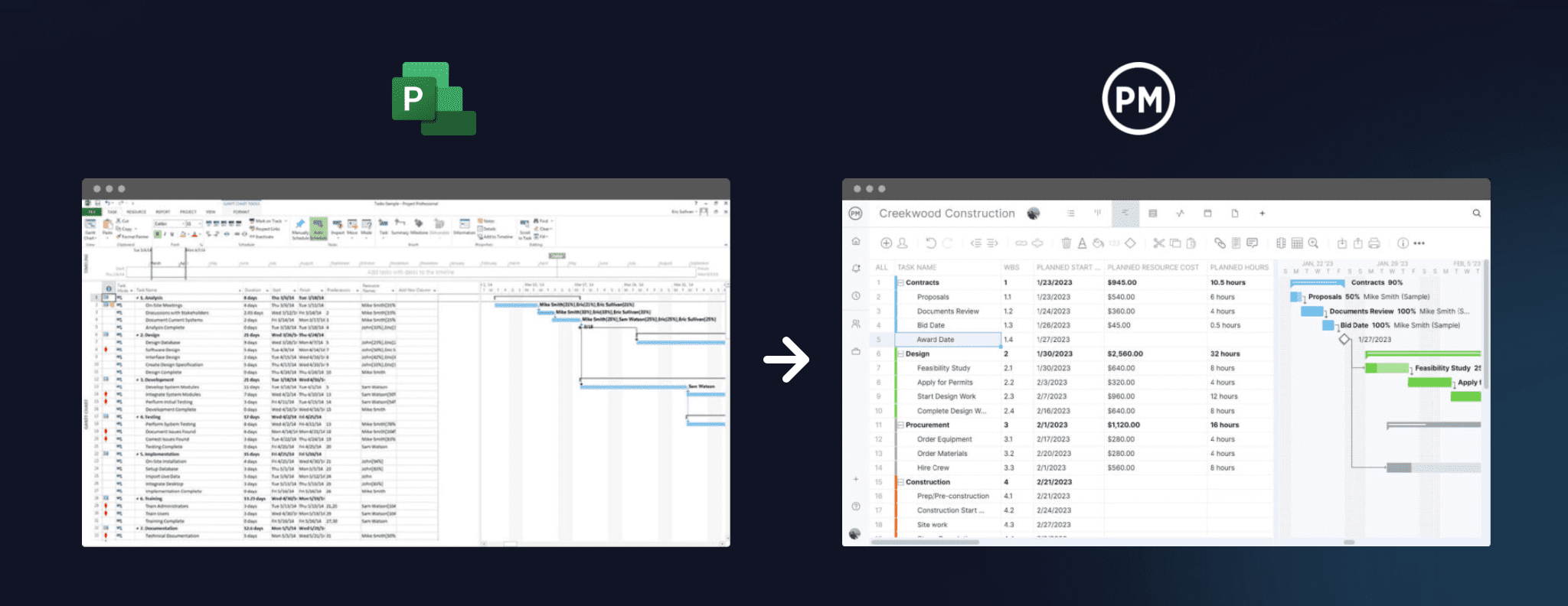
- Sign in from your Mac. Open ProjectManager in Safari, Chrome or another modern browser. There’s nothing to install.
- Set working days first. Click the + button and choose Project, then set your working days to match the calendar in your Microsoft Project file, such as a five-day or six-day work week. Working days are hard to change once the project exists. Add any global holidays now too, since they can’t be added to existing projects.
- Import the file. Choose Import File when creating the project, or click the import icon on the Gantt ribbon of an existing project. Click select file, upload your MPP or XML file and click next. If you’re importing into an existing project, choose Keep and append with the imported data or Replace with the imported data. Replace removes everything already in the project.
- Choose what to import. Choose the task list only to bring over the schedule structure and dates, or all data to bring over everything in the file, including assignees.
- Check the logic. Compare durations and dependencies with the original schedule. Pay attention to lag and to any constraint dates from Microsoft Project. Imported actual hours don’t go into timesheets, so add those separately if you need them.
- Filter for the critical path. Turn on the critical path filter and check that it matches the critical path in Microsoft Project. If it doesn’t, check that the project’s working days match the calendar in the original file.
- Set a baseline. Once the schedule matches, set a baseline in Gantt settings so you can track variance from the start.
- Send it back as an MPP file. When a client or colleague on Windows needs the schedule, click the Export button in the project’s Gantt or sheet view, export the project as an MPP or XML file and send it. They can open it in Microsoft Project with all of your updates and nothing lost.
Keep the original MPP files as a reference. For more ways to read MPP files, see how to open MPP files and the best Microsoft Project viewers.
Got an MPP file on your Mac? Start a free 30-day trial, import it in your browser and turn on the critical path filter. Try ProjectManager free.
Microsoft Project for Mac FAQ
Is there a Microsoft Project for Mac?
No. Microsoft Project desktop, including Project Standard 2024, Project Professional 2024 and the desktop client in Planner and Project Plan 3, runs only on Windows. Microsoft retired its browser versions, Project for the web and Project Online. Mac users can run Windows in a virtual machine, use a native Mac app such as Project Plan 365, OmniPlan or Merlin Project, or use a browser-based tool such as ProjectManager. See what Microsoft Project is for the current editions.
What is the best free Microsoft Project alternative for Mac?
ProjectLibre is the closest free option for an individual on a Mac, because its desktop app opens MPP files and supports all four dependency types, critical path and baselines. It saves Microsoft Project XML rather than MPP and has no collaboration in the free desktop app. Teams usually start with a free trial of a paid tool instead, such as ProjectManager’s 30-day trial.
Can I open MPP files on a Mac?
Yes. Project Plan 365, Merlin Project and ProjectLibre open MPP files in native Mac apps, OmniPlan Pro imports them, and ProjectManager, Smartsheet and TeamGantt import them in a browser. Microsoft Planner can’t open MPP files directly. If you only need to read a file, an MPP viewer also works; see the best Microsoft Project viewers.
Can I edit MPP files on a Mac and send them back to a Microsoft Project user?
Yes, with a tool that exports MPP. ProjectManager, Project Plan 365, OmniPlan Pro and TeamGantt can save or export MPP files. Merlin Project, ProjectLibre and Smartsheet export Microsoft Project XML instead, which Microsoft Project can open, but the other person has to open the XML file and save it as MPP.
Does Microsoft Planner work on Mac?
Yes. Planner runs in a browser on a Mac and in the Teams app for Mac, including the premium timeline and dependencies. It can’t open MPP files directly, and the Project desktop client included with Planner and Project Plan 3 doesn’t run on a Mac.