


Last updated: November 19, 2026
The top TeamGantt alternatives are ProjectManager, GanttPRO, Smartsheet, Wrike, Microsoft Planner, monday.com and ProjectLibre. ProjectManager fits growing teams that need baselines, critical path, workload across projects and MPP files, and GanttPRO fits small teams that want a simple online Gantt chart with critical path and baselines at a low per-user price. Smartsheet fits teams that work in spreadsheets, Wrike fits larger teams that need workload views, Microsoft Planner fits Microsoft 365 organizations, monday.com fits teams that want a visual work platform more than detailed scheduling, and ProjectLibre is the free option for one person who plans alone on a desktop.
ProjectManager is online project management software for teams that have outgrown a simple Gantt chart. Import your schedule, filter for the critical path, set a baseline and see who’s overbooked across every project. Try ProjectManager free for 30 days.
What TeamGantt Does Well
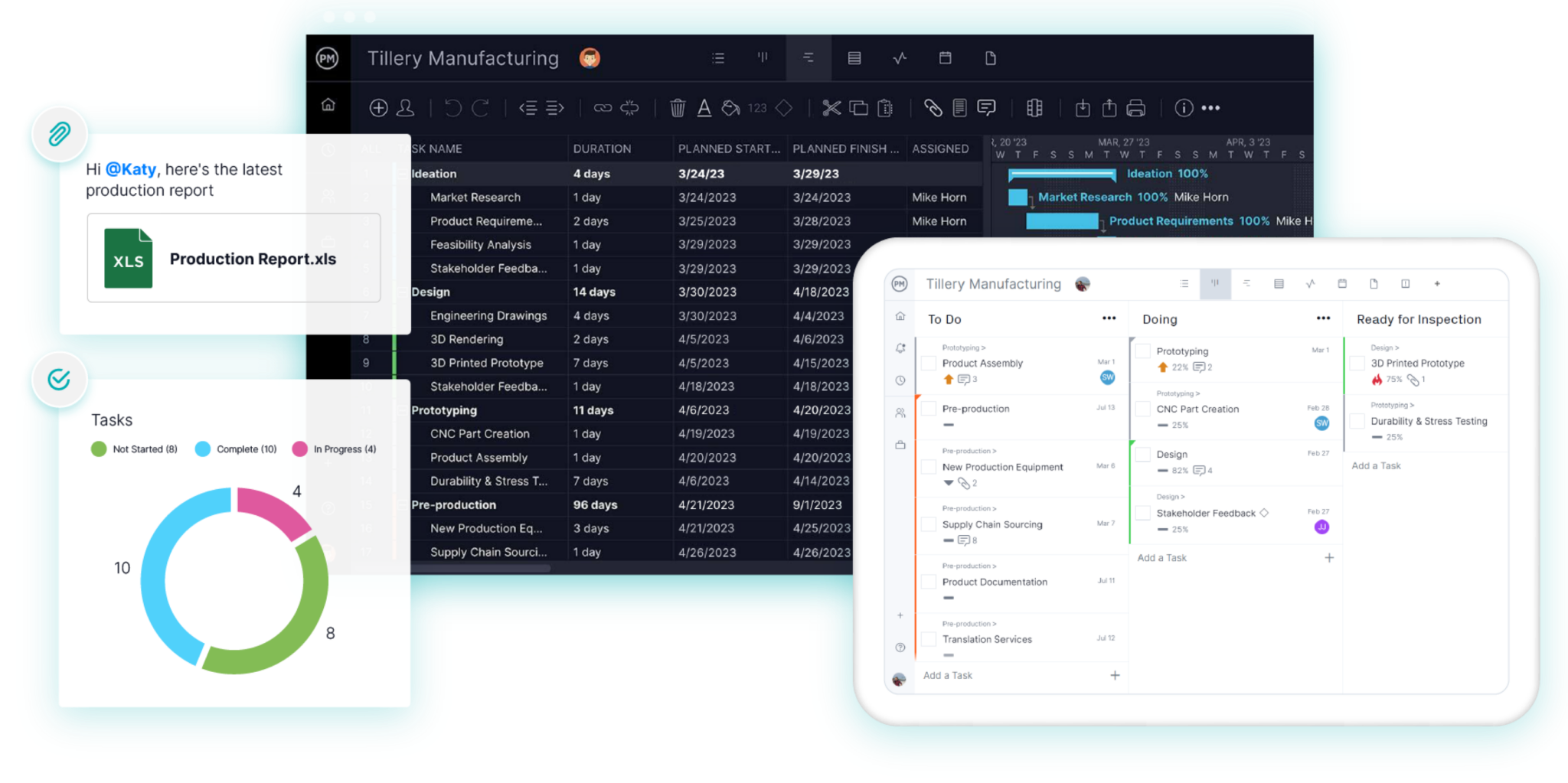
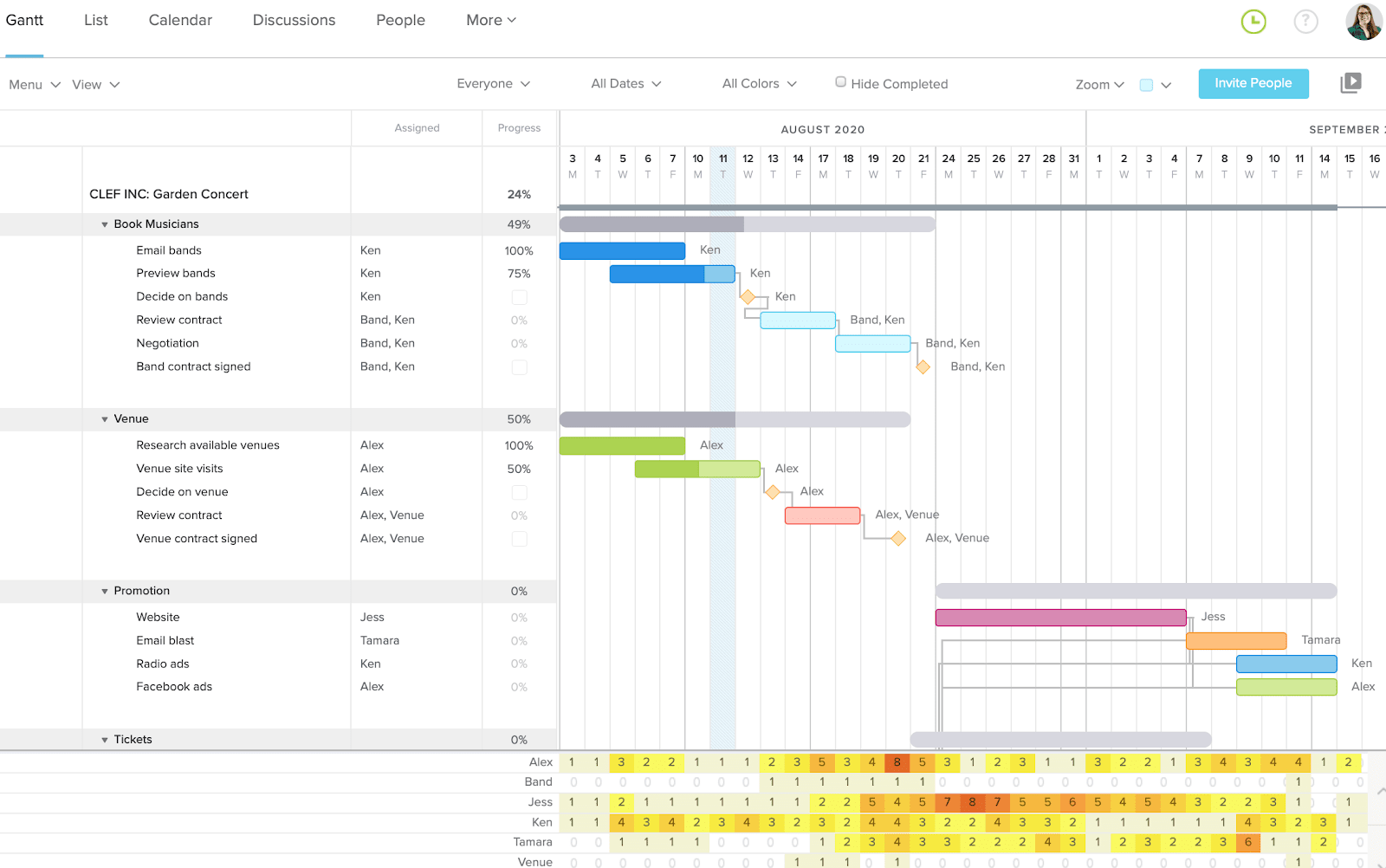
TeamGantt is a simple online Gantt chart tool that’s easy to learn, even for teams that have never built a schedule. You drag tasks onto a timeline, link them with dependencies, and collaborators update progress, comment, share files and track time. Critical path is included on every paid plan, and AI project creation helps you start a plan quickly.
Its pricing is flat per account rather than per user. The Business plan includes unlimited managers and collaborators, so a large group can work in a handful of projects without paying per seat. There’s also a free Personal plan for one user, one project and up to 40 tasks. For a small team running a few simple projects, TeamGantt remains a good choice, and if that describes you, there’s no reason to switch.
Why People Look for TeamGantt Alternatives
Teams usually look for TeamGantt alternatives when they add more projects, more people or more detailed scheduling. These are the main reasons:
- Baselines and workload need the Business plan. Baselines, workload management, advanced dependencies, time tracking and portfolio management start on Business, from $120/month. On the $59 Base plan, you can’t compare the plan with a baseline or see who’s overbooked.
- MPP imports leave out resources. TeamGantt imports task names, dependencies, dates and completion percentages from Microsoft Project, but not resources or assignments, so you reassign people by hand after every import.
- Limited mobile scheduling. TeamGantt’s iOS app shows a list view only, so a team member on a job site can’t check the Gantt chart from an iPhone.
- Costs rise with projects, not people. Flat pricing keeps costs low for a large team with a few projects. As the number of projects grows, costs climb: the Business plan includes 5 projects, each extra project costs $24/month, and the plan tops out at 20 projects. Beyond that, you need Builder Edition or Enterprise.
- Collaborators can’t change dates. Collaborators update progress, but only managers can change dates or edit tasks, and the Base plan allows one manager, so every date change goes through that person.
Project limits are worth comparing side by side, because both TeamGantt and ProjectManager cap the number of projects on their lower plans:
| Plan | Price | Users | Projects |
|---|---|---|---|
| TeamGantt Personal | Free | 1 | 1 (up to 40 tasks) |
| TeamGantt Base | $59/month per account | 1 manager, 10 collaborators | 5 (up to 150 tasks each) |
| TeamGantt Business | From $120/month per account | Unlimited | 5 included; up to 20 at $24/month per extra project |
| TeamGantt Builder Edition | From $199/month per account | Unlimited | Starts with 10; more can be added |
| TeamGantt Enterprise | By quote | Unlimited | Unlimited |
| ProjectManager Team | $15/user/month, billed annually | Up to 10, plus free read-only guests | Up to 20 |
| ProjectManager Business | $28/user/month, billed annually | Per user, plus free read-only guests | Up to 100 |
| ProjectManager Enterprise | By quote | By quote | By quote |
TeamGantt prices above are monthly; yearly billing saves 20%. Here’s how that plays out over a year. An eight-person team on ProjectManager’s Team plan pays $1,440 a year and can run up to 20 projects. On TeamGantt’s Business plan, which includes baselines and workload, the same team pays $1,140 a year for 5 projects, and running 20 projects adds $3,420 a year in extra projects. A 30-person team with only a few projects, on the other hand, pays less on TeamGantt’s flat Business plan than for 30 ProjectManager seats.
What to Look for in a TeamGantt Alternative
A good TeamGantt alternative keeps the easy Gantt chart and adds what your team is missing. Check for these features:
- Dependency types and lag. Look for all four dependency types (finish-to-start, start-to-start, finish-to-finish and start-to-finish) with lag, and check which plan includes them.
- Critical path and baselines. The critical path shows which tasks drive the finish date, and a baseline shows how far the plan has moved. Check whether they’re on the plan you’d buy.
- Resource and workload management. A manager running several projects needs a workload view that shows each person’s hours across all of them, not one project at a time.
- Time tracking. Timesheets or time tracking let you compare estimated and actual hours.
- Project and user limits per plan. Count how many projects and people you’ll have next year, not just today, and compare the caps on each plan.
- Mobile Gantt access. Check what the iOS and Android apps actually show, since some apps leave out the Gantt view.
- MPP import and export. If clients or partners use Microsoft Project, check what an MPP import brings over and whether the tool can send back an MPP file.
- Pricing model and free plans. Per-account pricing favors large teams with few projects; per-user pricing favors smaller teams with many projects. Check whether a free plan covers what you need.
- AI assistants. Check whether AI features are included or sold as an add-on, and what they can do with your project data.
TeamGantt Alternatives Compared
The first table compares plans, limits and prices. The second compares scheduling features.
| Tool | Best for | Free plan | Project and user limits | MPP import and export | Starting price |
|---|---|---|---|---|---|
| ProjectManager | Growing teams that need baselines, workload across projects and MPP files | No; 30-day free trial | Team: 10 users, 20 projects. Business: 100 projects | Imports and exports MPP (lossless for schedule data) | $15/user/month (Team), billed annually |
| GanttPRO | Small teams that want a simple Gantt chart with critical path and baselines at a low price | No; 14-day free trial | Not confirmed | Imports Microsoft Project files; no MPP export | $8/user/month (Core), billed annually, teams of 1–15 |
| Smartsheet | Teams that like working in spreadsheets | No; 30-day free trial | Pro: up to 10 members. Business: 3+ members | Imports MPP; exports Microsoft Project XML | $9/member/month (Pro), billed annually |
| Wrike | Larger teams that need workload views and Microsoft Project imports | Yes | Team: 2–15 users. Business: 5–200 users | Imports Microsoft Project files (Business); no export back | $10/user/month (Team), billed annually |
| Microsoft Planner | Microsoft 365 organizations that want scheduling inside Microsoft’s tools | Basic Planner is included in many Microsoft 365 plans (no Gantt view) | Up to 3,000 tasks per project (premium plans) | Planner can’t open MPP; Plan 3 includes Project desktop | $10/user/month (Plan 1), paid yearly |
| monday.com | Teams that want a visual work platform more than detailed scheduling | Yes, up to 2 seats and 3 boards (no Gantt view) | Paid plans: 3-seat minimum | No MPP import; exports to Excel | $9/seat/month (Basic), billed yearly |
| ProjectLibre | One person who plans alone on a desktop and wants it free | Free desktop app | Desktop: one user, one project at a time | Opens MPP; saves Microsoft Project XML, not MPP | Free; Cloud from $9.99/user/month |
| Tool | Dependency types and lag | Critical path | Baselines | Workload | Mobile apps and Gantt view |
|---|---|---|---|---|---|
| ProjectManager | All four, with lag | Yes, critical path filter | Yes, with variance reports | Across all projects (Business and above) | iOS and Android apps |
| GanttPRO | All four, with lag and lead | Yes, all plans | Yes, all plans | Across active projects (Business) | iOS and Android apps |
| Smartsheet | All four, with lag | Pro and above | One per sheet (Business and above) | Full resource planning is a paid add-on | iOS and Android apps; Gantt view only in reports |
| Wrike | Dependencies with lag | Yes, critical path view | Not documented | Business and above; advanced capacity planning on Pinnacle | iPhone and Android apps |
| Microsoft Planner | Plan 1: finish-to-start only. Plan 3: all four, with lead and lag | Plan 3 | Plan 3, one baseline | People view (Plan 1); Assignments view (Plan 3) | iOS and Android apps |
| monday.com | All four, with lead and lag (Pro and above, still rolling out) | Pro and above (labeled a trial feature) | Pro and above | Workload view Pro and above; cross-project resource management on Enterprise | iOS and Android apps; no Gantt view on mobile |
| ProjectLibre | Task dependencies | Yes | Yes | One project at a time (desktop) | No mobile app |
Prices are list prices as of November 2026 and change often. Check each vendor’s site before buying.
7 Best TeamGantt Alternatives
1. ProjectManager
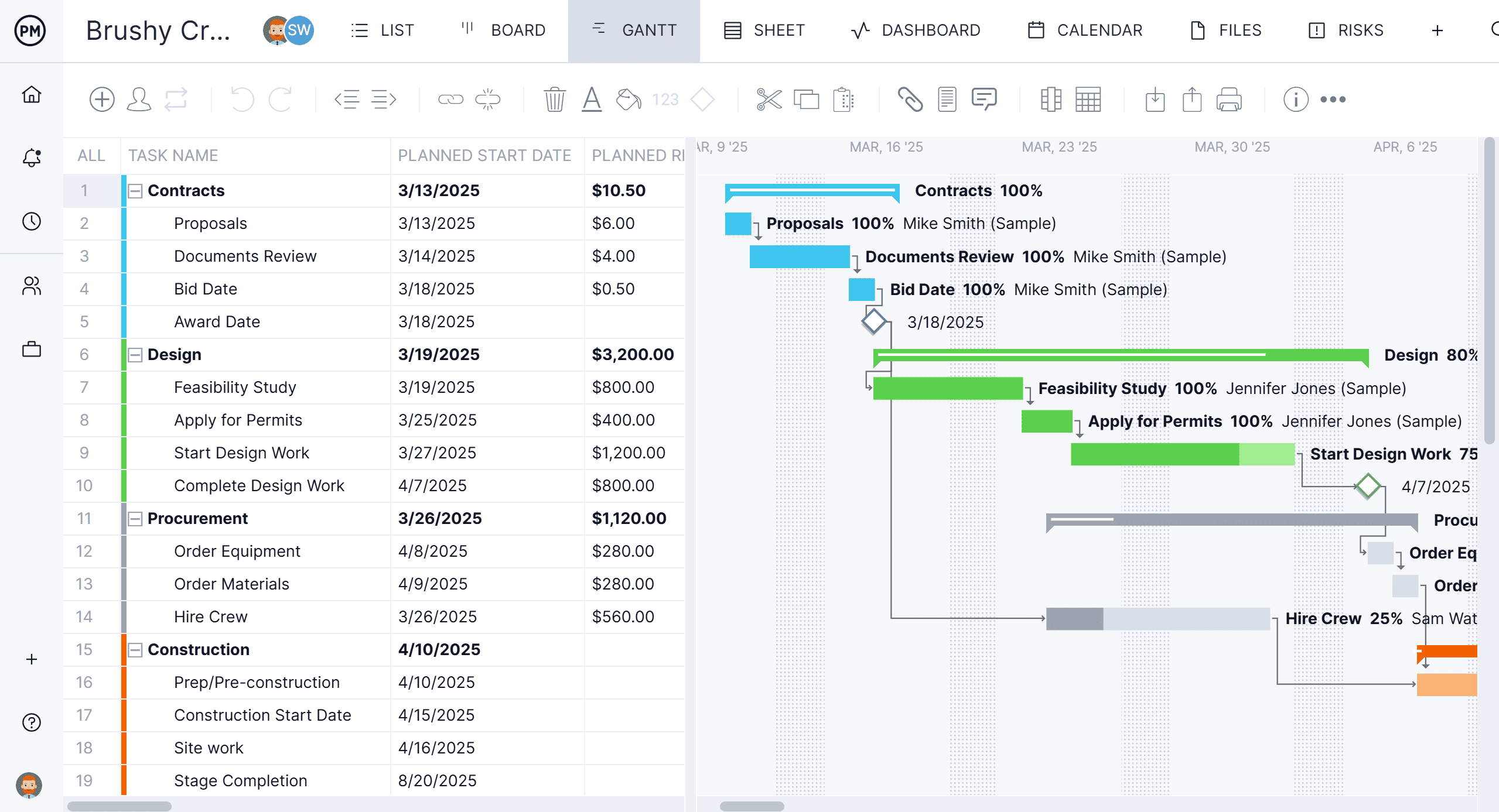
ProjectManager fits teams that have outgrown TeamGantt because it combines the scheduling depth, resource view and file exchange that growing teams need. Its Gantt chart supports all four dependency types with lag, a critical path filter shows which tasks drive the finish date, and baselines with variance reports show how far the plan has moved. The Team plan runs up to 20 projects, and the Business plan up to 100.
Take a manager who runs eight projects with the same designers and needs to see who’s overbooked. On the Business plan, the workload page shows each person’s assigned hours across all projects, with over-assigned days in red, and timesheets show the hours actually worked. When a client sends a Microsoft Project file, ProjectManager imports it and exports back to MPP, and its MPP import and export is lossless for schedule data: tasks, durations, dates, dependencies and WBS structure stay intact. Clients can follow along as free read-only guests on the Team and Business plans. The ChatGPT plugin and Claude connector are included on every plan, including the free trial, and only see the projects and tasks each user can already access. For a side-by-side comparison, see ProjectManager vs. TeamGantt.
Best for: Growing teams that need critical path, baselines, workload across projects and MPP files that go both ways with clients.
Key features
- Gantt charts with finish-to-start, start-to-start, finish-to-finish and start-to-finish dependencies, plus lag
- Critical path filter, baselines and variance reports
- Workload page showing hours across all projects (Business plan and above)
- Timesheets, dashboards and portfolio views
- Import of MPP, Microsoft Project XML, Excel and CSV files, and export to MPP, XML, Excel and CSV
- ChatGPT plugin and Claude connector on every plan
Pros
- All four dependency types with lag, a critical path filter and baselines with variance reports
- Exports back to MPP, and the MPP round trip is lossless for schedule data
- Unlimited free read-only guests for clients and stakeholders
Cons
- No free plan, and per-user pricing costs more than TeamGantt’s flat plans for large teams with only a few projects
- The Team plan is limited to 10 users and 20 projects, the Business plan to 100 projects, and the workload page needs the Business plan
- No desktop app and no offline mode, and guests have read-only access
Pricing: Team $15/user/month, Business $28/user/month (billed annually), Enterprise by quote. 30-day free trial.
2. GanttPRO
GanttPRO is the closest match to TeamGantt’s simple, Gantt-first style, with more scheduling on its lower plans. Every plan includes all four dependency types with lag and lead, critical path and baselines, and linked tasks move automatically when dates change. It imports Microsoft Project, Excel and Jira Cloud files, has an AI Gantt chart maker, and runs in a browser with iOS and Android apps.
It suits a small team that wants baselines without moving up to TeamGantt’s Business plan. Pricing is per user and depends on team size, so a five-person team pays less on GanttPRO’s Core plan than on TeamGantt’s Base plan. Workload across projects, time tracking and portfolio views need GanttPRO’s Business plan, and it exports to XML, PDF, PNG and Excel but not MPP. For a full comparison, see ProjectManager vs. GanttPRO.
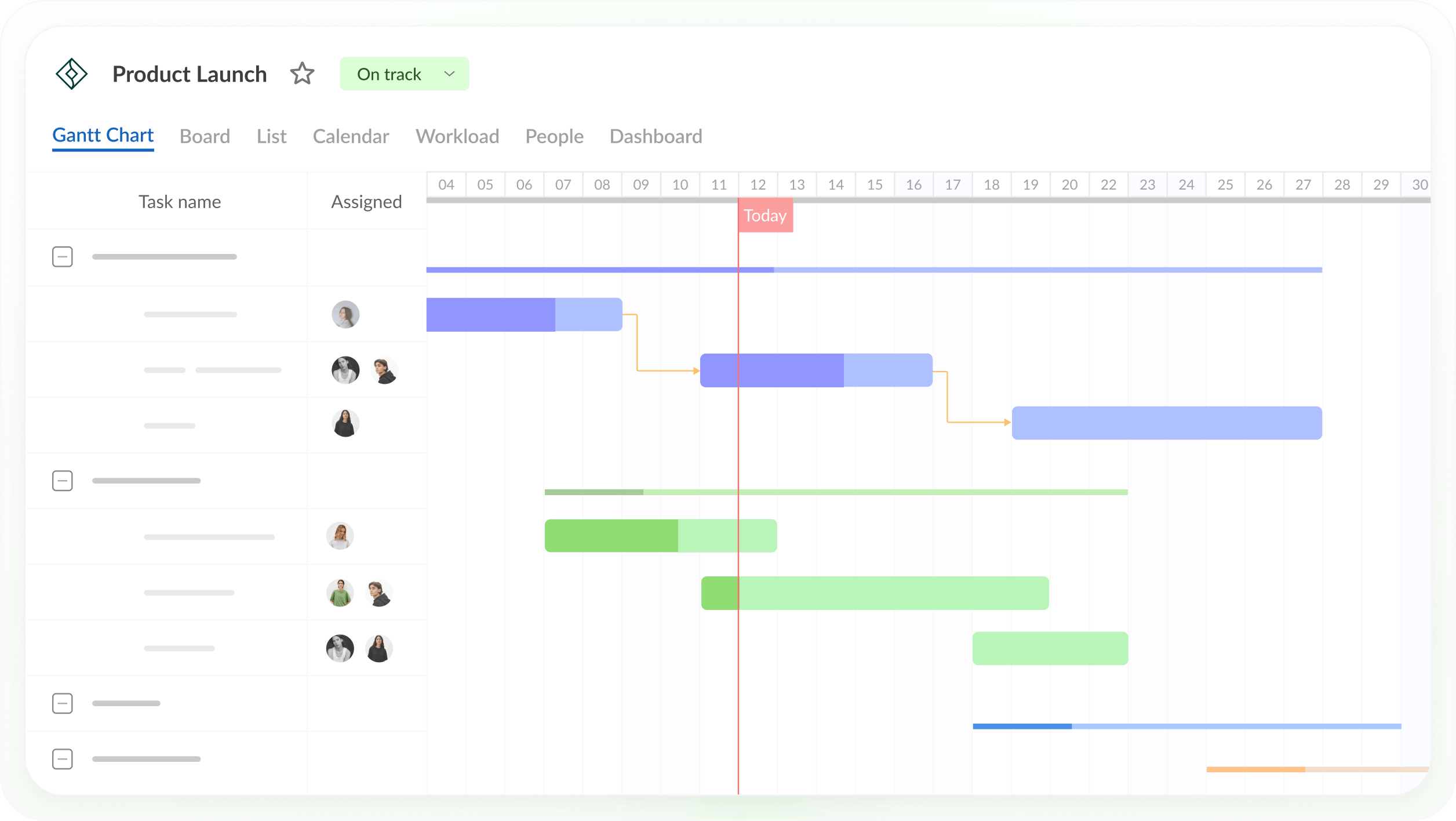
Best for: Small teams that want a simple online Gantt chart with critical path and baselines on the lowest plan, at a low per-user price.
Key features
- All four dependency types with lag and lead, and auto scheduling
- Critical path and baselines on all plans
- Workload across active projects, portfolio view and time tracking (Business plan)
- Import from Microsoft Project, Excel and Jira Cloud
- AI Gantt chart maker and iOS and Android apps
Pros
- Critical path and baselines from the lowest plan
- Low starting price for small teams
- Familiar for TeamGantt users who want a Gantt-first tool
Cons
- No free plan and no MPP export
- Workload, portfolio view and time tracking need the Business plan
- Per-user pricing that depends on team size, and the single-user plan is billed annually only
Pricing: For teams of 1 to 15, billed annually: Core $8/user/month, Advanced $12 and Business $19. Lower rates for 20+ members, monthly billing from 5 members, and Enterprise $25/user/month for 5+ users. 14-day free trial.
3. Smartsheet
Smartsheet is a spreadsheet-style work management platform with Gantt charts, all four dependency types with lag and critical path highlighting on the Pro plan and above. It imports MPP files directly and exports sheets with a Gantt chart as Microsoft Project XML, and it adds forms, dashboards and automated workflows around the schedule.
It suits a team that already tracks work in spreadsheets and wants the Gantt chart in the same grid. A growing team should check the plan details: baselines need the Business plan, with one baseline per sheet, full resource planning is a paid add-on, and the mobile app shows the Gantt view only in reports. Free Contributors can view and comment but not edit, so anyone who updates tasks needs a paid seat or, on Business and above, a guest invitation. For more options, see the best Smartsheet alternatives.

Best for: Teams that like working in spreadsheets and want Gantt charts, forms and dashboards in one shared grid.
Key features
- Gantt charts with all four dependency types and lag
- Critical path (Pro and above) and baselines (Business and above)
- MPP import and Microsoft Project XML export
- Forms, dashboards and automated workflows
Pros
- Familiar spreadsheet layout
- Opens MPP files directly
- Free Contributors can view and comment
Cons
- No MPP export, only Microsoft Project XML
- Baselines need the Business plan, with one baseline per sheet, and full resource planning is a paid add-on
- The mobile app shows the Gantt view only in reports
Pricing: Pro $9/member/month (up to 10 members) and Business $19/member/month (3+ members), billed annually ($12 and $24 billed monthly). Enterprise by quote. 30-day free trial.
4. Wrike
Wrike is work management software for larger teams, with interactive Gantt charts from the Team plan, a critical path view and a workload view on the Business plan and above. On the Business plan, it imports Microsoft Project files with dependencies and lag, and advanced resource and capacity planning, time tracking and budgeting come with the Pinnacle plan.
It suits a department with dozens of people that needs workload views across the team. Wrike doesn’t document baselines and can’t export back to Microsoft Project, and its seats are sold in groups (groups of 5 up to 30 seats), so you may pay for seats you don’t use. The Business plan is billed annually only.
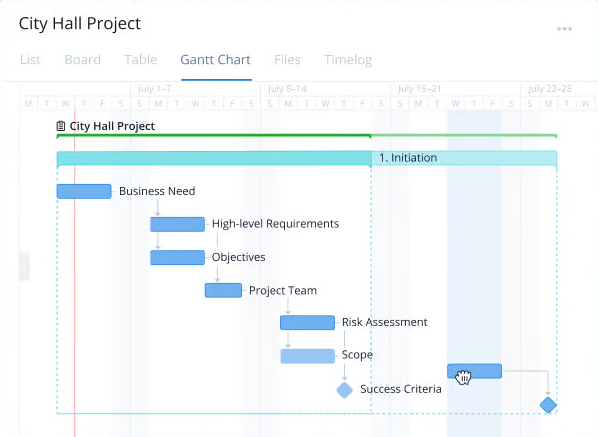
Best for: Larger teams that need workload views across many people and can import Microsoft Project files but don’t need baselines or MPP export.
Key features
- Interactive Gantt charts (Team plan and above) and a critical path view
- Microsoft Project import with dependencies and lag (Business plan)
- Workload view (Business and above); advanced resource and capacity planning, time tracking and budgeting (Pinnacle)
- Windows, Mac, iPhone and Android apps
Pros
- Scales to 200 users on the Business plan
- Free plan for trying it out
- Desktop and mobile apps
Cons
- No documented baselines and no export back to Microsoft Project
- Seats sold in groups, with a five-user minimum on Business
- Time tracking and advanced resource planning need Pinnacle, which is priced by quote
Pricing: Free plan. Team $10/user/month (2–15 users) and Business $25/user/month (5–200 users), billed annually. Pinnacle and Apex by quote. 14-day free trial.
5. Microsoft Planner
Microsoft Planner fits organizations that already use Microsoft 365 and want scheduling inside Microsoft’s tools. Basic Planner, included in many Microsoft 365 plans, has board, grid and schedule views but no Gantt view. Planner Plan 1 adds a Timeline (Gantt) view with finish-to-start dependencies, and Planner and Project Plan 3 adds all four dependency types with lead and lag, critical path, a baseline and the Project desktop client.
It suits a team already working in Teams and Outlook that wants plans in the same place. The catch for TeamGantt users is that critical path and baselines need Plan 3, at $30/user/month, and Planner itself can’t open MPP files; on Plan 3, Project desktop handles them on Windows. Copilot isn’t included in any Planner plan; it’s a $21–$30/user/month add-on. For more, see the best Microsoft Project alternatives.
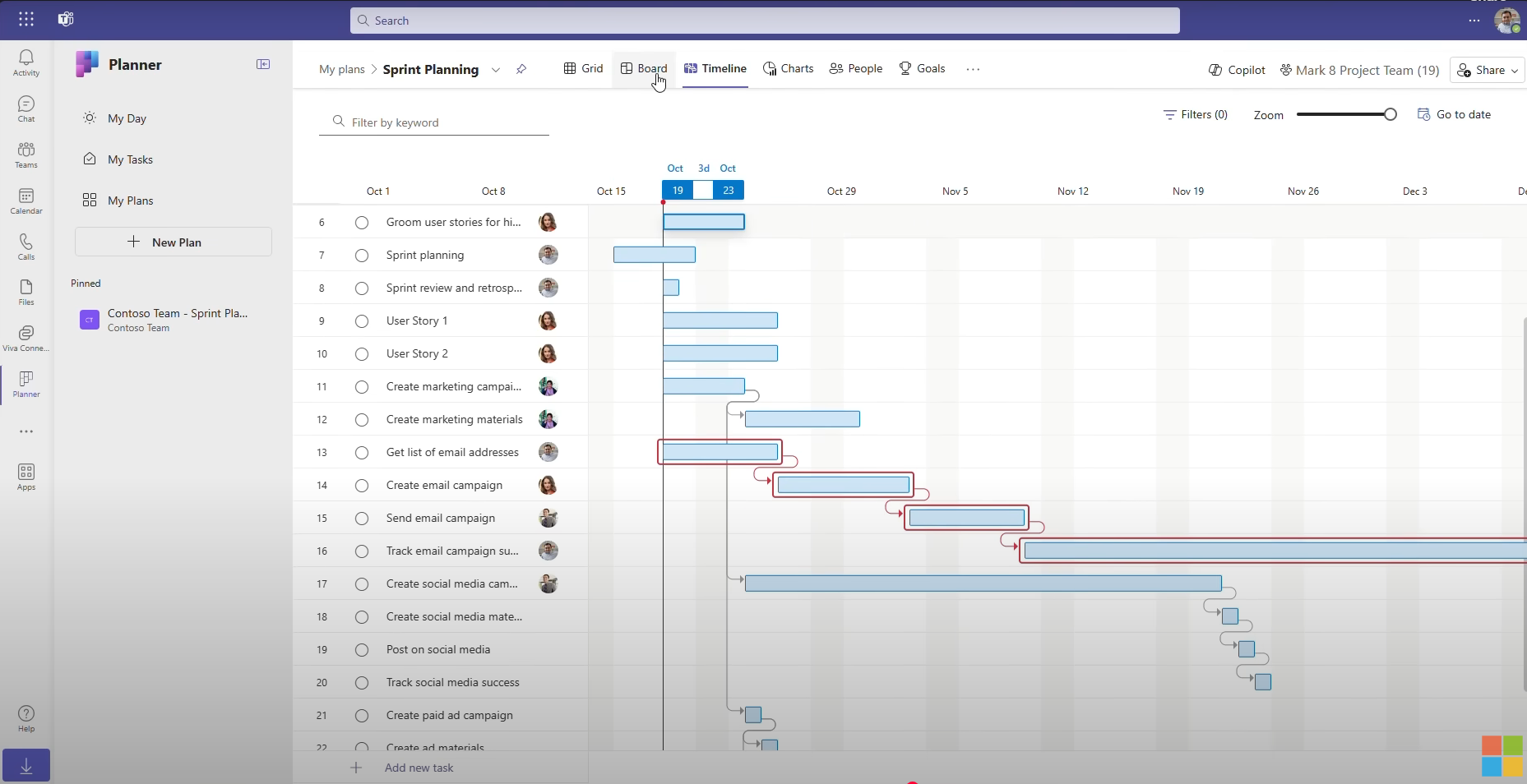
Best for: Microsoft 365 organizations that want plans next to Teams and Outlook, and can pay for Plan 3 when they need critical path and baselines.
Key features
- Timeline (Gantt), board, calendar and People views (Plan 1)
- All four dependency types with lead and lag, critical path and baselines (Plan 3)
- Assignments view, portfolios and the Project desktop client (Plan 3)
- Tasks appear in Outlook, To Do and the Teams Planner app
Pros
- Basic Planner is already included in many Microsoft 365 plans
- Works inside Teams and Outlook
- Plan 3 includes Project desktop for MPP files
Cons
- Plan 1 supports finish-to-start dependencies only
- Critical path and baselines need Plan 3, at $30/user/month, with one baseline per plan
- Planner can’t open MPP files, Project desktop runs on Windows only, and Copilot is a paid add-on
Pricing: Basic Planner included in many Microsoft 365 plans. Planner Plan 1 $10/user/month and Planner and Project Plan 3 $30/user/month, paid yearly.
6. monday.com
monday.com is a visual work management platform with boards, automations, dashboards and more than 200 templates. Its timeline and Gantt views start on the Standard plan, and dependencies with all four types and lead and lag, critical path, baselines and the workload view start on Pro. Dependency types and lead and lag are still being rolled out, so not every account has them yet.
It suits a team that wants one place for many kinds of work, with scheduling as one part of it. It’s a weaker fit for detailed scheduling: critical path is labeled a trial feature, resource management across projects needs Enterprise, the mobile apps don’t show the Gantt or Workload view, and there’s no MPP import. Paid plans need at least three seats. For more options, see the best monday.com alternatives.
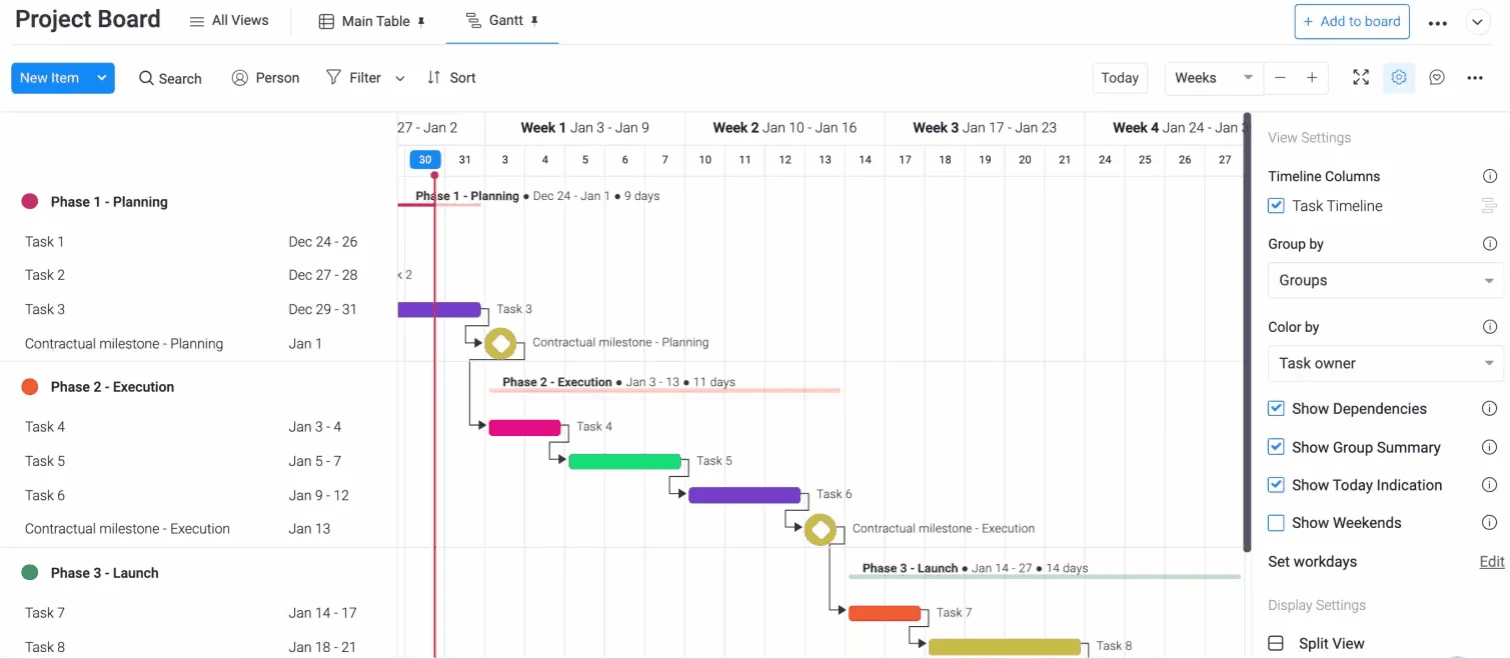
Best for: Teams that want a visual, flexible work platform for many kinds of work more than detailed project scheduling.
Key features
- Timeline and Gantt views (Standard and above)
- Dependencies, critical path, baselines and workload view (Pro and above)
- Boards, automations, dashboards and 200+ templates
- Unlimited free read-only viewers from the Basic plan
Pros
- Free plan for up to 2 seats
- Flexible boards for work beyond projects
- Free viewers on paid plans
Cons
- Dependencies, critical path and baselines need the Pro plan
- No Gantt view in the mobile apps and no MPP import
- Three-seat minimum on paid plans, and cross-project resource management needs Enterprise
Pricing: Free (up to 2 seats, 3 boards). Basic $9, Standard $12 and Pro $19 per seat per month, billed yearly ($12, $14 and $24 monthly), 3-seat minimum. Enterprise by quote.
7. ProjectLibre
ProjectLibre is the free option on this list: a free, open-source desktop scheduler for Windows, macOS and Linux with critical path, baselines, a work breakdown structure, network diagrams and earned value. It opens MPP files and saves in its own format or as Microsoft Project XML, not MPP.
It’s a better fit than TeamGantt’s free Personal plan for one person who needs more than one project or more than 40 tasks and doesn’t need anyone else in the schedule. The desktop app is built for one person and one project at a time, with no mobile app and no shared online workspace; its paid ProjectLibre Cloud adds real-time collaboration. If your team needs to update the schedule together, a paid tool above fits better. For more, see ProjectManager vs. ProjectLibre.

Best for: Individuals who plan alone on a desktop and want critical path and baselines for free.
Key features
- Critical path, float, baselines, WBS, network diagrams and earned value
- Opens MPP files and saves Microsoft Project XML
- Desktop app for Windows, macOS and Linux
- Optional ProjectLibre Cloud for real-time collaboration
Pros
- Free and open source, with no subscription
- Critical path and baselines at no cost
- Opens MPP files
Cons
- Built for one person and one project at a time, with no shared online workspace in the free version
- No mobile app
- Can’t save MPP files, only Microsoft Project XML
Pricing: Desktop free. ProjectLibre Cloud Core $9.99/user/month and Enterprise/PMO Cloud $29.99/user/month, billed annually.
How to Move a TeamGantt Project Into ProjectManager
To move a TeamGantt project into ProjectManager, export it from TeamGantt, set up a project with matching working days, import the file and check the logic. TeamGantt exports any project to CSV, PDF or Microsoft Project format.
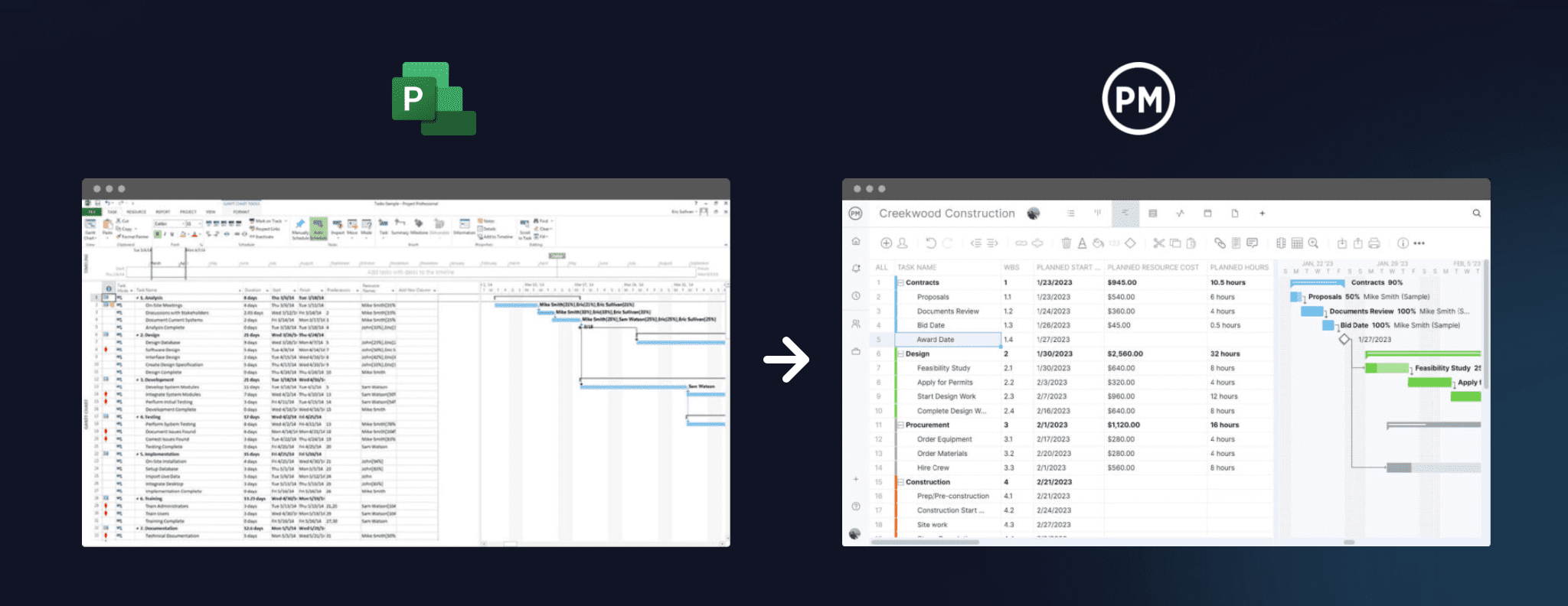
- Export from TeamGantt. Export the project to CSV, or to Microsoft Project format. If the project started as a Microsoft Project file, you can also import that original MPP file directly.
- Set working days first. In ProjectManager, click the + button and choose Project, then set your working days, such as a five-day or six-day work week. Working days are hard to change once the project exists. Add any global holidays now too, since they can’t be added to existing projects.
- Import the file. Choose Import File when creating the project, or click the import icon on the Gantt ribbon of an existing project, then upload your file. If you’re importing into an existing project, choose Keep and append with the imported data or Replace with the imported data. Replace removes everything already in the project.
- Choose all data or map columns. For an MPP or Microsoft Project XML file, choose All data to bring over tasks, assignees, dependencies and planned dates and durations. For a CSV or Excel file, map each column to a Gantt column; the import guidelines template in the import popup shows the format.
- Check dependencies. Compare durations and dependencies with the original TeamGantt project, paying attention to lag, and relink anything that didn’t come across.
- Filter for the critical path. Turn on the critical path filter and check that the tasks driving the finish date are the ones you expect. If they aren’t, look for missing links or lag.
- Set a baseline. If an MPP file contains several baselines, ProjectManager imports the most recent one. Otherwise, once the schedule matches, set a baseline in Gantt settings so you can track variance from the start.
Ready to move your TeamGantt projects? Start a free 30-day trial, import a project and invite your team to update their tasks. Try ProjectManager free.
TeamGantt Alternatives FAQ
What is the best alternative to TeamGantt?
It depends on why you’re leaving. ProjectManager fits growing teams that need critical path, baselines, workload across projects (Business plan) and MPP export. GanttPRO fits small teams that want a simple Gantt chart with baselines at a low per-user price. Smartsheet fits spreadsheet users, and Wrike fits larger teams that need workload views. For more tools, see the best Gantt chart software.
Is there a free alternative to TeamGantt?
Yes. ProjectLibre is a free desktop scheduler with critical path and baselines for one person working on one project at a time. GanttProject is another free desktop Gantt app that reads MPP files. Wrike and monday.com have free plans, but monday.com’s free plan has no Gantt view. If your team needs to update the schedule together, a paid tool with a free trial fits better.
What’s a TeamGantt alternative with resource management?
ProjectManager’s workload page (Business plan) shows each person’s assigned hours across all projects, with over-assigned days in red, and its timesheets track actual hours. GanttPRO (Business plan) shows workload across active projects, Wrike has a workload view on Business and above, and monday.com’s cross-project resource management needs Enterprise. On TeamGantt, workload management needs the Business plan.
Is TeamGantt good for large teams?
It can be. TeamGantt’s Business plan includes unlimited managers and collaborators at a flat price, which suits a large team with a few projects. It includes 5 projects, with up to 20 at $24/month per extra project, so teams with many projects need Builder Edition or Enterprise. Large teams that need workload across many projects or MPP export should compare alternatives.
Can I move my TeamGantt projects to another tool?
Yes. TeamGantt exports any project to CSV, PDF or Microsoft Project format. ProjectManager imports CSV files by mapping columns, and imports MPP files with all data. After importing, check dependencies and the critical path, then set a baseline. See ProjectManager vs. TeamGantt for a full comparison.