



ChatGPT can turn a messy brain dump into a prioritized to-do list in about ten seconds. But it can’t see your task list. It doesn’t know that three tasks went overdue yesterday, that Maria already has 14 open items, or that the client review moved to Friday.
That’s the catch with ChatGPT task management. The AI is great at thinking about work. It just can’t track the work. So the most productive teams aren’t picking between AI and a task management tool. They’re connecting the two.
In this guide, you’ll learn what ChatGPT can and can’t do for task management, how to connect it to your real tasks and 25 free prompts you can copy today. They cover planning, prioritizing, assigning, daily check-ins and follow-ups.
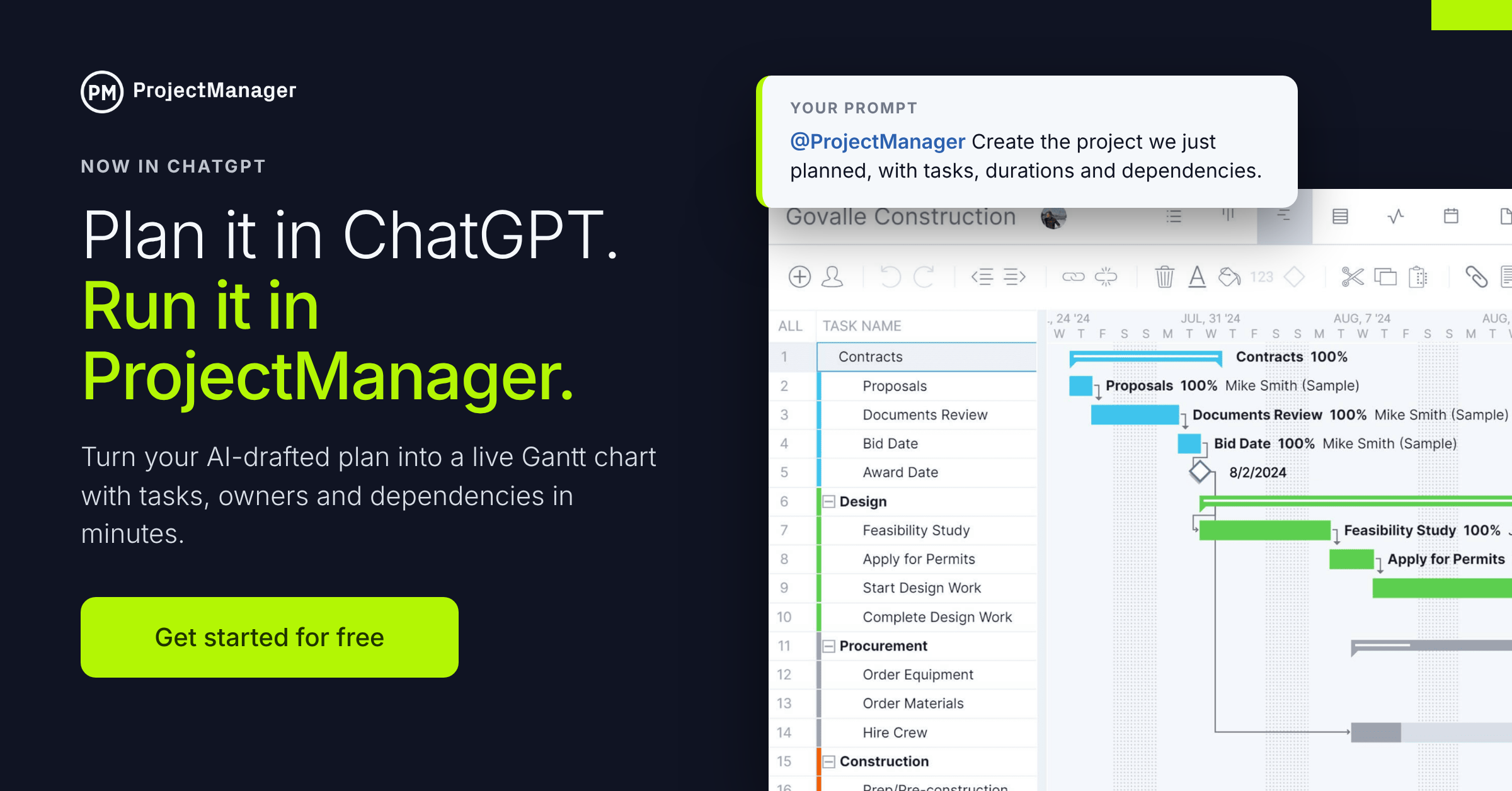
ProjectManager is award-winning project and task management software that connects directly to ChatGPT. Ask “What’s on my plate today?” and get an answer from your live tasks, not a pasted copy. Then create tasks, assign owners, set priorities and update status without leaving the chat. Every change shows up on your team’s task lists, kanban boards and Gantt charts. Get started with ProjectManager today for free.
What Is ChatGPT Task Management?
ChatGPT task management means using ChatGPT to plan, prioritize, delegate and follow up on work. You can do it in two ways:
- ChatGPT on its own: You paste in your tasks, notes or goals and ChatGPT gives you back a list, a plan or a draft. It’s fast, but the output is a static snapshot. Nothing gets saved to your team’s actual task list.
- ChatGPT connected to task management software: ChatGPT reads and writes your live tasks. It can tell you what’s overdue, create tasks with owners and due dates and update status as work moves. Your team sees every change.
The first approach is good for thinking. The second is how you actually get tasks done as a team.
Can You Use ChatGPT for Task Management?
Yes, for some of it. ChatGPT is a strong thinking partner for organizing work. It isn’t a system of record for tasks. Here’s how it splits:
| ChatGPT does well on its own | ChatGPT can’t do on its own |
|---|---|
| Turning a brain dump into an organized task list | Keeping a live, shared task list your whole team can see |
| Breaking big tasks into subtasks and checklists | Knowing who’s available, overloaded or out of office |
| Prioritizing with frameworks like Eisenhower or MoSCoW | Tracking status, progress and hours as work happens |
| Turning meeting notes and emails into action items | Sending due-date reminders and overdue alerts |
| Estimating effort and suggesting a realistic order | Linking dependent tasks so delays ripple correctly |
| Drafting task descriptions, handoffs and follow-up messages | Remembering your tasks between chats without re-pasting them |
The left column is where ChatGPT saves you time. The right column is where task management software comes in. When the two are connected, you get both. ProjectManager’s ChatGPT integration lets ChatGPT find, create and update your real tasks, so a plan you sketch in the chat becomes assigned, scheduled work in seconds.
AI Task Management Tools: Built-In AI vs. Bring Your Own
Most task management tools now ship their own AI. That’s one way to get AI into your workflow, but it often comes with add-on fees and lock-in.
Approach 1: Built-in AI. ClickUp sells Brain as a per-member add-on, and its agents run on separate credits. monday.com charges for AI credits on top of seats. Asana meters AI Studio by credits, and AI rules stop when they run out unless an admin turns on extra billing. You pay twice and you’re limited to whatever AI your vendor picked.
Approach 2: Bring your own AI. Use the ChatGPT plan you already have and connect it to task management software. That’s how ProjectManager works.
| Built-in AI | ChatGPT + ProjectManager | |
|---|---|---|
| AI power | The vendor’s own AI layer | ChatGPT, a leading general-purpose AI |
| Where you work | Inside the task app only | In ChatGPT or ProjectManager, your choice |
| AI pricing | Add-ons and credits on top of seats | Your existing ChatGPT plan; the integration is free on every ProjectManager edition |
| Task depth | Varies by tool | Task lists, kanban, Gantt, calendar, dependencies, workload, timesheets and dashboards |
| Lock-in | AI and tasks come as one bundle | Best-in-class AI and task management, connected |
How to Use ChatGPT for Task Management With ProjectManager
Once connected, ChatGPT works with your live tasks. Each person signs in with their own ProjectManager account, so ChatGPT only sees what that person can already see. Here’s what you can do from the chat:
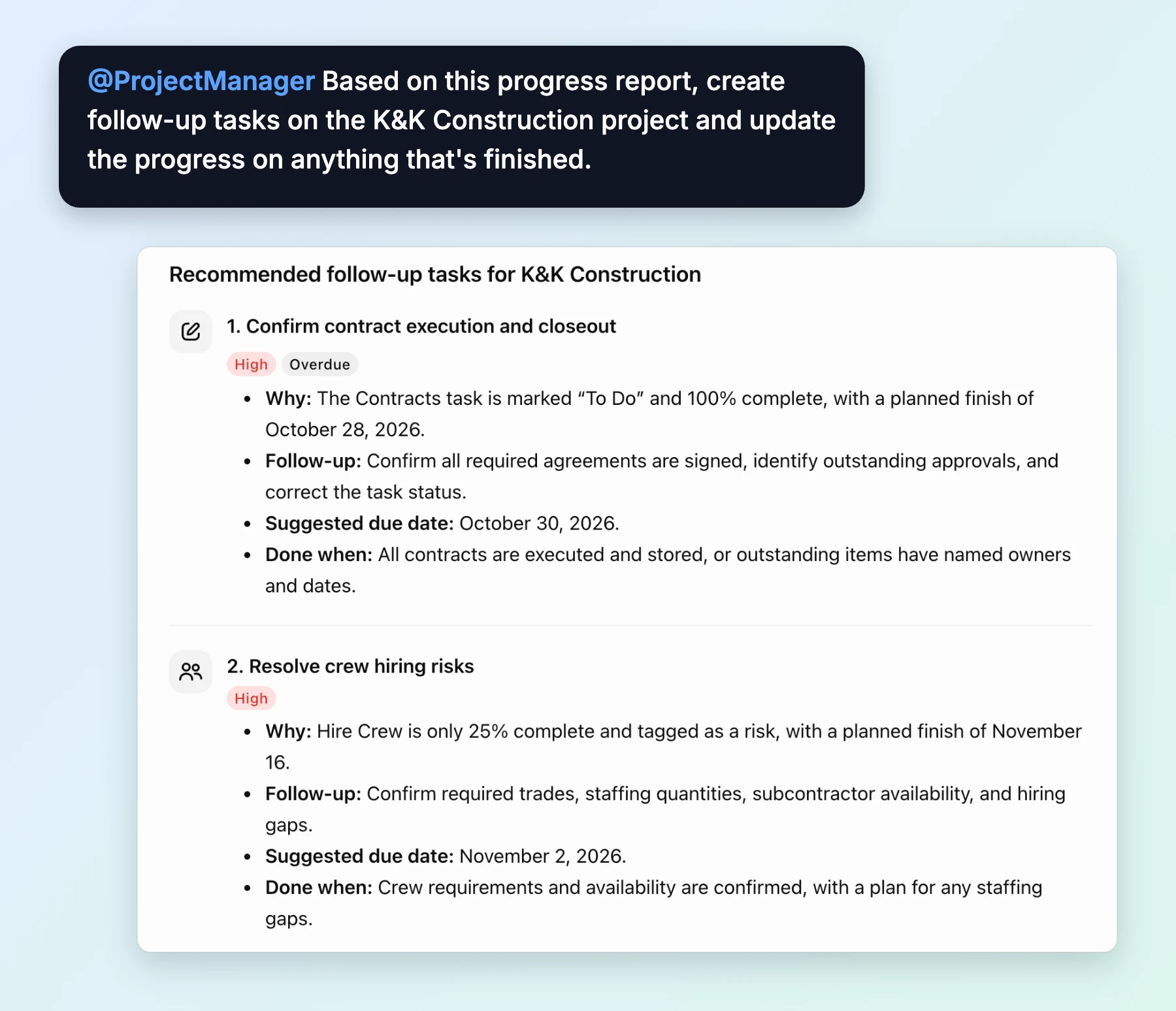
- Find your work: Ask what’s due today or this week, what’s assigned to you, or which tasks are overdue. Search by project, date, priority, progress or tag.
- Create tasks: Add tasks and subtasks, assign owners, set dates and priorities, apply tags and link dependent tasks.
- Update tasks: Change status and priority, update progress and mark tasks complete.
- Check team workload: See each person’s open, overdue and completed task counts before you assign more work.
- Catch up on discussions: Summarize the comments on a task and find files attached to it.
How to Connect ChatGPT to ProjectManager
- Open the ProjectManager app in ChatGPT and click Install.
- Sign in with your ProjectManager account.
- Start your prompt with “@ProjectManager” so ChatGPT knows to use your live tasks.
- Approve changes as you go. By default, ChatGPT asks before it changes anything. We recommend always allowing read-only actions and requiring approval for creating, editing and deleting.
For admins: Access is controlled by the “Access work from ChatGPT and Claude” role setting. It’s on by default for every role except guests. The same connection also works with Claude. See the setup guide.
Don’t have an account? Start a free trial and connect ChatGPT in minutes.
A Simple Daily Routine for ChatGPT Task Management
The prompts below are most useful as a habit. Here’s a routine that takes about ten minutes a day:
- Morning (3 minutes): Ask ChatGPT what’s due today and what’s overdue. Have it suggest your top three priorities.
- After meetings (2 minutes): Paste your notes and have ChatGPT create the action items as assigned tasks.
- End of day (3 minutes): Tell ChatGPT what you finished and have it update the status of those tasks.
- Friday (5 minutes): Ask for a summary of what got done, what slipped and what’s coming next week.
25 Free ChatGPT Prompts for Task Management
Copy these prompts and replace the text in brackets. Prompts that start with @ProjectManager read or update your live tasks once you’ve connected ChatGPT. The rest work in any chat.
Capturing and Organizing Tasks
1. Turn a brain dump into a task list
I’m going to paste everything on my mind for [this week / this project]. Turn it into a clean task list. Group related items, rewrite each one so it starts with a verb, and flag anything that’s vague or missing a deadline. [paste notes]
2. Break a big task into subtasks
Break “[task name]” into subtasks that each take no more than [4 hours]. List them in the order they should be done, note which ones depend on others, and estimate the hours for each.
3. Create the tasks in your project
@ProjectManager Add these tasks to the [project name] project: [list]. Make “[parent task]” a summary task with the rest as subtasks. Set start and due dates between [start date] and [end date], link any tasks that depend on each other and set priority to [High/Medium/Low].
4. Pull tasks from a document
@ProjectManager I’ve attached [an email thread / a client brief / a checklist]. Pull out every task, owner and deadline mentioned. Show me the list first, then add them to [project name] once I approve.
5. Build a recurring checklist
Create a checklist for [weekly reporting / client onboarding / month-end close]. Include every step, who usually owns it and how long it typically takes. Format it as a table I can reuse.
Prioritizing Tasks
6. Plan your day
@ProjectManager What’s on my plate today? List my tasks due today and anything overdue, then suggest my top three priorities and explain why.
7. Sort tasks with the Eisenhower matrix
Sort these tasks into an Eisenhower matrix: urgent and important, important but not urgent, urgent but not important, and neither. Recommend what to do, schedule, delegate or drop. [paste tasks]
8. Prioritize a project backlog
@ProjectManager Show me all open tasks in [project name] with no priority set. Suggest a priority for each based on due date and what depends on it. Update them once I approve.
9. Rank tasks by impact and effort
Score each task from 1 to 5 on impact and effort. Put the results in a table, sorted so quick wins (high impact, low effort) come first. [paste tasks]
10. Decide what to cut
I have [20] hours this week and these tasks: [paste tasks with estimates]. Tell me what fits, what should move to next week and what I should push back on. Draft a short note to [manager] explaining the trade-offs.
Assigning and Delegating Tasks
11. Check workload before you assign
@ProjectManager Show me how many open and overdue tasks each person on the [project name] team has. Who has the most capacity this week?
12. Assign unassigned tasks
@ProjectManager Find the unassigned tasks in [project name]. Suggest an owner for each based on role and current workload. Show me the list before you make any changes.
13. Write a clear task handoff
Write a task description for “[task name]” that I’m handing to [name/role]. Include the goal, what done looks like, the deadline, who to ask for help and any files they’ll need. Keep it under 150 words.
14. Turn meeting notes into assigned tasks
@ProjectManager Here are my notes from today’s [meeting]. Pull out each action item, owner and due date and create them as tasks in [project name]. Tag them “[meeting name]”. [paste notes]
Tracking and Updating Tasks
15. Find what’s overdue
@ProjectManager Which tasks across my projects are overdue? Group them by project, show the owner and how many days late each one is.
16. Update status in bulk
@ProjectManager I finished [task 1], [task 2] and [task 3] today, and [task 4] is about [50]% done. Update their status and progress in [project name].
17. Spot tasks at risk
@ProjectManager Which tasks in [project name] are due in the next [7] days and still under [25]% complete? What later tasks depend on them?
18. Catch up on a task discussion
@ProjectManager Summarize the comments on “[task name]” in [project name]. What’s been decided, what’s still open and who’s waiting on whom?
19. Find tasks by tag or priority
@ProjectManager Show me every high-priority task tagged “[tag]” that isn’t complete yet, sorted by due date.
20. Compare planned vs. actual hours
@ProjectManager In [project name], which tasks have taken more hours than planned? List the biggest gaps first.
Following Up and Reviewing Tasks
21. Write a friendly follow-up
Write a short, friendly Slack message to [name] checking on “[task name]”, which was due [date]. Ask if they’re blocked and offer help. Don’t make it sound like a reprimand.
22. Write a weekly task summary
@ProjectManager Review my tasks in [project name] and write a weekly summary: what got done, what’s in progress, what’s overdue and what’s due next week. Keep it under 200 words.
23. Prep for a one-on-one
@ProjectManager List [name]’s open, overdue and recently completed tasks. Suggest three talking points for our one-on-one.
24. Run a task retrospective
Here’s a list of tasks from last [sprint / month], with planned and actual due dates: [paste]. What patterns do you see in what slipped? Suggest three changes to how we plan tasks.
25. Clean up a stale task list
Review this task list and flag duplicates, tasks with no owner, tasks with no due date and anything untouched for more than [30] days. Suggest whether to close, reassign or reschedule each one. [paste tasks]
Tips for Getting Better Results From ChatGPT
- Give it a role. “Act as an operations manager at a [industry] company” gets more useful suggestions than a blank prompt.
- Include real constraints. Hours available, deadlines and who’s on the team change the answer. With the integration, ChatGPT pulls these from your live tasks.
- Ask for a format. Tables, checklists and word limits make output easier to use.
- Start small. Test a prompt on one project before running it across your whole workspace.
- Review before you approve. Check what ChatGPT plans to change, especially bulk updates and reassignments.
- Follow your company’s AI policy. Don’t paste confidential client data into unapproved chats.
- Stay in charge. ChatGPT can be confidently wrong. Check its priorities and estimates against what you know about your team.
ChatGPT Task Management FAQ
Can ChatGPT replace a task management tool?
No. ChatGPT is great at organizing, prioritizing and writing, but it doesn’t keep a shared task list, send reminders or track progress. Connect it to ProjectManager and you get both.
Can ChatGPT remember my tasks?
Not reliably on its own. You’ll usually need to re-paste your list in each chat. Connected to ProjectManager, it reads your current tasks every time you ask, so the answer is always up to date.
Can ChatGPT send me task reminders?
ChatGPT isn’t built to be your team’s alert system. ProjectManager sends notifications and email alerts when tasks are updated, due or overdue, so nothing depends on someone remembering to ask.
Is my task data safe?
Each person signs in with their own ProjectManager account, so ChatGPT only sees what they can already access. It asks before changing data by default, and admins can turn access on or off by role.
Does this work with Claude too?
Yes. The same integration works with both ChatGPT and Claude.
Get the World’s Best AI and Proper Task Management Software
ChatGPT helps you think through your work. ProjectManager makes sure it gets done. It’s award-winning task and project management software that more than 35,000 teams use to plan, assign and track work, and it connects to ChatGPT at no extra cost across all editions.
Manage Tasks in Multiple Views
Every task ChatGPT creates shows up across task lists, kanban boards, Gantt charts, sheets and calendars. Team members can drag cards across the board while managers see the full timeline, all from the same live data.

Prioritize, Tag and Filter Your Work
Set priority levels, add tags and use custom filters to find exactly what matters today. Add descriptions, files and comments to each task so the context lives with the work, not in someone’s inbox.
Automate Workflows and Approvals
Set up workflow automations to handle repeat steps and recurring tasks, and add approvals so work only moves forward once it’s been checked. Link dependent tasks so when one slips, the schedule updates with it.
Balance Workload and Track Time
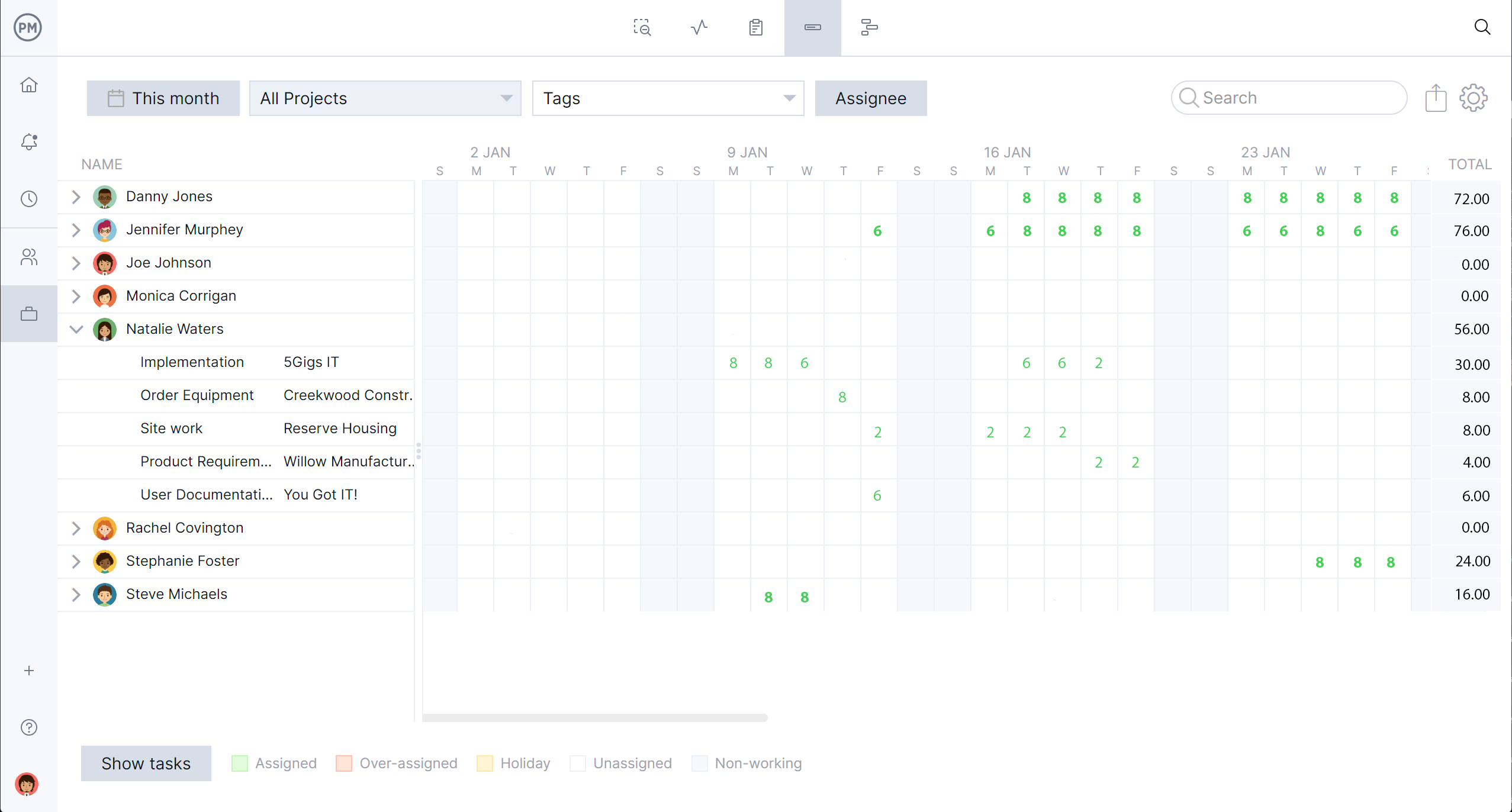
The workload chart shows who’s overloaded and who has room before you assign the next task. Timesheets track hours against each task, so you can see where time really goes.
Never Miss a Due Date
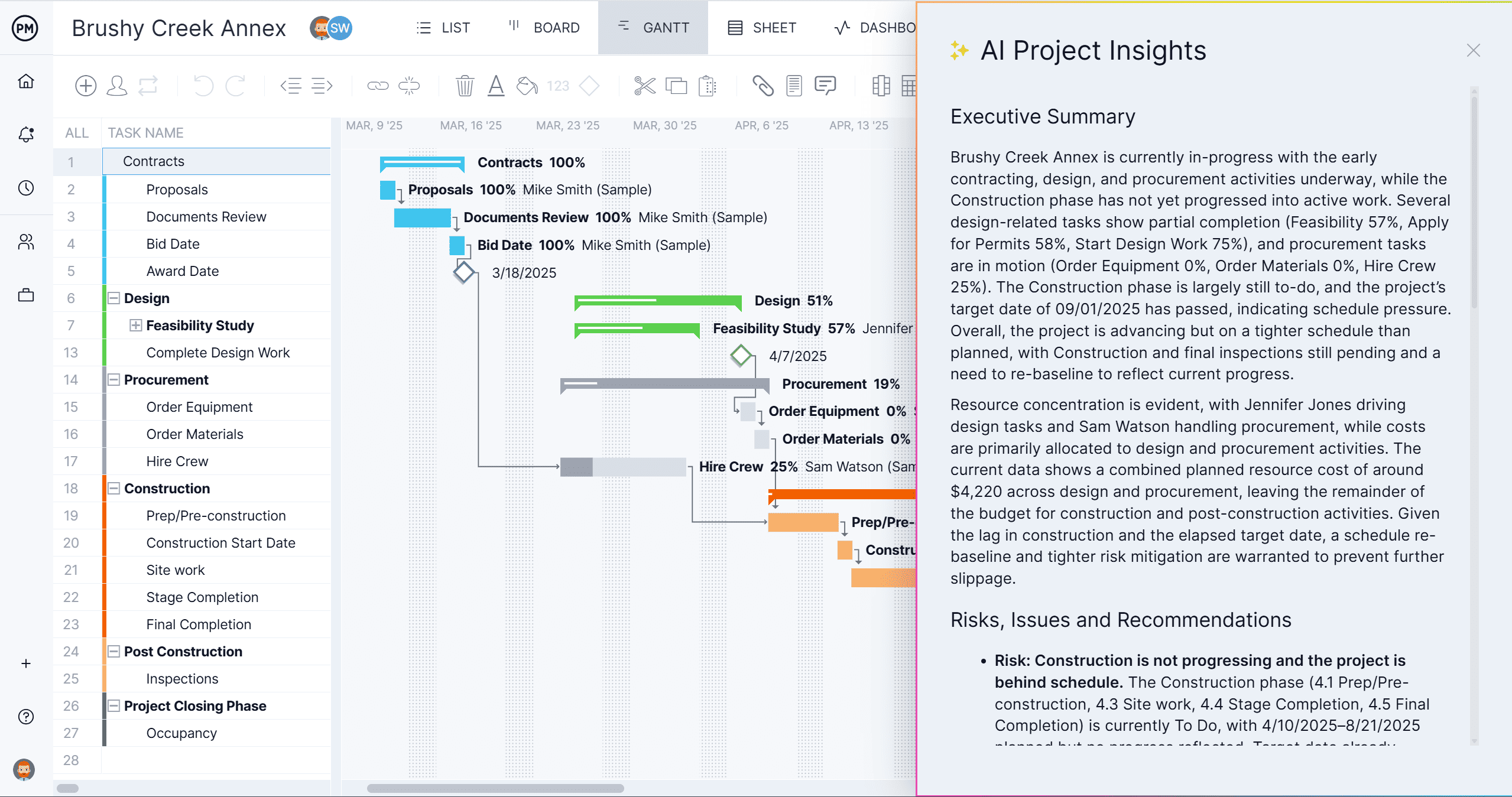
Notifications and email alerts keep assignees on top of due and overdue tasks. Real-time dashboards and reports show progress across every project, and AI Project Insights flags risks before they become problems.
Start Managing Tasks With ChatGPT Today
Connect ChatGPT to your live tasks in minutes and turn every chat into finished work. Try ProjectManager free for 30 days.