

AI store builders are all the rage right now, and I definitely get the appeal. Platforms like Shopify are easy enough to use once you get into them, but a lot of merchants get stuck in blank page panic the second they sign up for an account.
An AI store builder doesn’t leave you with absolutely no work left to do, but it helps you get the foundation in place, so you don’t feel like you’re starting from ground zero.
Right now, my preferred route is to start with something like BuildYourStore.ai for the opening build (and some handy product sourcing), then move onto using Shopify’s own AI tools to get your store ready for success. Here’s a quick guide through the process.
What Building with AI Means on Shopify
First of all, there are different ways to build a Shopify store with AI.
First, you’ve got the “done-for-you” store generation tools, like BuildYourStore.ai, which we’ll cover in a minute. They get your initial store design ready, with a customizable theme, pages, banners, plus products. That gets you ready to start tweaking the perfect site.
After that, there are the native Shopify AI tools, which I definitely recommend checking out if you haven’t already. Shopify’s AI store builder can also create a design from a business description, but it doesn’t suggest products (which is why I tend to use BYS first). Shopify Magic (which Shopify now runs through Sidekick) writes and edits text, produces images, adjusts backgrounds, plus updates your theme content.
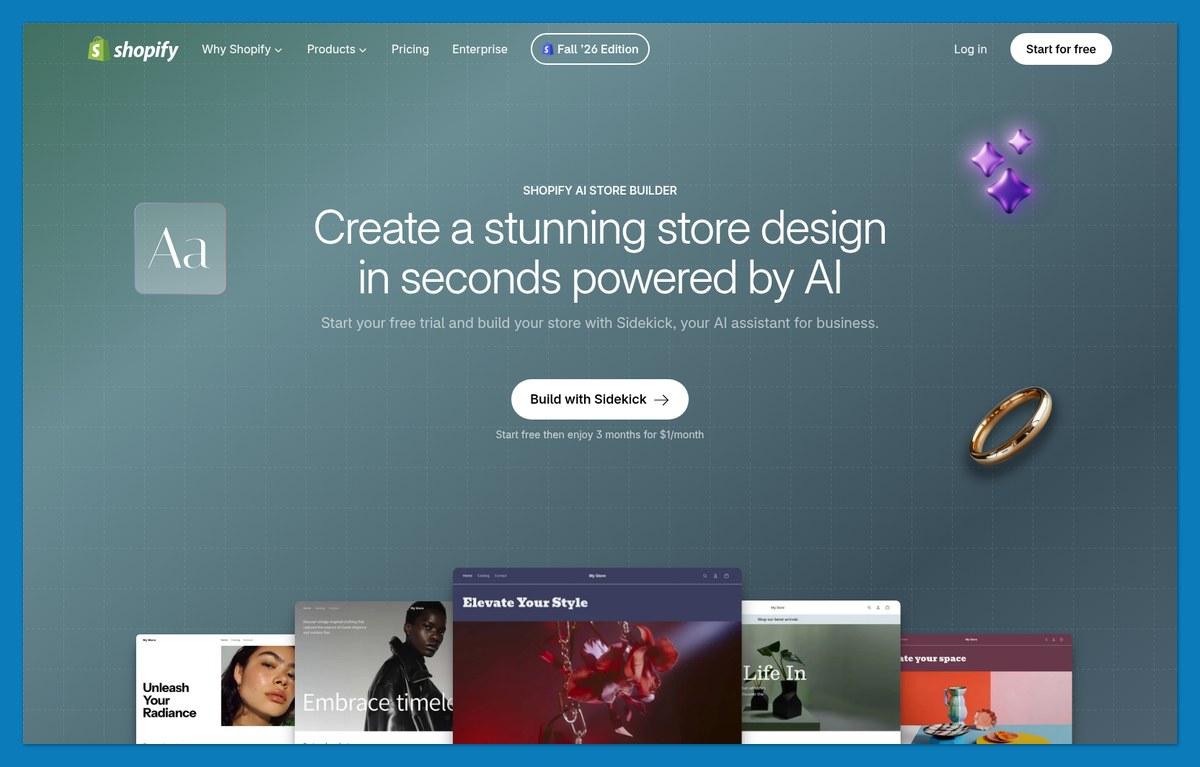
Shopify Sidekick can edit your products, build collections, pull insights from store data, change theme settings, draft automations in Flow, and design discounts.
Finally, there are the new Shopify features that prepare your store for AI discovery. Agentic storefronts put your products in front of shoppers in AI tools like ChatGPT, Google AI Mode and Gemini, Microsoft Copilot or Meta, so customers can either get direct recommendations and links to products from bots, or buy items straight in their chat session (on every one of those channels except ChatGPT, which sends buyers to your own checkout).
The Decisions AI Can’t Make for You
AI can do a lot, but it can’t make every decision for you. For instance:
- Niche refinement: BuildYourStore.ai designs websites based on broad niches like pets or fashion, but it can’t pick your intended niche for you, and it can’t help you dive into narrower product categories if you’re trying to find a gap in the market.
- Margin management: Again, BYS can suggest products and prices from the AutoDS catalog, but you still need to decide on your own margins. Make sure you take supplier costs, delivery, payment fees, app charges and customer acquisition costs into account.
- Supplier trust: AutoDS is a very popular dropshipping company, but it’s still up to you to figure out if it’s trustworthy enough for your niche. You’re still responsible when an order arrives late, damaged, or looks nothing like it did in the photo.
- Positioning: You still need to make your site your own, create a brand that stands out, advertise, connect with customers, and make it obvious why people should buy from you.
Shopify AI Store Builder vs BuildYourStore.ai: Which Route?
Now, as I said before, you can handle the whole store setup with Shopify’s native tools alone, but personally, I think it’s easier to use BYS first and switch to Shopify later.
| Category | Shopify’s AI Store Builder | BuildYourStore.ai |
|---|---|---|
| Where you start | With a short description of the business | Choosing a niche and a couple of homepage banners |
| What you end up with | Up to three customized theme drafts | A niche-specific Shopify store, plus ten products sourced from AutoDS |
| How the product pages are built | Designed based on what you add to the store | Created based on AutoDS catalog data |
| Theme | AI-generated versions of Shopify themes | Customized free theme based on Dawn |
| Editing | Help from Shopify Editor, Sidekick, and Magic | You handle the edits in Shopify |
| Fulfillment | Chosen and managed by you | Simplified through AutoDS |
| Domain | You buy or connect your own domain | Free .store domain for the first year |
| Build cost | Theme generation is free; but you still need a Shopify plan | The Beginner build is free; Shopify, and AutoDS are needed separately |
| Best fit | Sellers with existing product and theme ideas | Beginners starting a dropshipping store |
What Does BuildYourStore.ai Actually Build for You?
BuildYourStore.ai pretty much handles the initial hurdles of setting up a dropshipping-focused Shopify store. You get a customized theme based on Dawn, and tweaked to suit your niche, a free .store domain for the first year, ten products chosen from AutoDS’s best-selling collection, premium sales apps, sales badges, policy templates, content, and conversion-ready pages.
There is a Pro plan that gives you access to shipping setup, more custom copywriting, extra product imports, ad creatives, and so on, but the free plan is more than enough for most beginners.
You’ll be left with:
- A full Shopify store with a customizable Dawn theme
- Ten niche-specific products chosen from AutoDS
- Access to AutoDS for fulfillment (although you do need a plan)
- Two homepage banners, and initial pages
- Terms and conditions templates
- Review widgets, badges, and apps
- Your free .store domain for one year
- Complete control over the resulting store via Shopify
The most important thing is that you own the store BYS builds for you completely, you still get to control everything from the branding, to the product pricing.
Walkthrough: Getting your AI-Built Store
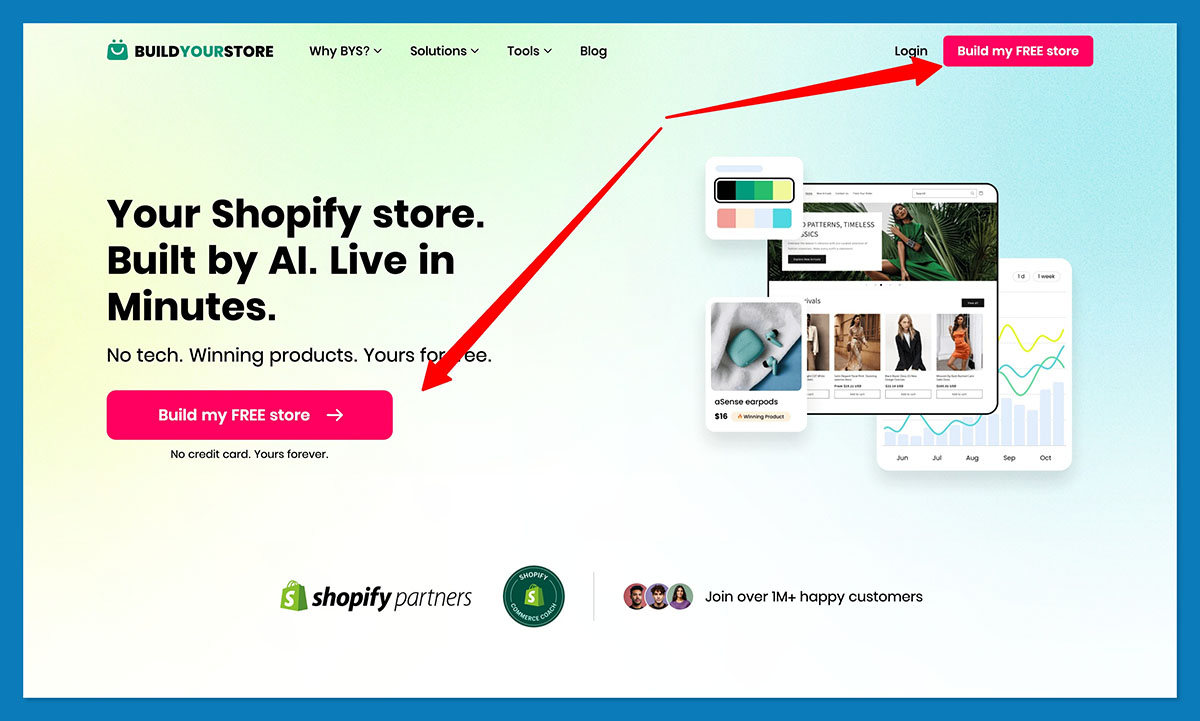
Like I said, I think BuildYourStore.ai is the best starting point for beginners, because it designs your store and gives you products to add to your catalog right from the start.
All you need to do to begin with is sign up for free on BuildYourStore.ai. You’ll be asked for your full name, email address and a password, or you can log-in with Google.
After that:
Step 1: Choose your Niche and Homepage Banners
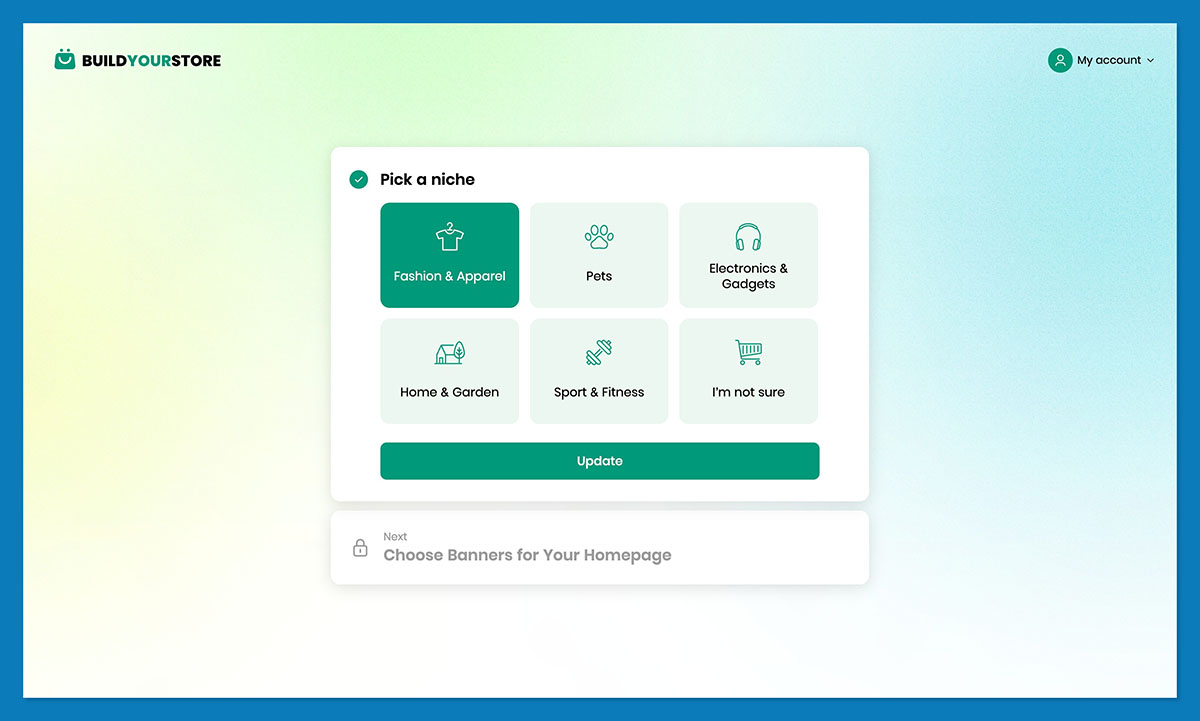
Once you’re signed in, BYS asks you to choose a niche. There are options like Pets, Fashion or Apparel, Home and Garden, and so on, or you can choose “I’m not Sure” if you’re still deciding.
The free plan will also give you six banners to choose from for your home page, which gives the AI a little more direction when it comes to the kind of design you’re looking for.
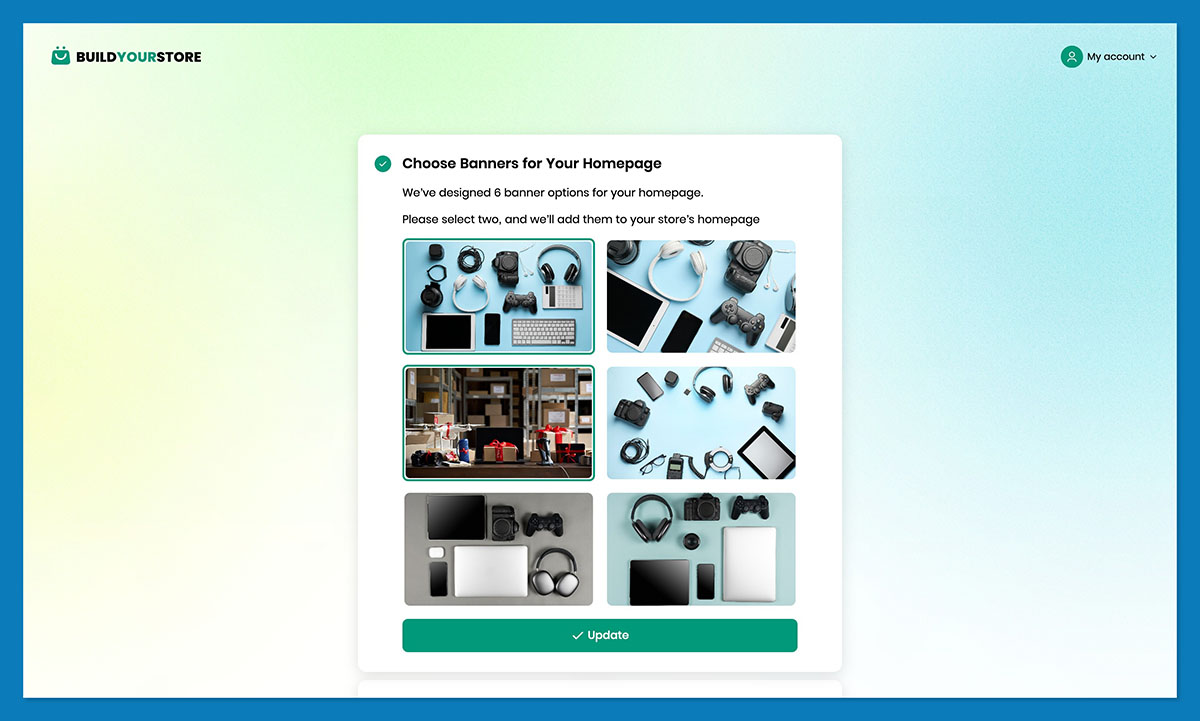
Step 2: Connecting Your Shopify Store
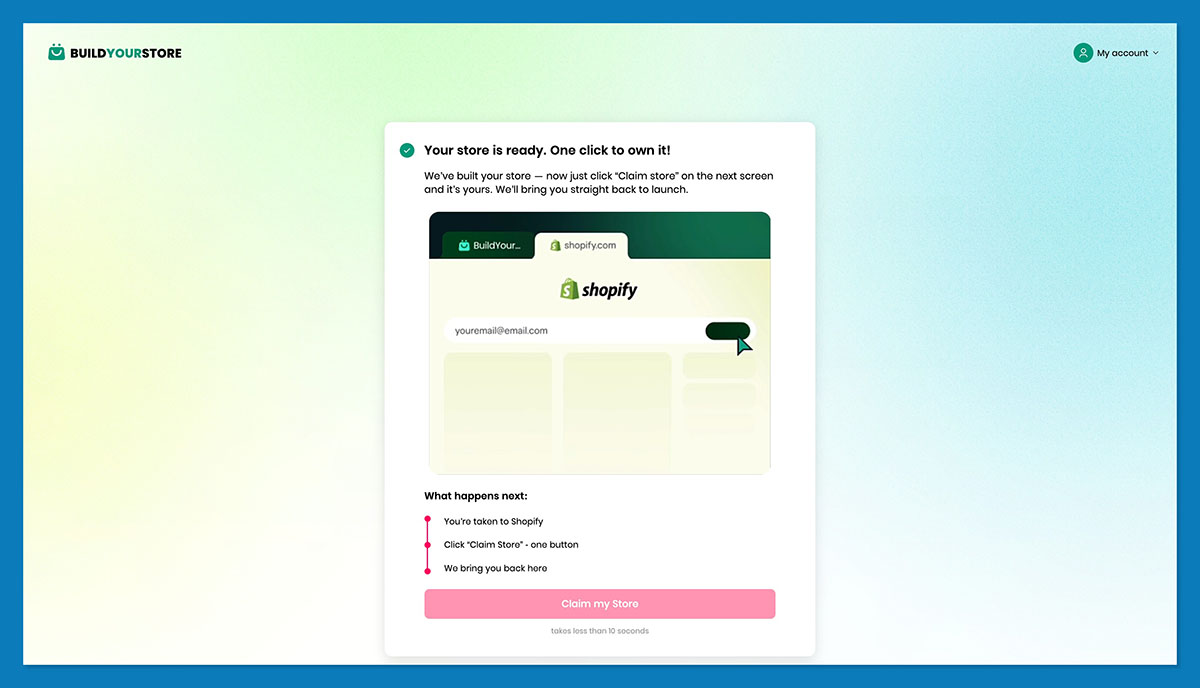
Next, the setup wizard asks you to either create a Shopify account, or connect the one you already have, to “claim your store”. BYS appears as “Build Your Store AI” in the Shopify App Store (free, with BYS listed as the developer), so you’ll need to install and approve that app to start editing. Make sure you check the developer name, because there are a lot of similar tools out there, including paid “AI Store Builder” apps from BYS itself.
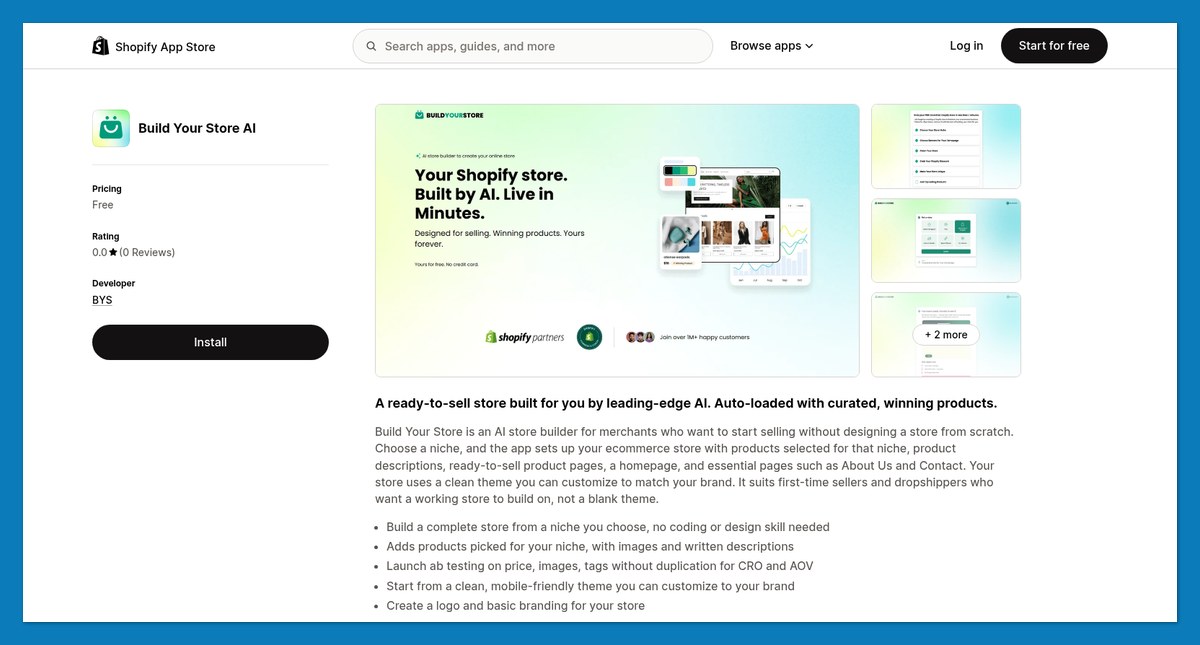
Once everything’s connected, it takes a few minutes for the BYS system to generate your store (anywhere up to 30 minutes, depending on your connection).
Step 3: Connect to AutoDS
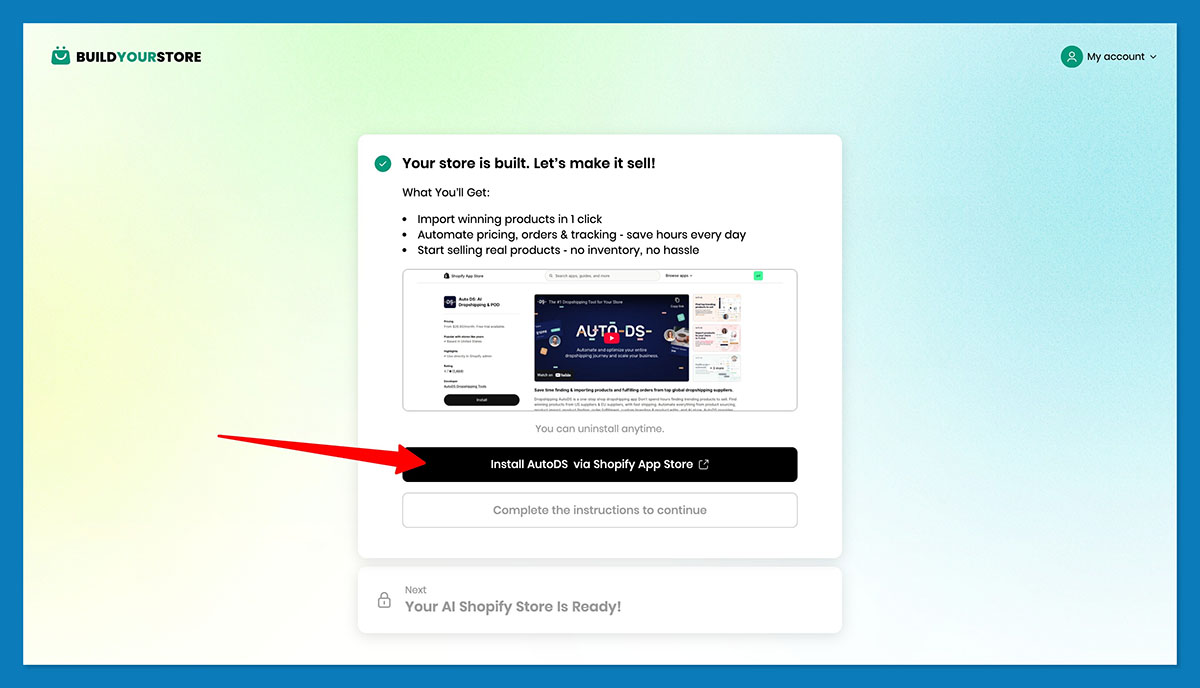
Now you can connect to AutoDS, which is where BYS sources the “top-selling” products for your website. It’ll pick ten niche-specific options for you to begin with, but you’re free to switch out the selections if you want to.
I’d take some time reviewing each product’s supplier, cost, delivery times, stock, variants, images, plus pricing before you settle on your first catalog.
Step 4: Claim the Domain and Fix Your Settings
BYS gives you a free .store domain for the first year, but there’s a separate management log-in, so you’ll need to get that setup yourself. A single email gets a single domain, and you’ll need to renew your subscription to keep that domain at the end of the year.
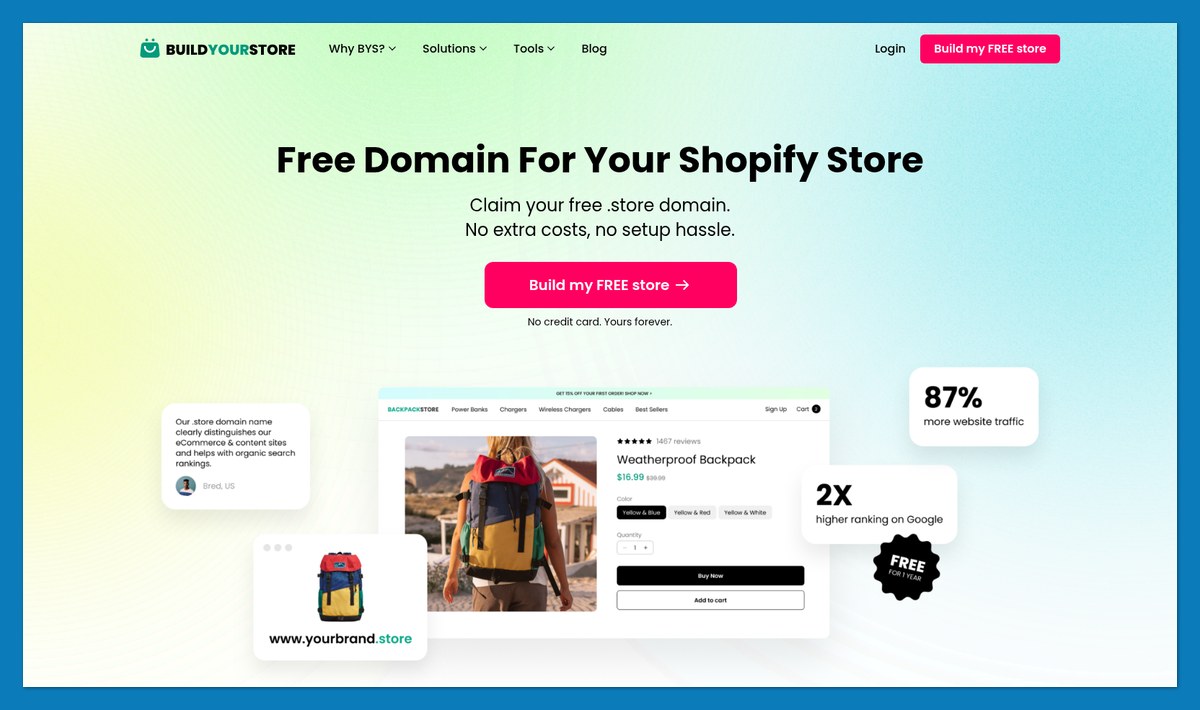
After you have your domain, spend some time fixing settings. Generated stores can sometimes default to the US, so you’ll need to potentially correct the business address, currency, taxes, markets, shipping zones, payment setup, plus legal details before launch.
The Real Cost of an AI-Built Shopify Store
I want to quickly clarify here that you can absolutely do all of the steps above without paying anything. BYS gives you a free initial build for nothing, and that includes a Shopify theme, ten products, two standard banners, plus initial copy and product pages.
You also get your .store domain included. There is a Pro plan for more custom copy, shipping setup, and extra product sourcing features, plus AI ads, but you don’t have to use that upfront.
Still, it’s worth remembering that there are other costs you still need to think about. You need a Shopify account, which means paying at least $29 per month (annually) for the Basic plan, or $39 if you pay month to month.
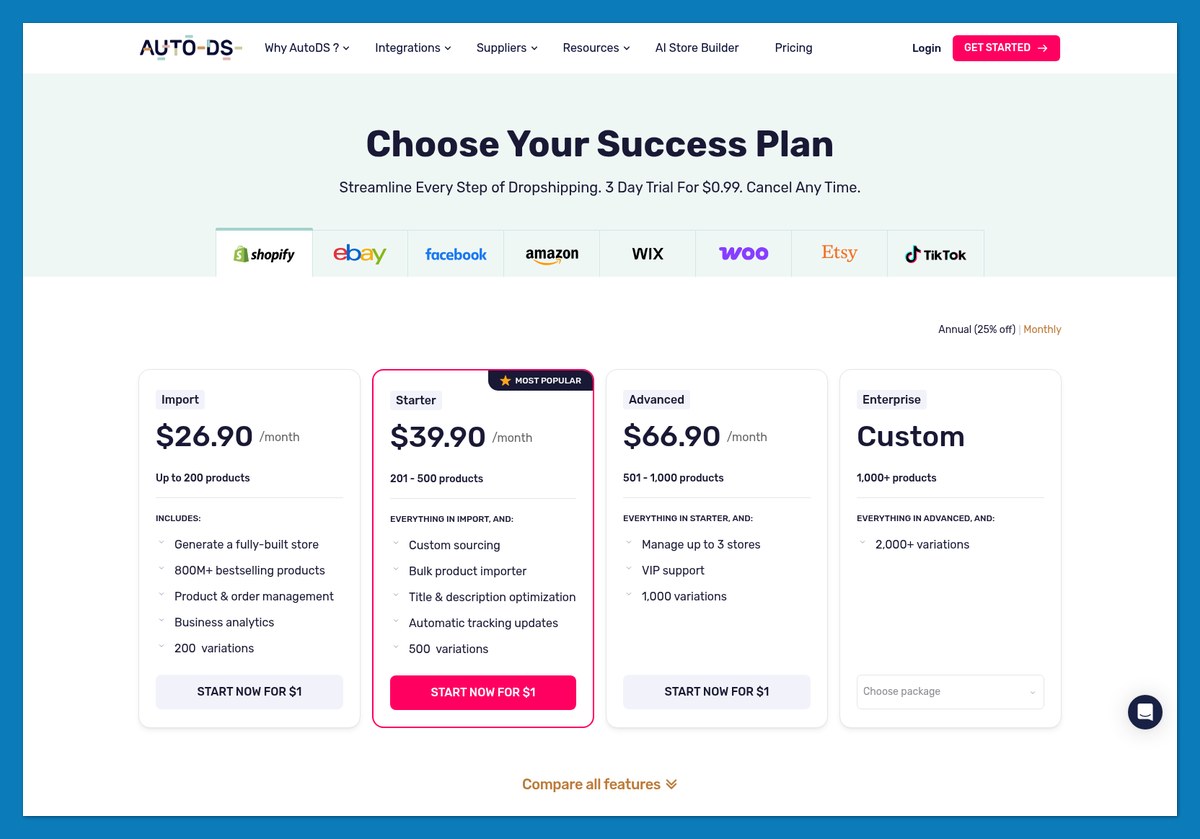
You’ll also need to pay for AutoDS if you want to use it for product sourcing and fulfillment, prices start at $19.90 per month (if you pay annually) for access to up to 200 products, or $26.90 month to month. Automatic tracking updates are restricted to the Starter plan ($29.90 per month annually, $39.90 monthly) and above.
Then you’ll have to account for product samples, advertising, Shopify apps, email software, returns, chargebacks, professional team members, plus the price of renewing your domain.
BYS earns money through its Shopify partnership when referred merchants subscribe, so the builder saves you on the setup fee, then Shopify and AutoDS collect the revenue.
What BuildYourStore.ai Doesn’t Do, and Why That Matters
You’ll notice in the walkthrough above, I didn’t end with telling you to launch your store, and that’s because BYS doesn’t get your store completely “publish-ready” straight away.
If you just design your store with BYS then launch, you’re going to end up with a site that’s almost identical to hundreds of others. You’re responsible for editing your site, marketing, ensuring order fulfillment works, handling customer service, returns, plus all the other little extras that turn an AI-generated site into a successful store.
So here are the next steps after your first store draft is ready.
Step 1: Rewrite the Product Pages With Shopify Magic
You get ten populated product pages and initial copy from BYS, but it’s generic, AI-generated content that could be used on thousands of other stores. I’d consider making several changes, and you can start with Shopify Magic if you like (it now lives inside Sidekick, so look for the Generate text icon in the product description editor). All you need to do is give the tool your product’s name, some features, keywords to target, and an insight into your tone of voice.
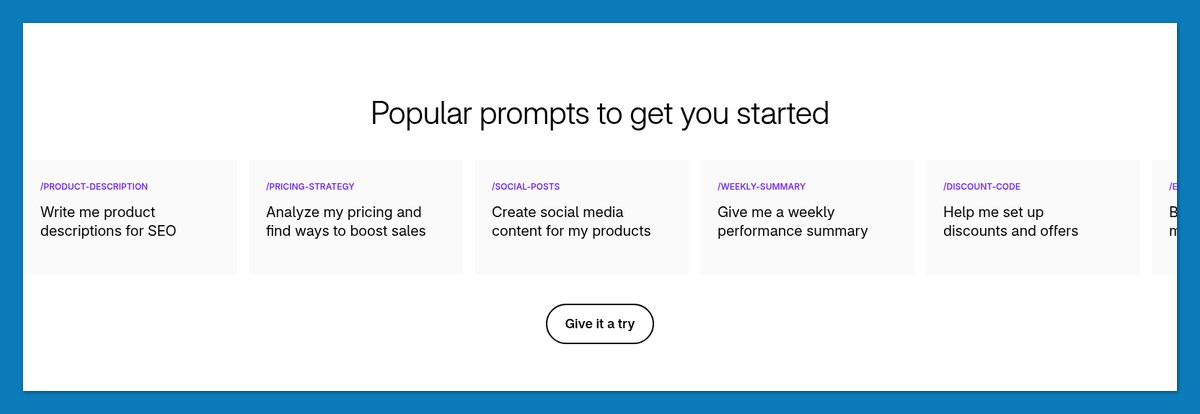
Magic basically adjusts the content on your store to make it a little less generic. It can also help with attributes, meta data, or producing imagery. Don’t give it the whole job, though. You still want to make a few final edits yourself, especially when it comes to SEO, metafields, variants, titles, plus the image alt text.
You might want to do some extra image tweaking too, since Magic’s image editor is useful for removing backgrounds and simple edits, but it doesn’t make the image unique.
Step 2: Restructure Collections and Navigation With Sidekick
With BYS, the collections from AutoDS will generally reflect the source data from the catalog, but you don’t get custom collections or navigation specifically suited to your customer.
Sidekick can help you out by creating and editing collections inside Shopify, then holding any changes for you to review. I’d give it a simple prompt to follow, like “Review my current product list and suggest five main menu items for [your target audience]. Group products around [theme].”
Then inspect the result, and make sure each collection has enough products to actually deserve a menu link. Check the names are clear on mobile devices, and the filters match attributes that customers understand, too. Plus, take your time with the navigation, make sure it’s easy for customers to understand and use, regardless of what device they’re using.
Step 3: Make the Theme Recognizably Yours
I’d always advise people using BYS to remember that the design you get is meant to be a starting point, not the final product. You’re going to end up with something pretty similar to a lot of other stores, so it’s always a good idea to make some custom changes.
Definitely duplicate your theme/store first before you start editing so you have something to roll back to. Then start making store-wide changes to things like your logo, fonts, colors, buttons, card shapes, image crops, plus spacing.
Sidekick can definitely help out again by changing global settings and controls inside of existing blocks and sections, just make sure you test everything before you go live.
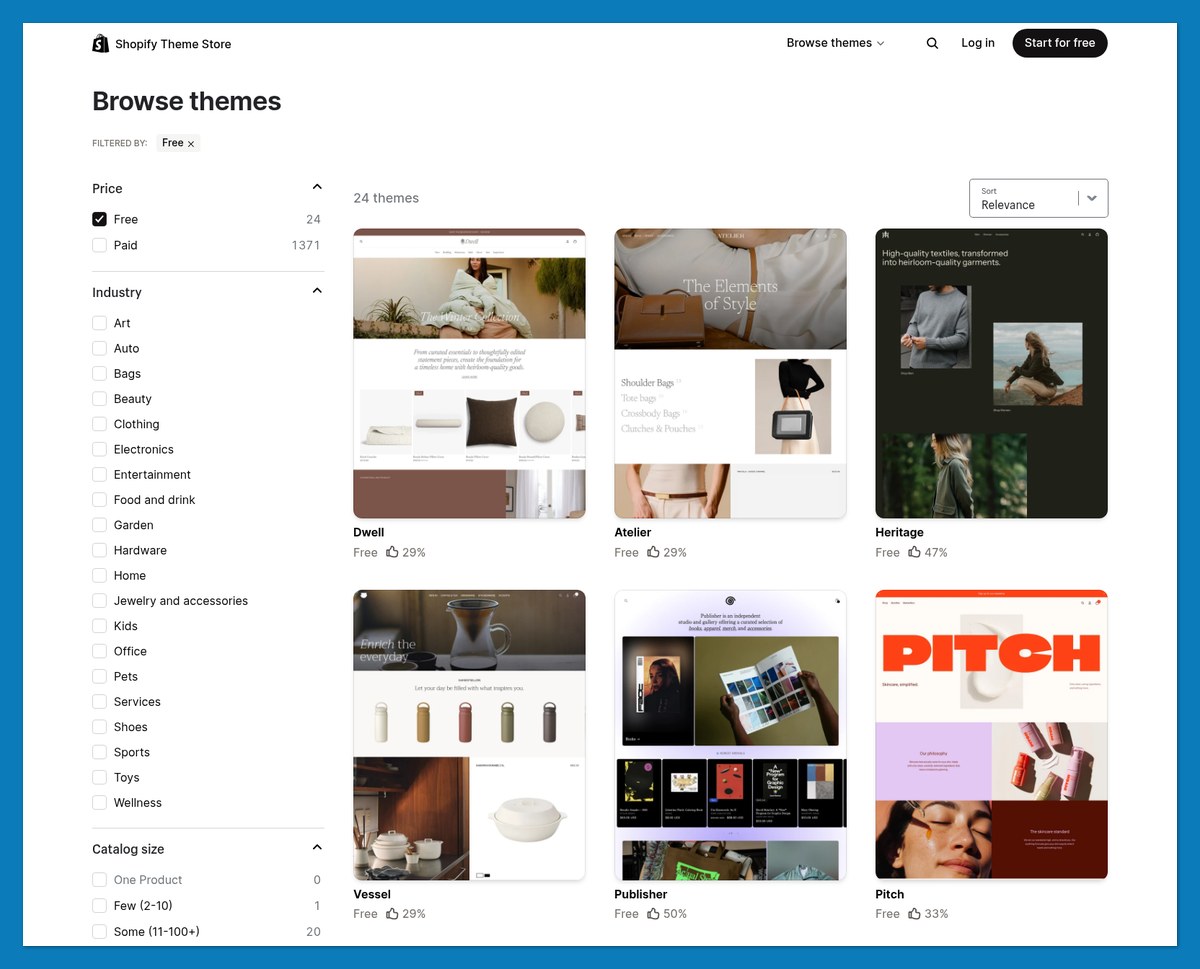
It’s also worth asking if you want to stick with the theme that BYS gives you. There are ten free Horizon themes from Shopify, and one of them might be a better fit. Since Sidekick can generate custom theme blocks from a prompt in the theme editor, you can still get AI support if you change.
Step 4: Add Operations and Automations
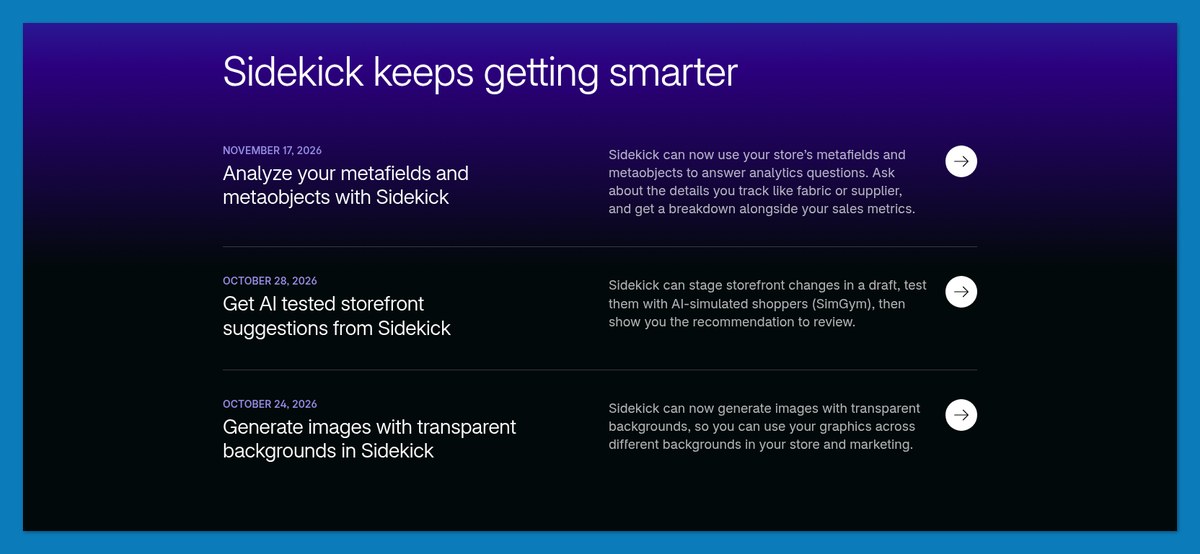
No need to go over-the-top with automation straight away, just pick the options that save you the most time. Inside Flow, Sidekick can turn your requests into workflows with triggers, conditions, plus actions. You’ll see the resulting workflows in an editor so you can test them and activate them manually.
I’d start with things like alerts for supplier price changes, low stock, large discounts, or returns above a chosen value. It’s also worth carefully checking everything. Sidekick can create test events, building passing and failing examples from real store data to help you avoid errors.
There are also Sidekick suggestions (formerly Sidekick Pulse), which bring store-specific suggestion cards into your admin using your store data, your installed apps and web research. They only show up for stores with recent sales, so expect them once orders start coming in. That can give you a useful idea of what you should be automating next to increase your chances of extra sales.
Step 5: Make the Store Understandable to AI Shoppers
Last, take advantage of the growing demand from shoppers using AI to find the products they need. You should already have tweaked your SEO strategy yourself, and updated your content, so the next step is to make your products visible to AI assistants.
A standard templated store won’t grab the attention of AI agents, it’s up to you to make sure that you’re not missing out on traffic.
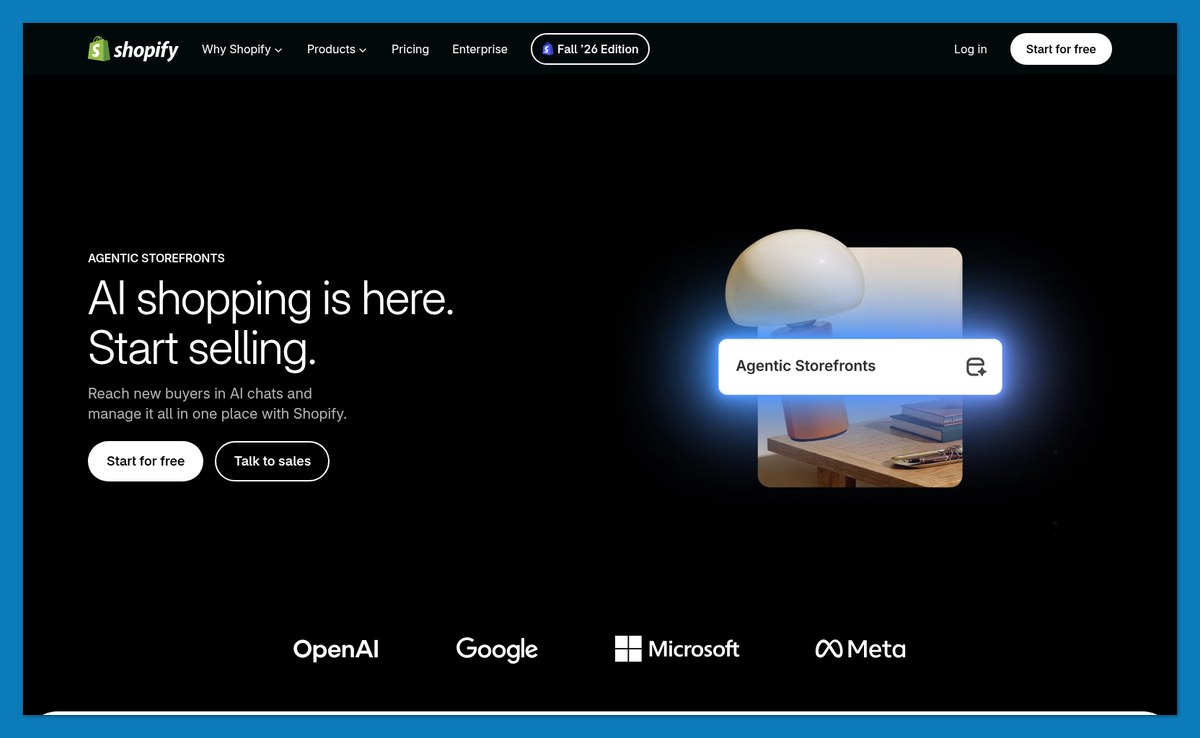
The Agentic section of your Shopify admin (Sales channels > Agentic) has a search preview that lets you run conversational searches to see which products could rank based on description depth, images, reviews, variant names, stock, plus store policies. Test a few questions before you start making changes.
Agentic storefronts are on by default for eligible stores, so ChatGPT discovery and visibility in Google AI Mode, Gemini, or Microsoft Copilot don’t need a separate switch. What you do need is products that qualify for Shopify Catalog and complete store policies. Shopify’s help docs walk you through things like making sure your content is AI-readable, mapping your product data to the catalog, plus standardizing categories and metafields.
Who Should Use BuildYourStore.ai, and Who Shouldn’t?
I’d skip BYS and just use Shopify’s AI tools if you already have an idea of what you want to sell, you’re not interested in dropshipping, and there’s a theme you already like and feel ready to edit available from Shopify.
On the other hand, I really like using BuildYourStore.ai if you’re starting from scratch and you need a theme, a handful of products, a free domain, plus all the initial pages required for a starter store.
Still, I wouldn’t publish the store straight after BYS creates it. You still need to tweak things, make the content, brand, theme, and pricing your own, test everything works, restructure collections and navigation, implement your own automations, plus add any extra apps you want.
All BYS does is give you less work when you’re still on the ground floor. That can help a first-time dropshipper out a lot when they’re stuck in blank page mode.