

Last updated: November 3, 2026
Microsoft Project Online was retired on September 30, 2026, after Microsoft stopped selling it to new customers on October 1, 2025. Project Online sites, project data and connections no longer work, so existing users need to move their schedules to another tool, such as Microsoft Planner, Project desktop, Project Server Subscription Edition, Dynamics 365 Project Operations or a third-party tool like ProjectManager. This guide explains what Microsoft Project Online and its three plans were, what happened to Project Online data and which replacement fits which kind of team.
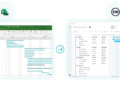
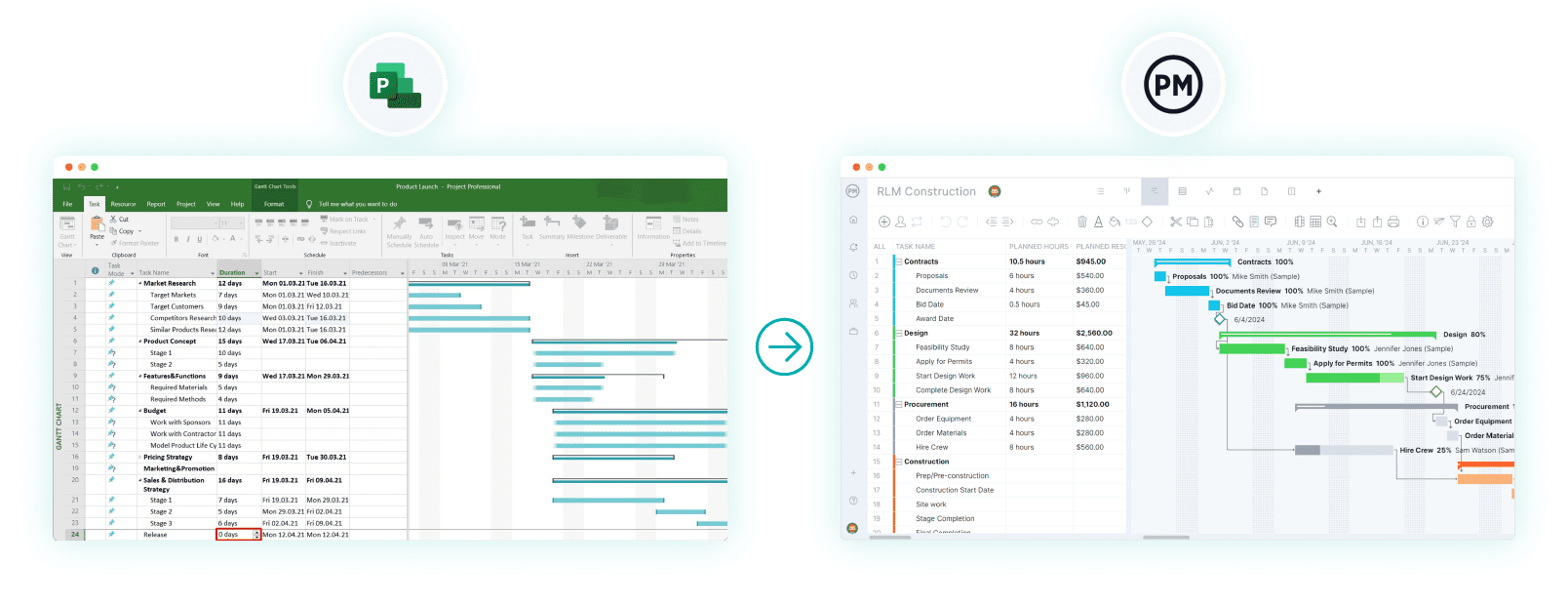
Need a replacement for Microsoft Project Online now? ProjectManager imports MPP files and keeps Gantt scheduling, critical path and baselines in a browser your whole team can use. Get started with ProjectManager today for free.
What Was Microsoft Project Online?
Microsoft Project Online was a cloud-based project portfolio management (PPM) service from Microsoft, built on SharePoint Online and sold as part of Microsoft 365. Project managers built schedules, managed resources and published plans, portfolio managers analyzed and prioritized projects, and team members updated tasks and submitted timesheets, all through a web interface called Project Web App (PWA).
Project Online was a strong fit for large organizations already on Microsoft 365, SharePoint and Power BI. It handled enterprise resource pools, timesheets with approvals, demand management and portfolio analysis in one environment, and it connected to the Project desktop client for detailed scheduling. In exchange, it needed SharePoint administration, careful configuration and per-user licenses for everyone who worked in it.
For a look at every Microsoft project tool still available, see Microsoft’s project management tools compared.
Microsoft Project Online Plans Explained
Microsoft Project Online came in three plans: Project Online Essentials for team members, Project Online Professional for project managers and Project Online Premium for portfolio managers and administrators. Microsoft later renamed Project Online Professional to Project Plan 3 and Project Online Premium to Project Plan 5, and it also offered Project Plan 1, which gave team members access along with Project for the web.
| Plan | Who it was for | What it included | Price when sold |
|---|---|---|---|
| Project Online Essentials | Team members | Web access to update tasks, issues and risks, submit timesheets and share documents; an add-on for organizations with Professional or Premium; no Project for the web | Per user per month; Microsoft no longer publishes the price |
| Project Online Professional (Project Plan 3) | Project managers | Project Online, the Project desktop client, scheduling, baselines, critical path, timesheets, resource costing, roadmaps and reports | $30/user/month |
| Project Online Premium (Project Plan 5) | Portfolio managers and administrators | Everything in Professional, plus portfolio analysis, demand management, resource capacity planning and resource request approvals | $55/user/month |
Plan details are from Microsoft’s Project Online service description. None of these plans can be bought or used today.
Project Online Essentials
Project Online Essentials was a web-based plan for team members, not project managers. Microsoft described it as a team member add-on for organizations that had Project Plan 3 or Project Plan 5, so it only worked inside a Project Online environment set up by a Professional or Premium customer.
With Essentials, team members could:
- Work in a web-based interface instead of the desktop client
- Update their tasks, issues and risks
- Submit timesheets
- Share documents and collaborate with Microsoft Teams users
Essentials didn’t include Project for the web. Organizations that wanted team members to have both used Project Plan 1, which included Project for the web and Project Online Essentials. Essentials was sold per user per month; Microsoft no longer lists its price.
Project Online Professional
Project Online Professional was the plan for project managers. It combined Project Online with the full Project desktop client for Windows, which synced with Project Web App so schedules built on the desktop were published for the rest of the organization. It was later renamed Project Plan 3 and sold for $30 per user per month.
Organizations on Microsoft 365, SharePoint and Power BI used Project Online Professional for enterprise project and portfolio management: building detailed schedules, assigning shared resources, tracking budgets and reporting across projects.
The desktop client included these main views:
- Gantt chart, task sheet and timeline
- Calendar and network diagram
- Resource sheet, resource usage and task usage
- Team planner
- Built-in reports
Its main features were:
- Publishing project plans to Project Online so team members and managers could see them
- Resource management with cost rates, resource leveling and project costing
- Timesheets and task updates from team members, with approvals in Project Web App
- Critical path, baselines, dependencies with lead and lag, and master projects
- Built-in and custom reports
- Working on a project on the desktop and publishing changes back to Project Online
Project Online Premium
Project Online Premium was the plan for portfolio managers and administrators. It included everything in Project Online Professional, plus the portfolio features that Professional lacked: portfolio analysis and prioritization, project request forms and approval workflows, resource capacity planning, and the ability to review and approve resource requests. It also added custom branding, user management and service administration.
Project Online Premium was later renamed Project Plan 5 and sold for $55 per user per month. Microsoft ended sales of its successor, Planner and Project Plan 5, to new customers on May 1, 2026.
What Happened to Your Project Online Data?
Project Online data is no longer accessible through Project Online. Microsoft’s Project Online retirement guide says that after September 30, 2026, projects, schedules, tasks, assignments, timesheets, enterprise resources, custom fields and portfolio analyses are no longer accessible through Project Online, and Project Web App pages, reporting feeds and APIs stopped working.
Microsoft’s timeline was:
- October 1, 2025: Project Online stopped being sold to new customers.
- April 1, 2026: Existing customers could no longer create new Project Online tenants or Project Web App instances.
- September 30, 2026: Project Online was retired.
Microsoft asked customers to export or migrate the data they needed before the retirement date. A few things continue:
- MPP files on your computers still work. Project desktop wasn’t retired and still opens MPP files as a standalone app. It just can’t connect to Project Online anymore.
- Some SharePoint content may remain. Documents and lists that don’t depend on Project Online follow normal SharePoint retention policies, but Project-specific pages, synchronization and workflows no longer work. Microsoft says there’s no supported way to convert a Project Web App site into a standard SharePoint site.
Before retirement, the usual way to keep a project was to open it from Project Online in the Project desktop client and save a copy to your computer as an MPP or XML file. If your team didn’t export its projects, ask your Microsoft 365 admin what was exported or migrated; Microsoft’s guidance doesn’t describe a way to get project data out of Project Online after retirement.
Microsoft’s Own Options Now
Microsoft doesn’t offer a single replacement for Project Online. It asks customers to evaluate Planner, Project desktop, Project Server Subscription Edition and Dynamics 365 Project Operations, and notes that none of them is necessarily a one-to-one replacement. Here’s what each offers today:
- Basic Planner: Included with Microsoft 365 business plans (Business Basic $7, Business Standard $14 and Business Premium $22 per user per month, paid yearly). It offers boards, grids, charts and a schedule view, but no timeline, dependencies or critical path.
- Planner Plan 1 ($10/user/month, paid yearly): Adds premium plans with a timeline (Gantt) view and dependencies, the features that came from the retired Project for the web.
- Planner and Project Plan 3 ($30/user/month, paid yearly): Adds critical path, all four dependency types with lead and lag, a baseline and the Project desktop client. This is the closest Microsoft option for most former Project Online Professional users, though Planner can’t open MPP files directly and Microsoft routes MPP imports through the Planner Power App. Planner and Project Plan 5 is no longer sold to new customers.
- Project desktop: Project Standard 2024 ($679.99) and Project Professional 2024 ($1,129.99) are one-time purchases for one Windows PC, supported until October 2029. They have the deepest scheduling, including up to 11 baselines, but run only on Windows and have no Mac version or mobile app.
- Project Server Subscription Edition: The on-premises version of Project Server, for organizations that need Project Online-style portfolio and resource management on their own servers. It requires SharePoint Server and IT staff to run it.
- Dynamics 365 Project Operations ($135/user/month): For organizations whose projects connect to sales, resourcing, project accounting and billing.
If your organization is committed to Microsoft 365 and its project managers work on Windows, Planner and Project Plan 3 keeps you with one vendor and includes the desktop client you already know. If your team needs MPP files in a browser on any operating system, with the whole team in the schedule, a third-party tool may fit better. Compare the two in Planner vs. ProjectManager.
Best Microsoft Project Online Alternatives
The best Microsoft Project Online alternatives are ProjectManager, Microsoft Planner and Project Plan 3, Smartsheet, TeamGantt, Wrike and Primavera P6. They’re ranked by fit for a typical Project Online user, someone who needs MPP files, Gantt scheduling with critical path and a schedule the whole team can work in. For full reviews of these and more tools, see the best Microsoft Project alternatives, and construction teams can see the Microsoft Project alternatives for construction.
1. ProjectManager
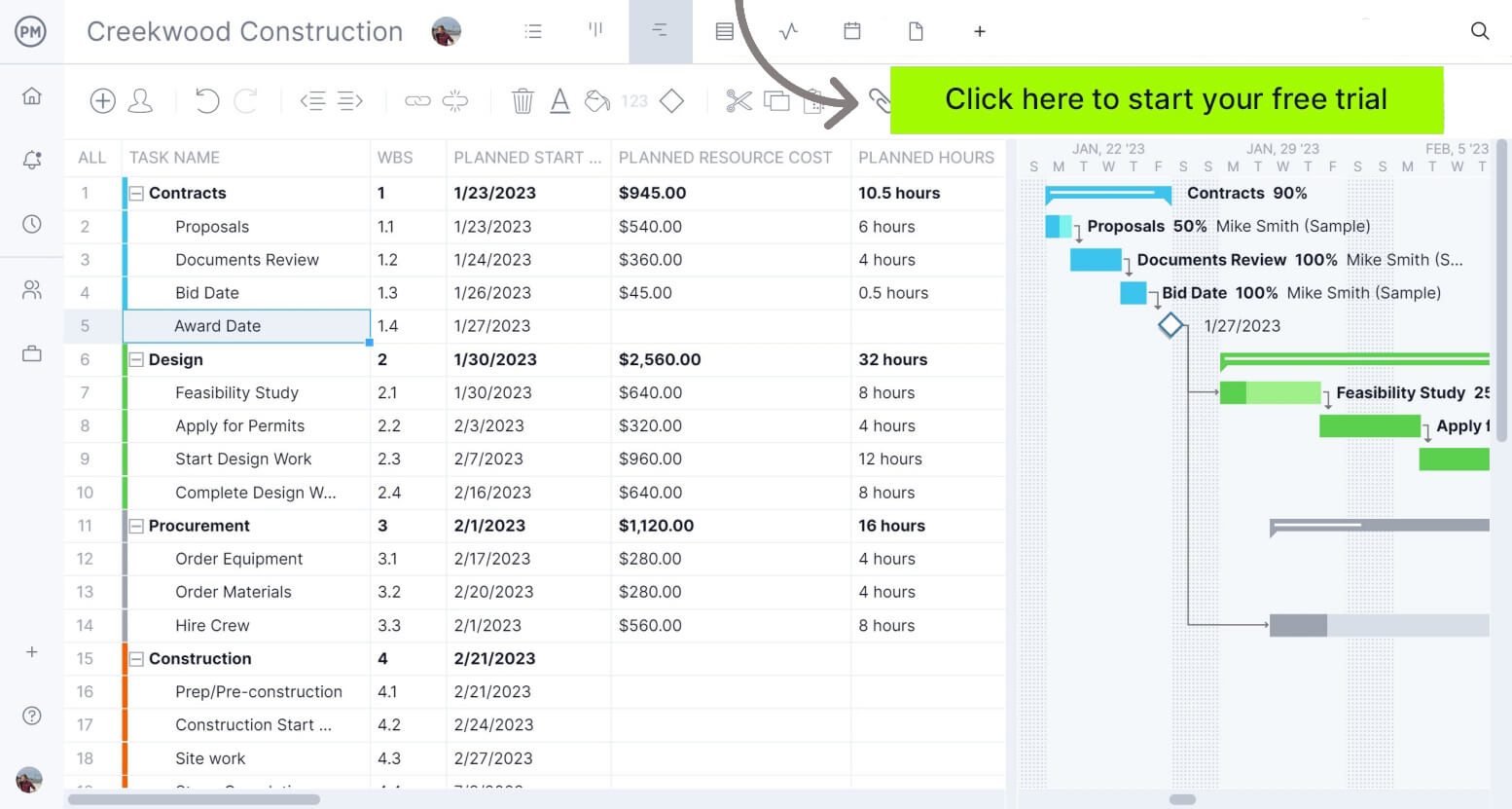
ProjectManager is online project management software that imports and exports MPP files and keeps the scheduling features Project Online users relied on, in a browser that works on any operating system. Its Gantt chart supports all four dependency types with lag, a critical path filter shows which tasks drive the finish date, and baselines and variance reports show how far the plan has drifted. Team members update tasks in a browser or on the iOS and Android apps, timesheets and dashboards replace what Project Web App did for many teams, and the workload page shows each person’s hours across all projects. For a feature-by-feature comparison, see Microsoft Project vs. ProjectManager.
Best for: Most teams replacing Microsoft Project Online that want to keep MPP files, critical path and baselines while giving the whole team access in a browser and on mobile.
Cons: No XER import or export for Primavera P6 files. The workload page needs the Business plan, the Team plan is limited to 10 users and 20 projects, and the Teams, Power BI and Excel integrations are paid add-ons on the Business plan.
Pricing: Team $15/user/month, Business $28/user/month (billed annually), Enterprise by quote. 30-day free trial.
2. Microsoft Planner and Project Plan 3
Microsoft Planner and Project Plan 3 is Microsoft’s own path for Project Online users who want to stay in Microsoft 365. It combines Planner’s timeline, all four dependency types with lead and lag, critical path and a baseline with the Project desktop client, and it works with Teams and Outlook.
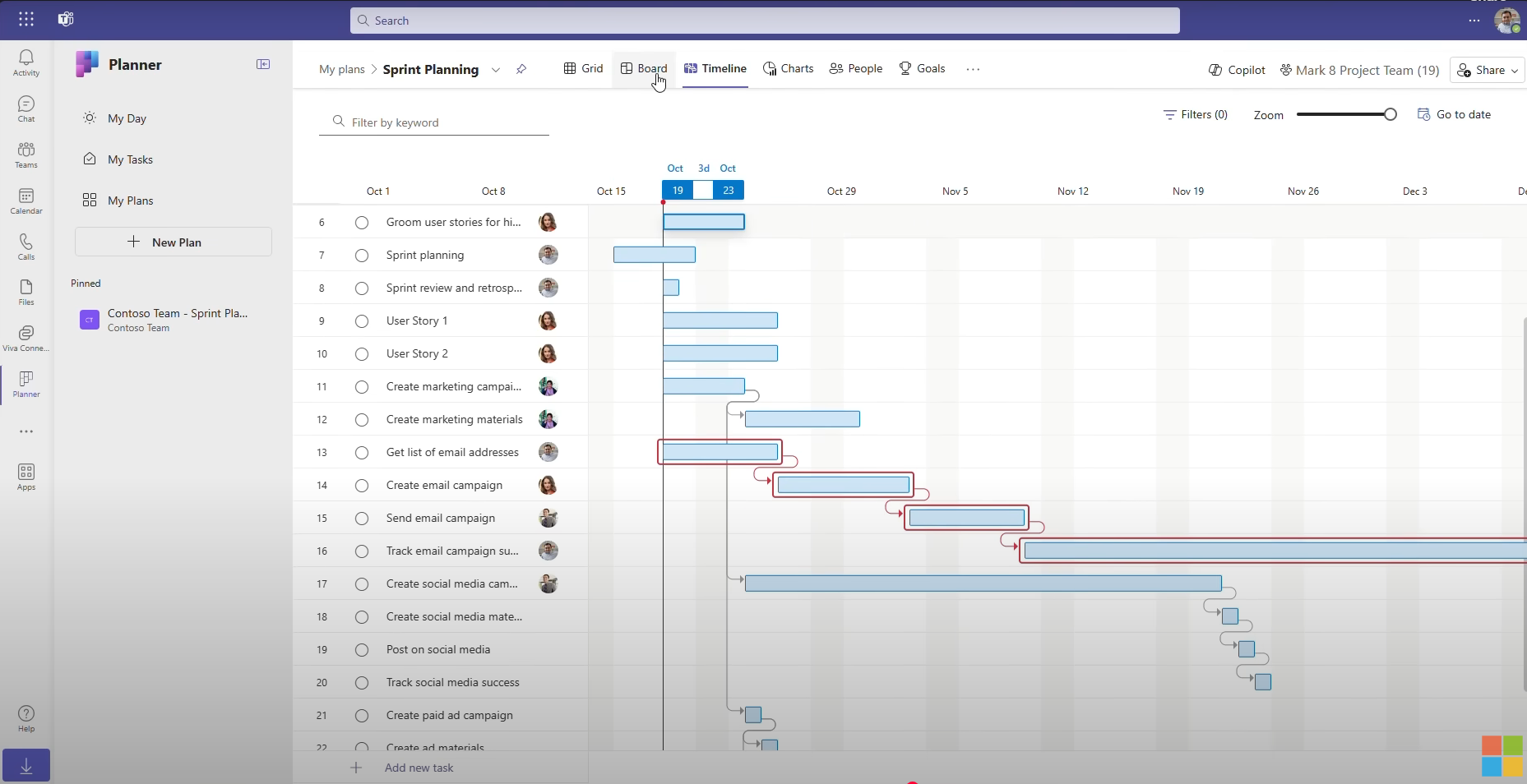
Best for: Teams already on Microsoft 365 that want to keep projects in Microsoft’s tools, with one vendor and one sign-in.
Cons: Planner can’t open MPP files directly, holds one baseline at a time, and the Project desktop client runs only on Windows.
Pricing: $30/user/month, paid yearly. Planner Plan 1 is $10/user/month without critical path or the desktop client.
3. Smartsheet
Smartsheet is a spreadsheet-style work management platform that imports MPP, MPX and Microsoft Project XML files directly, with all four dependency types with lag and critical path on the Pro plan and above.

Best for: Teams that like working in spreadsheets and want to bring MPP schedules into a flexible grid with forms and dashboards.
Cons: Microsoft Project constraints don’t carry over on import, baselines need the Business plan, and full resource planning and time tracking need the paid Resource Management add-on.
Pricing: Pro $9/user/month and Business $19/user/month, billed annually. Enterprise by quote.
4. TeamGantt
TeamGantt is an online Gantt chart tool for small and mid-size teams. It imports and exports MPP files, supports all four dependency types with lag and lead, and shows the critical path.
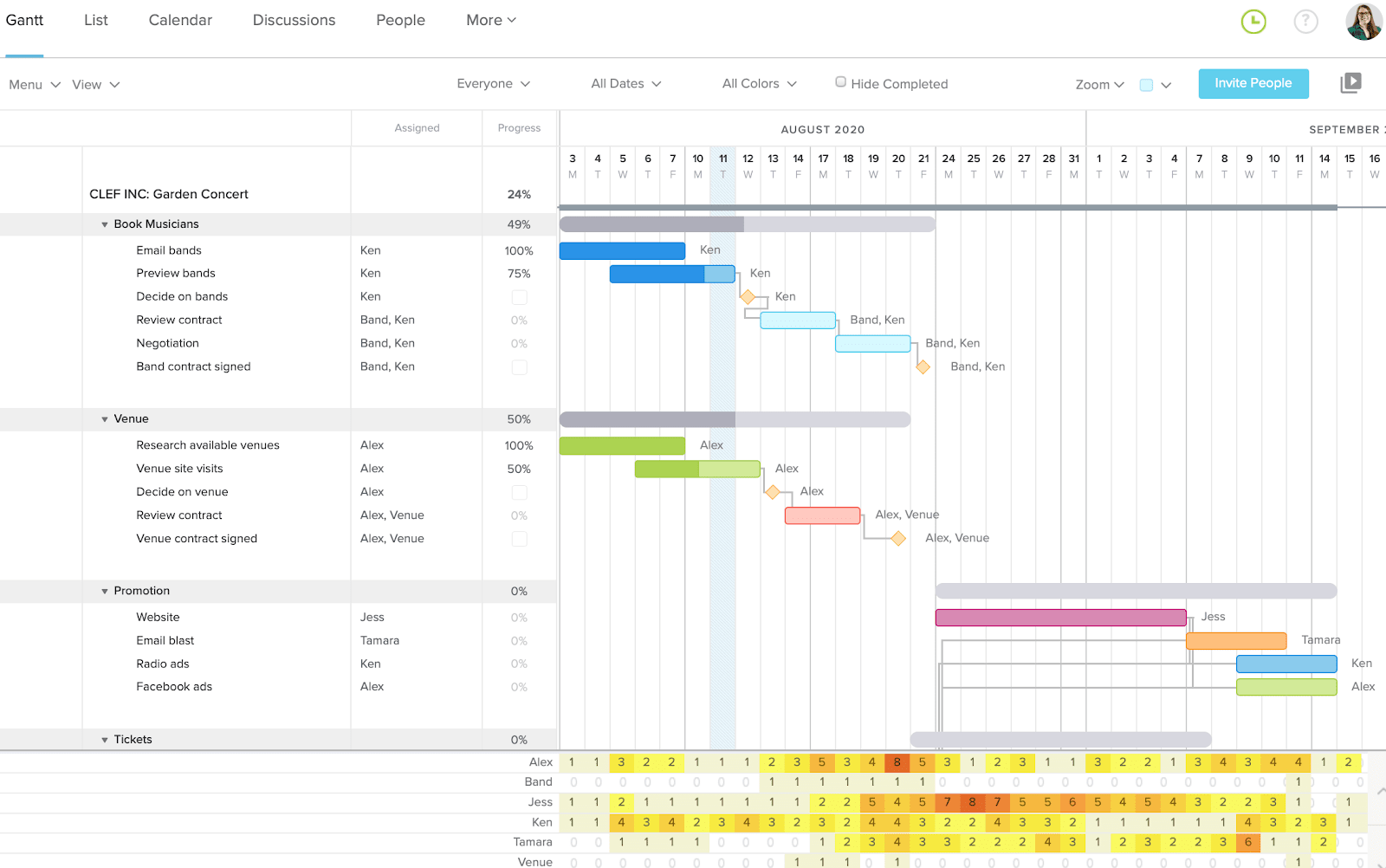
Best for: Small teams that want a simple online Gantt with MPP import and export and flat account pricing instead of per-seat licenses.
Cons: MPP imports don’t include resources or assignments, every plan has a project limit, and baselines need the Business plan.
Pricing: Base $59/month (1 manager) and Business $120/month, billed monthly; annual billing saves 20%. Free Personal plan for 1 user and 1 project.
5. Wrike
Wrike is a work management platform for teams running many projects and requests across departments. On the Business plan and above, it imports Microsoft Project files with dependencies, lag and assignees, and its Gantt chart has a critical path view.
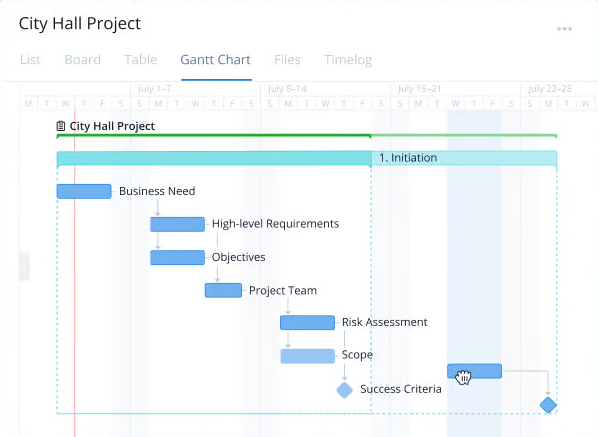
Best for: Teams that want cross-project work management, request intake and workload views, and don’t need baselines or MPP export.
Cons: No documented baselines (only Gantt snapshots), no export back to MPP or XML, and Microsoft Project import needs the Business plan, which has a 5-user minimum.
Pricing: Free plan. Team $10/user/month and Business $25/user/month, billed annually.
6. Primavera P6
Primavera P6 is Oracle’s scheduling software for professional schedulers running very large programs in construction, engineering, energy and infrastructure, with critical path by total float or longest path and the XER files many owners require.
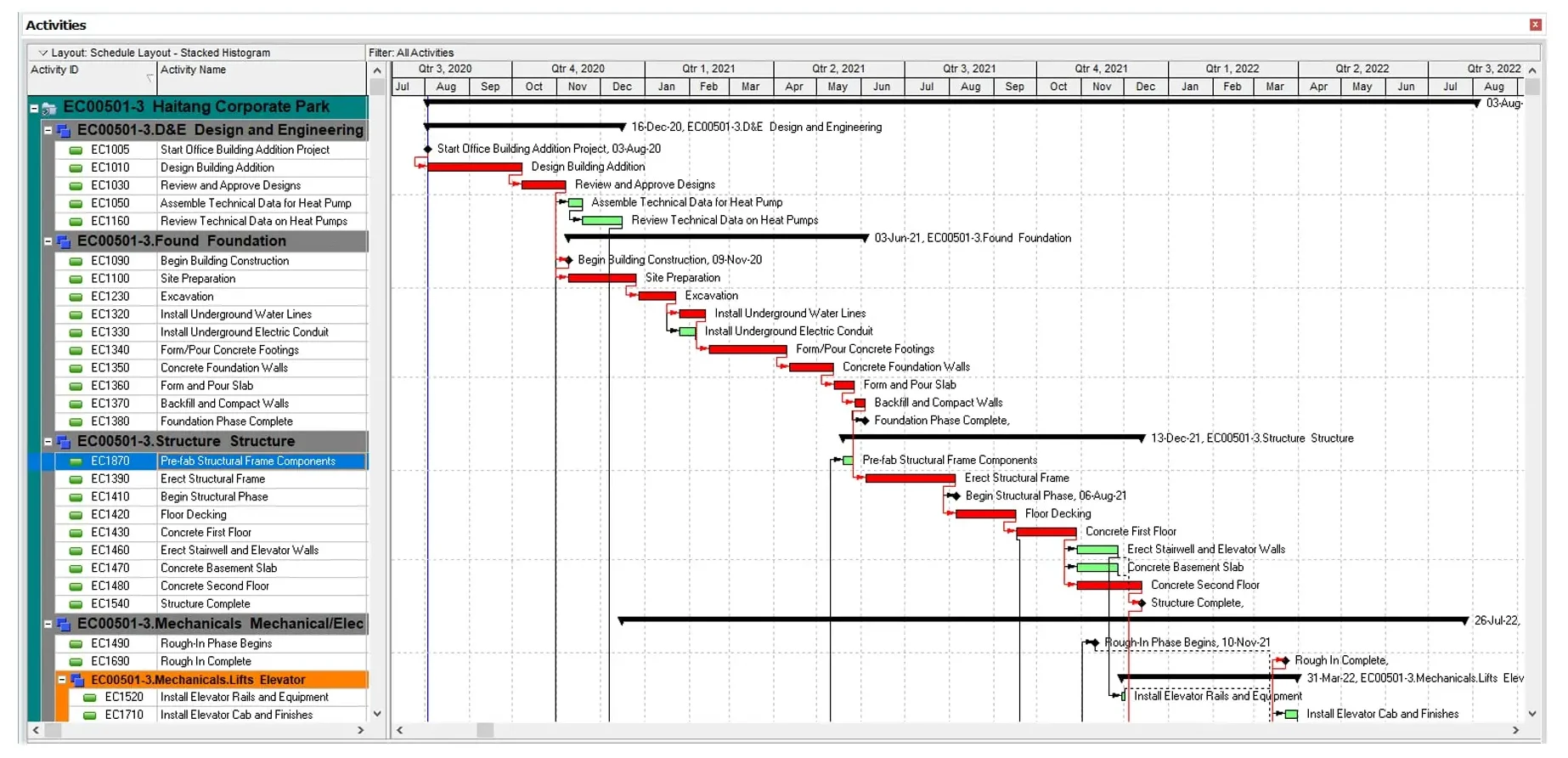
Best for: Professional schedulers on very large or owner-mandated programs that need P6 or XER files.
Cons: It imports Microsoft Project XML and MPX files, not MPP, has a steep learning curve that usually needs formal training, and Oracle doesn’t publish current prices.
Pricing: By quote through Oracle or a reseller.
For free options such as ProjectLibre, see the free and open-source Microsoft Project alternatives.
How to Move Your Project Online Projects Into ProjectManager
To move Microsoft Project Online projects into ProjectManager, start from the MPP or XML files your team saved before retirement, import them into a new project with matching working days and check the logic. ProjectManager imports MPP files and XML files saved from Microsoft Project, bringing over tasks, assignees, dependencies and planned dates, so you don’t need Microsoft Project installed to open the file. Start a free 30-day trial to follow along.
1. Get Your MPP or XML Files
Use the MPP or XML files your team saved from Project Online before September 30, 2026, or any MPP files saved locally from the Project desktop client. You can also open local MPP files in Project desktop and choose File, Save As, then Project or XML as the file type. If you’re not sure what was exported, ask your Microsoft 365 admin.
2. Set Working Days First
In ProjectManager, click the + button and choose Project, then set your working days to match the calendar in your Microsoft Project file, such as a five-day or six-day work week. Working days are hard to change once the project exists. Add any global holidays now too, since they can’t be added to existing projects.
3. Import the File
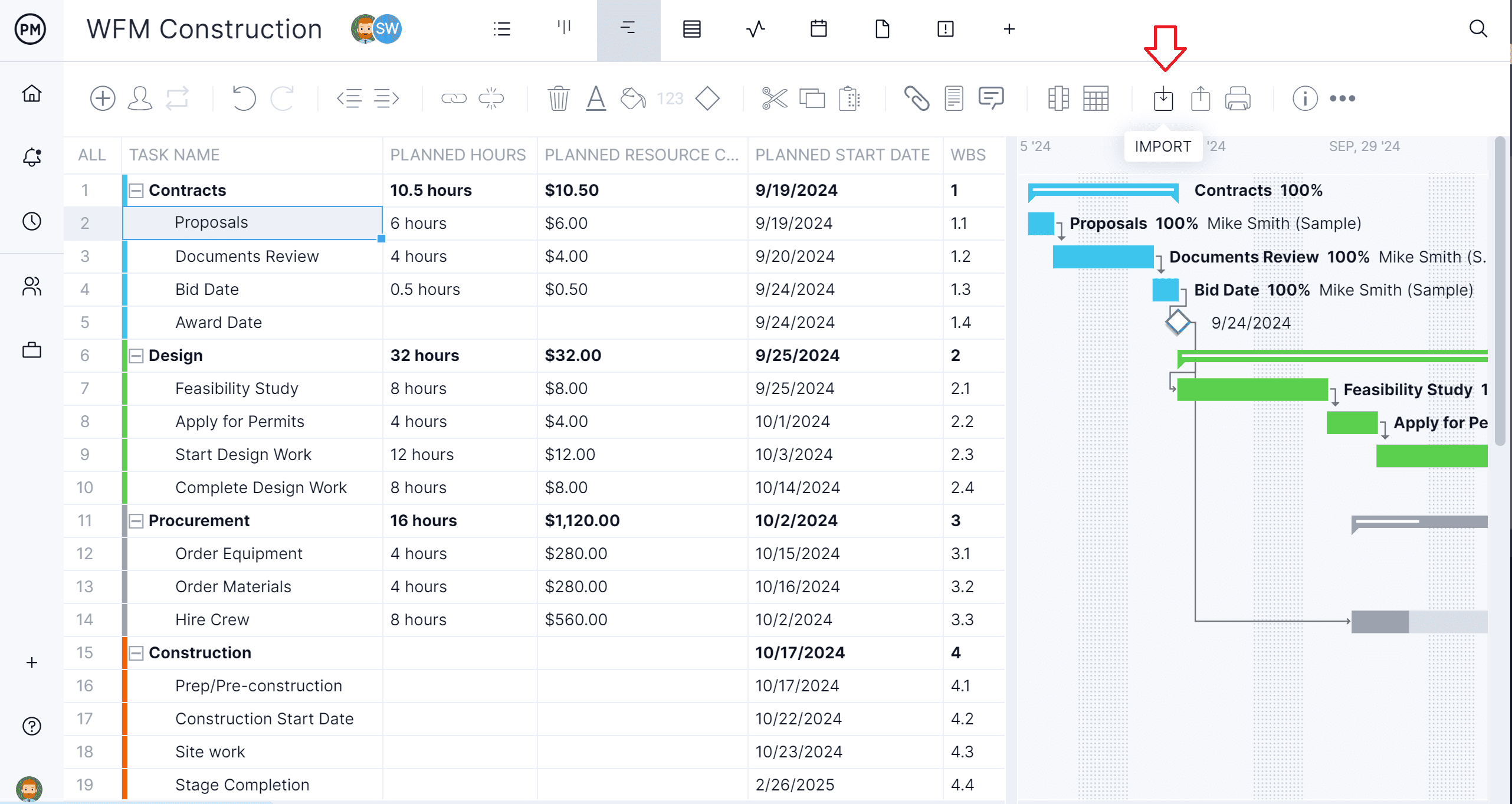
Choose Import File when creating the project, or click the import icon on the Gantt ribbon of an existing project.
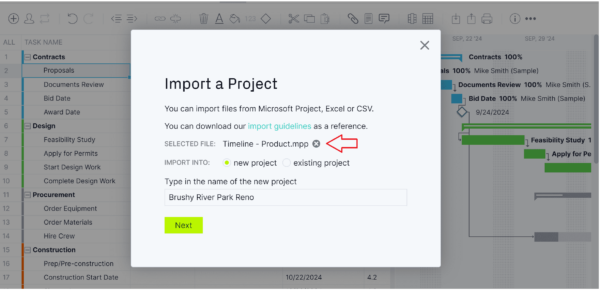
Click select file, upload your MPP or XML file and click next.

If you’re importing into an existing project, choose Keep and append with the imported data or Replace with the imported data. Replace removes everything already in the project.
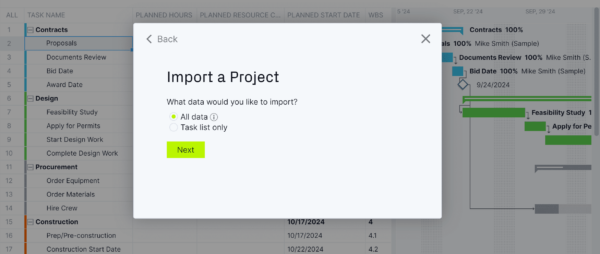
4. Choose What to Import
Choose the task list only to bring over the schedule structure and dates, or all data to also bring over assignees and other details.
5. Check the Logic
Compare durations and dependencies with the original schedule. Pay attention to lag and to any constraint dates from Microsoft Project. Imported actual hours don’t go into timesheets, so add those separately if you need them.
6. Filter for the Critical Path
Turn on the critical path filter and check that it matches the critical path in Microsoft Project. If it doesn’t, look for missing links, lag or constraints that didn’t carry over.
7. Set a Baseline
Once the schedule matches, set a baseline in Gantt settings so you can track variance from the start.
Keep the original MPP files. If a client or partner asks for the schedule in Microsoft Project format, ProjectManager can export to MPP and XML.
Want to see your Project Online schedule in ProjectManager? Start a free 30-day trial, import an MPP file and turn on the critical path filter to compare it with Microsoft Project. Get started with ProjectManager today for free.
What Happened to Project for the Web?
Microsoft retired Project for the web on August 1, 2025, and moved its features, such as the timeline, dependencies and roadmaps, into Microsoft Planner’s premium plans. Project for the web was a simpler cloud project tool that sat alongside Project Online, not a replacement for it. For the full story, see Microsoft Project for the web.
Options for Mac Users
Mac users have three main options now that Project Online is gone, because Project desktop runs only on Windows:
- A browser-based tool. ProjectManager runs in any modern browser on macOS and imports and exports MPP files, so no Windows license or virtual machine is needed.
- A virtual machine. Run Windows and Project desktop on the Mac with software such as Parallels Desktop, which Microsoft lists as an authorized way to run Windows 11 on Macs with Apple silicon, or VMware Fusion. This needs a Windows license and a fast Mac.
- A remote or cloud PC. Microsoft’s Windows App (which replaced Microsoft Remote Desktop on macOS) connects a Mac to a Windows PC or a Windows 365 Cloud PC that has Project desktop installed.
For step-by-step options, see Microsoft Project for Mac.
Microsoft Project Online FAQ
Is Microsoft Project Online being discontinued?
Yes. Microsoft Project Online was retired on September 30, 2026. Microsoft stopped selling it to new customers on October 1, 2025, and stopped letting existing customers create new Project Online environments on April 1, 2026.
What replaced Project Online?
No single product replaced Project Online. Microsoft asks customers to evaluate Planner (including Planner and Project Plan 3), Project desktop, Project Server Subscription Edition and Dynamics 365 Project Operations. Many teams also move to third-party tools such as ProjectManager, which imports MPP files and runs in a browser.
What was Project Online Essentials?
Project Online Essentials was a web-based team member add-on for organizations with Project Online Professional or Premium. It let team members update tasks, issues and risks and submit timesheets, but not build schedules, and it didn’t include Project for the web.
What was the difference between Project Online Professional and Premium?
Project Online Professional (Project Plan 3) included Project Online and the Project desktop client for building and managing projects. Project Online Premium (Project Plan 5) added portfolio analysis, demand management, resource capacity planning and resource request approvals for portfolio managers.
Can I still access my Project Online data?
Not through Project Online. Microsoft says projects and related Project Online data are no longer accessible through Project Online after the September 30, 2026 retirement. MPP or XML files saved before retirement still open in Project desktop and in tools such as ProjectManager, and some SharePoint documents may remain under your organization’s retention policies.
How do I export from Project Online to MPP?
Before retirement, you opened each project from Project Online in the Project desktop client and saved a copy to your computer as an MPP or XML file. Now that Project Online is retired, that route no longer works, so start from files your team already saved. To open MPP files without Microsoft Project, see how to open MPP files or the best Microsoft Project viewers.
Is Microsoft Project included in Microsoft 365?
Partly. Basic Planner is included in many Microsoft 365 business plans, but Project desktop and Planner’s premium plans aren’t. Premium features such as the timeline need Planner Plan 1 ($10/user/month), and critical path and the Project desktop client need Planner and Project Plan 3 ($30/user/month). Project Standard and Project Professional are also sold separately as one-time purchases.
Related Content
ProjectManager is online project management software for teams replacing Microsoft Project Online. Import your MPP files, schedule with Gantt charts, critical path and baselines, and give your whole team access in a browser or on mobile. Get started with ProjectManager today for free.