



General contractors wear a lot of hats every day, from building schedules and coordinating subcontractors to tracking budgets and managing multiple projects at once. The right software can make those responsibilities easier, but every platform comes with strengths and tradeoffs. This guide breaks down how Microsoft Project supports construction project management, where it performs well and where general contractors may need additional tools to fill the
gaps.
How Does Microsoft Project Help General Contractors?
Microsoft Project helps general contractors plan construction schedules, allocate resources, track project costs and manage multiple projects from a single planning platform. It provides powerful construction project management tools for businesses that rely on structured project planning to coordinate multiple construction projects and anticipate the impact of delays or cost overruns before they affect their profitability.
However, Microsoft Project is expensive software, especially for smaller general contractors. Microsoft Project is licensed through multiple subscription tiers, and advanced capabilities such as portfolio management, cross-project resource management and enterprise features require integrations, add-ons or higher-tier plans.
Another factor worth considering is the software’s learning curve. Microsoft Project offers a deep set of scheduling, resource planning and reporting capabilities, but getting the most from those tools requires experience and disciplined schedule maintenance. Many general contractors find the software more complex than necessary, while larger organizations with experienced schedulers are generally better positioned to take advantage of its advanced planning features.
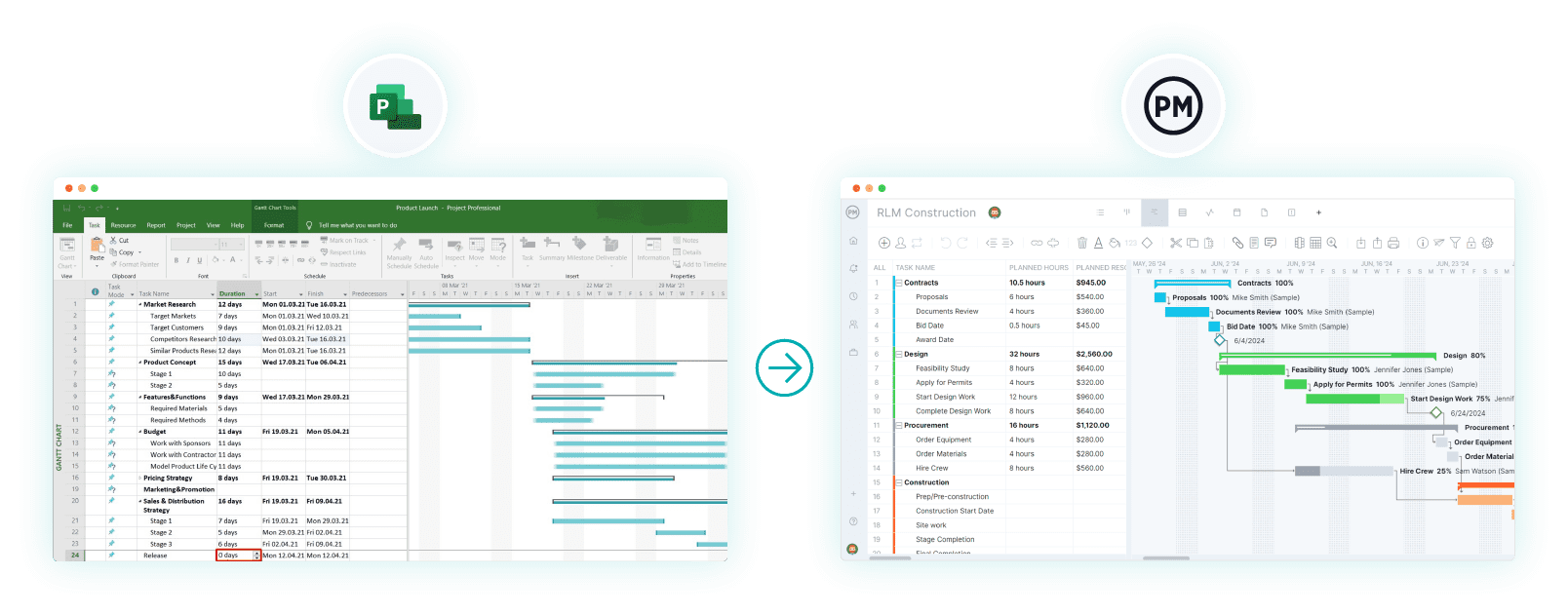
It’s also worth noting that Microsoft’s Project lineup has changed significantly in recent years. If you’re evaluating Microsoft Project today, your standalone desktop options are limited to Project Standard 2024 and Project Professional 2024. Microsoft Project for the web and Microsoft Project Online, the cloud-based versions of Microsoft Project, are no longer available for new users, with Microsoft shifting its focus toward Microsoft Planner and retiring its online solutions. That means the traditional desktop editions are now the primary way to purchase Microsoft Project, leading many general contractors to consider cloud-based alternatives such as ProjectManager.
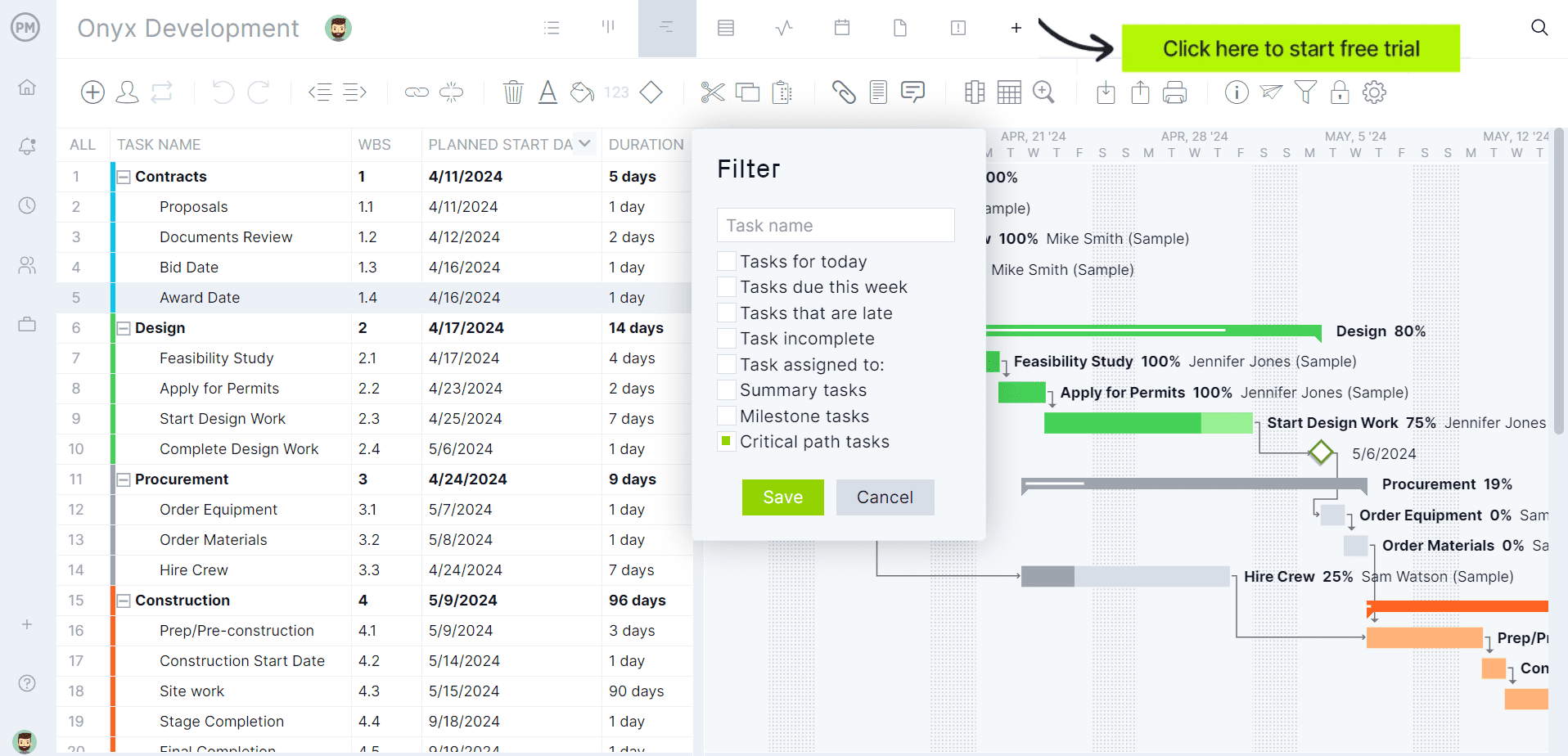
If you’re looking for software to plan, schedule and track construction projects from start to finish at a fraction of the cost of Microsoft Project, try ProjectManager. ProjectManager is an award-winning project management solution that gives general contractors the tools they need to ensure projects are completed on time, within budget and within scope. Create detailed construction schedules, estimate costs, allocate resources, set budgets, track progress and compare estimated versus actual project outcomes using real-time dashboards and reports to quickly identify delays or cost overruns. Get started with ProjectManager for free today and discover a better, cost-effective alternative to Microsoft Project.
Before our in-depth analysis, where we’ll establish the challenges that construction general contractors face and how Microsoft Project supports their efforts, here’s a table summarizing what we’ll cover.
| Area | Our Verdict | Summary |
| Project Scheduling | Very Good | One of Microsoft Project’s greatest strengths, offering robust scheduling, critical path analysis and resource-driven planning. |
| Subcontractor Management | Fair | Useful for scheduling subcontractors, but lacks bidding, contracts, RFIs and subcontractor collaboration tools. |
| Cost Management | Good | Strong project cost tracking and earned value analysis, but not a replacement for construction accounting software. |
| Field Communication | Fair | Supports team collaboration through Microsoft 365, but offers few tools designed for field crews. |
| Document Management | Fair | Works with SharePoint for document storage, but lacks construction-specific document control features. |
| Punch Lists | Poor | No native punch list functionality, requiring separate software for construction closeout management. |
| Resource Management | Very Good | Industry-leading resource planning with workload balancing, capacity planning and resource leveling. |
| Project Portfolio Management | Good | Provides excellent visibility across multiple projects, especially when using Project Online. |
| Ease of Use | Difficult | Powerful capabilities come with a steep learning curve, particularly for inexperienced schedulers. |
| Pricing | Expensive | More affordable than many enterprise construction platforms, but still expensive compared to construction project management software like ProjectManager. |
| Implementation | Difficult | Implementation is manageable, but maximizing value requires training and consistent scheduling practices. |
The sections below examine how Microsoft Project performs across 7 critical operational areas, for general contractors highlighting its key features, advantages and limitations so you can determine whether it fits your company’s workflows and project delivery needs.
Project Scheduling
Keeping a construction schedule on track sounds simple until crews, inspections, weather and material deliveries start shifting every week. As a general contractor, you’re constantly adjusting the plan without creating conflicts somewhere else. One delayed concrete pour can push framing, inspections and subcontractors back several days, creating expensive downtime if nobody catches it early.
Microsoft Project gives experienced schedulers plenty of tools to build and maintain detailed construction schedules. You can create task dependencies, identify the critical path, assign resources and automatically recalculate dates when changes occur. That makes it much easier to understand how one delay affects the rest of the project. The downside is that building and maintaining an accurate schedule requires discipline, since the software is only as reliable as the information entered into it.
Key Features
- Gantt Chart: Microsoft Project’s Gantt chart helps general contractors visualize the entire construction schedule on a timeline.
- Task Dependencies: Links activities so schedule changes update automatically.
- Critical Path: Highlights tasks that directly affect project completion.
- Automatic Scheduling: Recalculates dates after schedule changes.
- Milestones: Tracks major project events without adding task duration.
- Task Constraints: Controls when activities can start or finish.
- Lead and Lag Time: Adds overlap or waiting time between tasks.
- Schedule Baselines: Compares schedule baselines against actual project progress.
- Calendars: Defines working days, holidays and crew availability.
- Schedule Reports: Summarizes project status and upcoming work.
Pros
- Excellent for building complex construction schedules.
- Automatic schedule updates save time after changes.
- Critical path analysis helps prioritize important work.
- Supports detailed task relationships and sequencing.
- Baseline tracking makes schedule variance easy to monitor.
Cons
- Requires regular updates to stay accurate.
- Steep learning curve for new users.
- Not designed specifically for construction workflows.
- Limited field collaboration compared to other construction project management software.
- Schedule quality depends heavily on user experience.
Verdict
Microsoft Project excels in project scheduling and remains one of the industry’s benchmark scheduling tools. If your business depends on detailed CPM schedules, resource-driven planning and critical path analysis, it’s hard to beat. The catch is that you’ll need a large budget to afford implementing Microsoft Project throughout your organization and also experienced construction schedulers to unlock its full potential.
Subcontractor Management
Managing subcontractors is usually more about coordination than supervision. Every trade depends on someone finishing before they can begin, so one crew falling behind often creates a domino effect across the jobsite. On top of that, availability changes, inspection delays and material shortages can force constant resequencing, making communication just as important as scheduling.
Microsoft Project helps organize subcontractor work by scheduling resources, tracking workloads and showing where scheduling conflicts exist. You can see when crews are overallocated, adjust assignments and update timelines as work progresses. Still, it isn’t subcontractor management software. It doesn’t handle subcontractor communication, document sharing, RFIs or field collaboration, so many contractors pair it with other construction management tools for day-to-day coordination.
Key Features
- Resource Assignments: Assign subcontractors to specific project tasks.
- Resource Calendars: Track each subcontractor’s working availability.
- Team Planner: Reassign work to balance subcontractor workloads.
- Capacity Heat Maps: Identify overallocated or underused resources.
- Resource Reports: Monitor workload and remaining assignments.
- Task Dependencies: Coordinate handoffs between different trades.
- Resource Engagements: Reserve resources for future project work.
Pros
- Keeps subcontractor schedules organized.
- Makes resource conflicts easier to identify.
- Supports workload balancing across projects.
- Improves visibility into crew availability.
- Integrates subcontractor scheduling into the master construction plan.
Cons
- No subcontractor communication tools.
- No built-in RFI or submittal management.
- No vendor qualification or compliance tracking.
- Limited field collaboration capabilities.
- Often requires additional construction software.
Verdict
Microsoft Project handles subcontractor scheduling well, but don’t expect it to manage subcontractors for you. It lacks bidding, contracts, RFIs and day-to-day trade coordination, so most general contractors will need additional construction software to fill those gaps.
Cost Management
Most construction projects don’t go over budget because of one huge mistake. It’s usually dozens of small costs that slip through the cracks: extra labor, material waste, equipment rentals, overtime and change orders. If you’re not comparing actual costs against your original plan every week, it’s easy to realize you’re over budget when there’s little time left to recover.
Microsoft Project approaches cost management by tying costs directly to tasks, resources and project progress. You can assign labor rates, material costs and fixed costs, then compare actual spending against your baseline as work moves forward. Earned value metrics also help measure cost performance. The limitation is that Project isn’t construction accounting software, so it doesn’t manage invoices, purchase orders or subcontractor billing. Most general contractors still rely on accounting software alongside Microsoft Project.
Key Features
- Cost Resources: Track expenses like permits, travel or equipment.
- Resource Cost Rates: Calculates labor costs using assigned pay rates.
- Fixed Costs: Adds one-time expenses directly to tasks.
- Cost Baselines: Compares planned costs against actual costs.
- Earned Value Analysis: Measures project cost performance over time.
- Cost Variance: Identifies budget overruns and savings.
- Cost Reports: Summarizes project spending and budget status.
- Cash Flow Reports: Displays project costs across reporting periods.
- Actual Cost Tracking: Updates costs as work progresses.
Pros
Cons
- Not a full construction accounting system.
- No invoice or purchase order management.
- No subcontractor payment tracking.
- Requires accurate resource costs to be useful.
- Advanced cost features take time to learn.
Verdict
Microsoft Project is a capable project cost management tool, especially for tracking budgets, labor costs and earned value. Just don’t confuse it with construction accounting software, because invoicing, purchase orders and subcontractor payments are outside its wheelhouse.
Field Communication
Good communication keeps construction projects moving. Crews need updated schedules, subcontractors need to know when they’re expected on site, and project managers need progress from the field before making decisions. When information travels through phone calls, texts and handwritten notes, mistakes multiply quickly and everyone ends up working from different versions of the plan.
Microsoft Project offers basic collaboration by letting teams share projects, update task progress and work together through Microsoft 365 and Microsoft Teams integration. That works well for office-based project planning, but it’s not built as a field communication platform. Features like daily reports, RFIs, punch lists, site photos and real-time field messaging aren’t part of Microsoft Project, so contractors usually combine it with dedicated construction management software.
Key Features
- Microsoft Teams Integration: Shares projects within Microsoft Teams.
- Project Sharing: Gives team members access to project plans.
- Coauthoring: Multiple users edit projects simultaneously.
- Task Progress Updates: Team members report completed work.
- Project Home: Centralizes projects for easier access.
- Roadmaps: Provides visibility across multiple projects.
Pros
- Works well with Microsoft 365.
- Supports collaborative schedule updates.
- Simple project sharing capabilities.
- Allows multiple users to edit plans.
- Improves office collaboration.
Cons
- No daily reports.
- No built-in RFI management.
- No punch list tools.
- No construction photo management.
- Limited communication for field crews.
Verdict
Microsoft Project offers enough collaboration for office teams, but it isn’t built for the realities of a busy jobsite. If field communication is a priority, you’ll quickly notice the absence of daily reports, punch lists, RFIs and other construction-specific workflows.
Document Management
Construction projects generate an incredible amount of paperwork before the job is finished. Drawings, contracts, RFIs, permits, submittals, inspection reports and change orders all need to stay organized because someone will eventually need them. The biggest challenge isn’t storing documents—it’s making sure everyone is looking at the latest version instead of an outdated file that leads to costly mistakes on the jobsite.
Microsoft Project offers only basic document management capabilities. If you’re using Project Online or Project Server, you can view project documents and link files, risks, issues and deliverables to tasks through SharePoint integration. That’s useful for keeping project information connected to the schedule. However, Microsoft Project isn’t a dedicated document management system. Features like version-controlled drawing management, submittal workflows and construction document approvals typically require SharePoint or other specialized construction software.
Key Features
- SharePoint Integration: Connects project documents with Microsoft Project.
- Task File Links: Connect documents directly to project tasks.
- Deliverable Links: Associates deliverables with scheduled activities.
- Issue Links: Connects project issues to related work.
- Risk Links: Associates risks with specific project tasks.
Pros
- Works well with SharePoint.
- Keeps documents connected to schedules.
- Links files directly to project tasks.
- Centralizes project information.
- Fits organizations already using Microsoft 365 or other Microsoft project management solutions.
Cons
- Not a dedicated document management system.
- No drawing version control.
- No submittal management.
- No document approval workflows inside Project.
- Depends on SharePoint for most document features.
Verdict
Microsoft Project can organize project documents through SharePoint, but that’s a far cry from dedicated construction document management. Contractors managing drawings, submittals and document revisions will almost certainly want a more specialized solution.
Resource Management
Every contractor has dealt with the same headache: too many jobs, not enough people or equipment. One crew gets overloaded while another sits idle, or a critical piece of equipment ends up scheduled on two projects at once. Those conflicts usually aren’t discovered until work is ready to start, forcing last-minute changes that delay the entire schedule.
Resource management is one of Microsoft Project’s strongest areas. You can assign people, equipment and materials to tasks, monitor workloads, identify overallocations and level resources to reduce scheduling conflicts. Capacity planning and resource engagements also help larger contractors coordinate teams across multiple projects. The software does require accurate resource information, though. If calendars, availability or assignments aren’t maintained, the reports quickly become less reliable and planning decisions suffer.
Key Features
- Resource Assignments: Assign people, equipment and materials to tasks.
- Resource Calendars: Define working time and availability.
- Resource Leveling: Resolves scheduling conflicts automatically.
- Team Planner: Reassigns work using drag-and-drop scheduling.
- Capacity Planning: Compares available resources with project demand.
- Resource Engagements: Reserves resources for future work.
- Workload Reports: Summarizes resource utilization.
- Overallocated Indicators: Highlights scheduling conflicts.
- Resource Usage View: Displays assignments and workloads.
Pros
- Excellent resource planning capabilities.
- Automatically detects resource conflicts.
- Strong workload balancing tools.
- Supports multiple projects.
- Detailed resource reporting.
Cons
- Requires frequent resource updates.
- Learning curve for advanced planning.
- No real-time crew location tracking.
- No equipment maintenance management.
- Not designed specifically for construction resources.
Verdict
Resource management is another area where Microsoft Project truly shines. Between workload balancing, resource leveling and capacity planning, it offers some of the strongest resource planning capabilities available, provided your resource data stays accurate and up to date.
Project Portfolio Management
Running one construction project is challenging enough, but managing five or ten at the same time is where things get complicated. Every project competes for the same crews, equipment and budget. Without a clear portfolio view, it’s easy to overcommit resources, approve too much work or miss early warning signs that one struggling project is affecting the rest of the business.
Microsoft Project supports project portfolio management through roadmaps that provide a high-level view of project progress without opening every schedule individually. These capabilities are valuable for larger contractors managing several concurrent jobs. Smaller companies, however, may find the portfolio features more complex than necessary, especially if they only manage a handful of projects at a time.
Key Features
- Roadmaps: Displays multiple projects in one portfolio view.
- Portfolio Analysis: Compares project scenarios using cost and resource constraints.
- Project Prioritization: Ranks projects based on business priorities.
- Resource Pool: Shares resources across multiple projects.
- Capacity Planning: Compares resource demand against availability.
- Project Center: Centralizes project schedules and status.
- Portfolio Reports: Summarizes progress across all projects.
- Scenario Analysis: Evaluates different funding and staffing options.
Pros
- Excellent visibility across multiple projects.
- Strong resource capacity planning.
- Supports portfolio prioritization.
- Useful scenario planning tools.
- Integrates portfolio reporting with project schedules.
Cons
- Many portfolio features require Project Online.
- More complex than single-project management.
- Setup requires careful planning.
- Small contractors may not need all portfolio tools.
- Learning advanced portfolio analysis takes time.
Verdict
Microsoft Project provides excellent portfolio management for contractors overseeing multiple projects. The portfolio tools become especially valuable as your company grows, although smaller contractors may find them more sophisticated than their day-to-day operations require.
ProjectManager Is the Best Construction Project Management Solution
ProjectManager is a construction project management software that combines advanced scheduling, resource management, cost tracking and team collaboration in a single platform. Construction managers can build Gantt charts, manage task dependencies, identify critical paths and monitor project performance at a much lower cost than Microsoft Project.
ProjectManager also includes AI-powered project insights, workflow automation and live performance tracking that help teams identify delays, manage risks and make better decisions.
One of the biggest advantages of ProjectManager is that it is fully cloud-based. ProjectManager gives office staff, project managers, superintendents and field teams access to the same live project data from anywhere. Schedule updates, resource changes, timesheet submissions and project status information are immediately available, helping construction teams improve coordination and reduce communication delays.
For organizations looking for a modern construction project management platform that combines construction scheduling, resource planning, budget tracking, collaboration and ERP connectivity, ProjectManager is the best alternative to Microsoft Project.
Watch the video below to learn more!
The platform also supports an open API and more than 1,000 integrations with tools like Acumatica, QuickBooks, Microsoft Project, Slack and Google Workspace, allowing construction companies to connect operational and project data across their existing systems. The Acumatica integration is particularly valuable for construction businesses because it connects project management workflows with ERP capabilities such as accounting, financial management and operational reporting.
ProjectManager is online construction project management software that empowers teams to plan, manage and track their projects in real time. We connect architects and engineers in the office with your work crew on the job site so they can share files and comments to foster better collaboration. Get started with ProjectManager today for free.